Searching for Identities
The selected faces will now appear in the Face Recognition filter, ready to be searched. In the IDENTITIES tab, select the faces you’d like to search for and click APPLY to filter all objects by these faces.
All case objects matching the selected identities will appear.
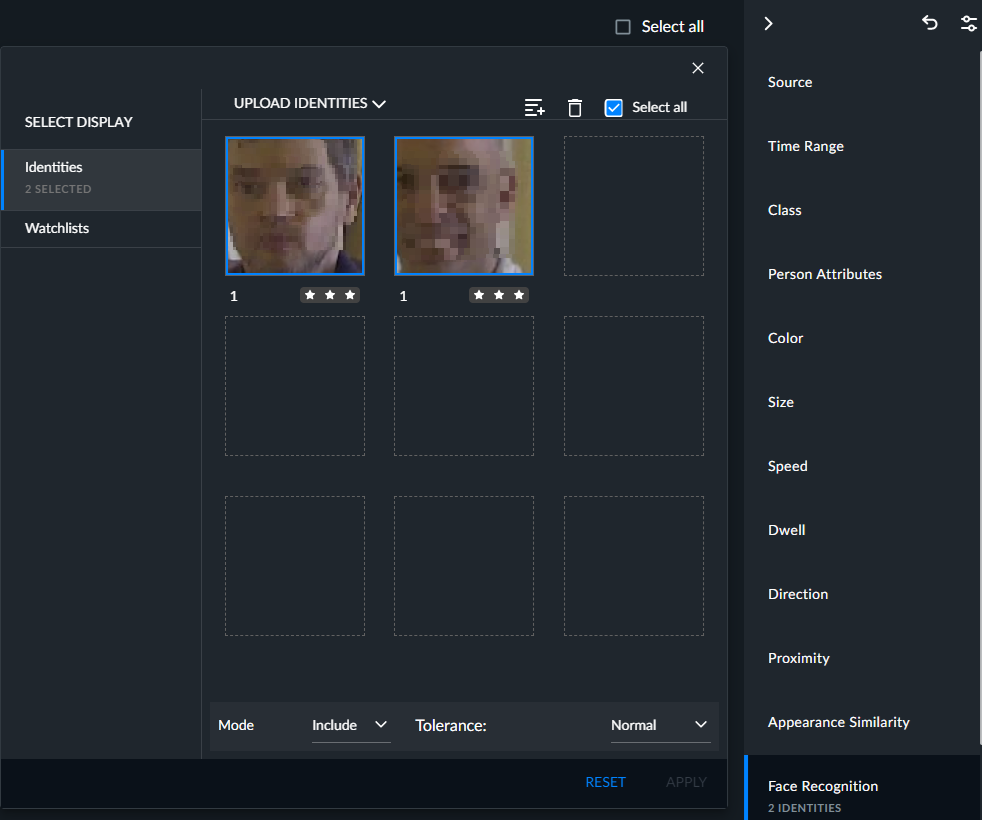
You can select all the objects on the current page by checking the Select All checkbox and you can then delete them all. You can also use Shift+Click to select multiple consecutive objects.
In the Mode field, you can select between two operation modes:
Include (default) – Find all objects that have a recognizable face that matches one or more faces within the selected identities or watchlists.
Exclude – Find all objects that have a recognizable face that matches none of the faces within the selected identities or watchlists.
Scenario with Exclude Option | Triggers and Alert |
Faces that are not on the watchlist | √ |
Faces of low quality that are not compared (1-star faces and 2-star faces in RESPOND normal-sensitivity) | √ |
Persons without a detected head/face | X - default √ - ShowNoFaceInExclude environment setting = true |
You can hover over an individual face and click its delete (trash can) button to remove it from the filter or click the zoom button (magnifying glass) to see the entire thumbnail.
You can select Select all and click the trash icon to remove all the faces from the current page.
A blue line will appear around the face when it is selected.
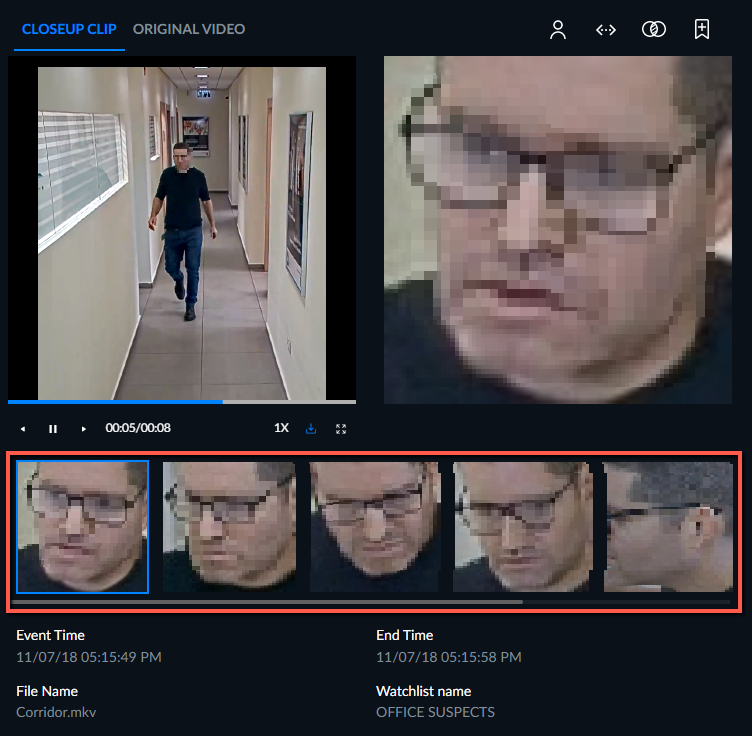
When you search by identities and click APPLY, the images of the identity will appear under the clip.
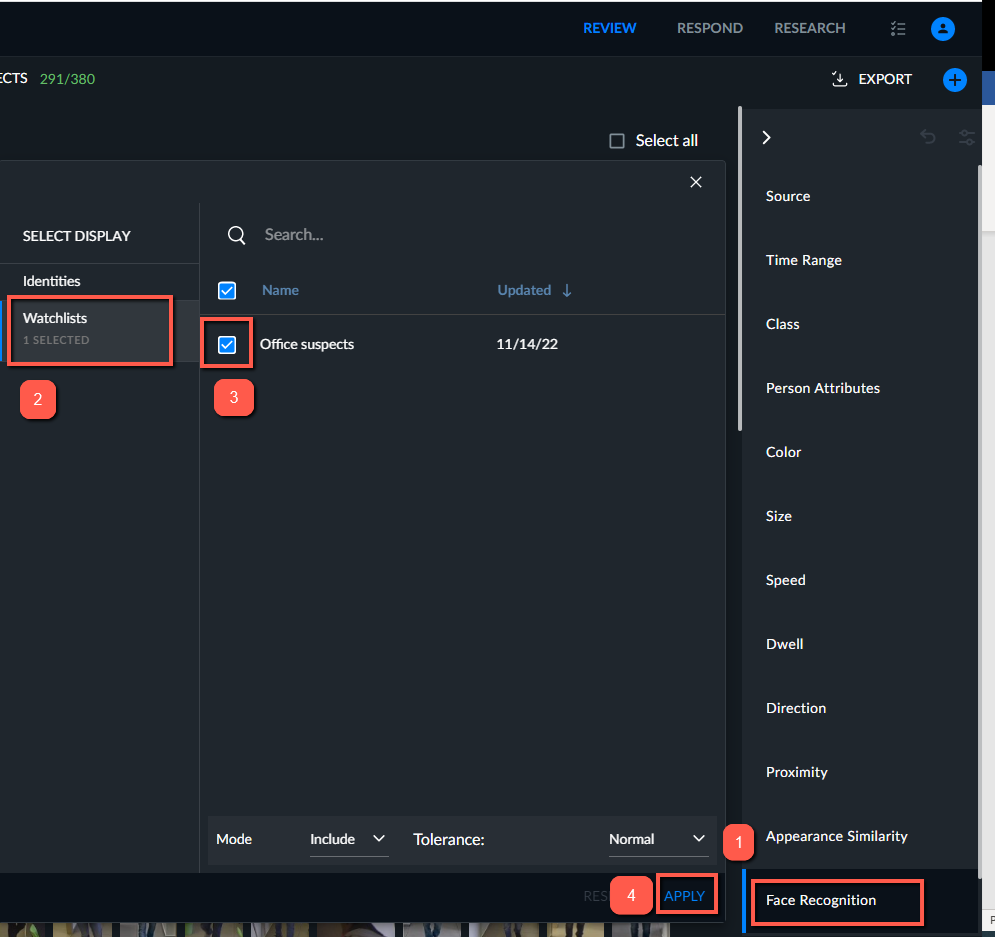
To search for people using a watchlist:
Click the Face Recognition filter.
Select the WATCHLISTS tab.
Select the watchlist that you want to use in your search.
Click APPLY.
When you search by using a watchlist, the image from the watchlist will appear together with a video clip.
Under the closeup clip are details about the event, watchlist and identity. This helps the operator verify that the identity matching was correct.
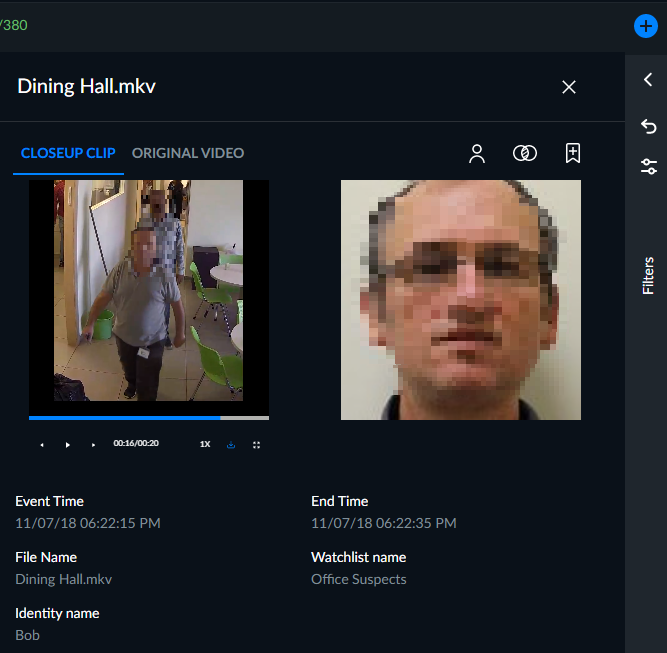
In Exclude mode, if faces that are non-matched are found, only the face is displayed (since there is no matched identity).
Watchlists are set in the Customizations section.
When searching for identities, faces with a 1-star rating will not be included in the search results and cannot be added to the filter.