Adding Faces to the Face Recognition Filter
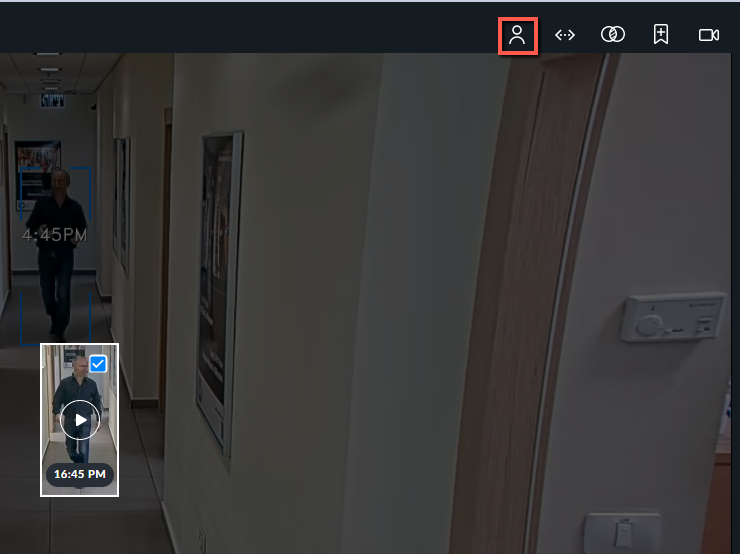
You can add faces to the Face Recognition filter from the thumbnails or from the VIDEO SYNOPSIS® by clicking one of the two Face Recognition icons:
Click the Same Identity
 icon to add the faces to a single identity. Use this when all selected faces are examples of the same individual appearing several times in the sources. This increases the likelihood of a successful match when applying the filter.
Click the Multiple Identities
 icon to add each face to a separate identity.
You can access these icons in three different ways:
When you find the thumbnail with the face that you want to search for, hover over the thumbnail and click the empty square in the left of the object.

When you click on a thumbnail, from the CLOSEUP CLIP tab you can select the Same Identity icon. In this mode, you can only add a single face to the filter at a time.

When you click on an object from the VIDEO SYNOPSIS®, you can add an individual by selecting the Same Identity icon. In this mode, you can only add a single face to the filter at a time.