VIEWER Tab
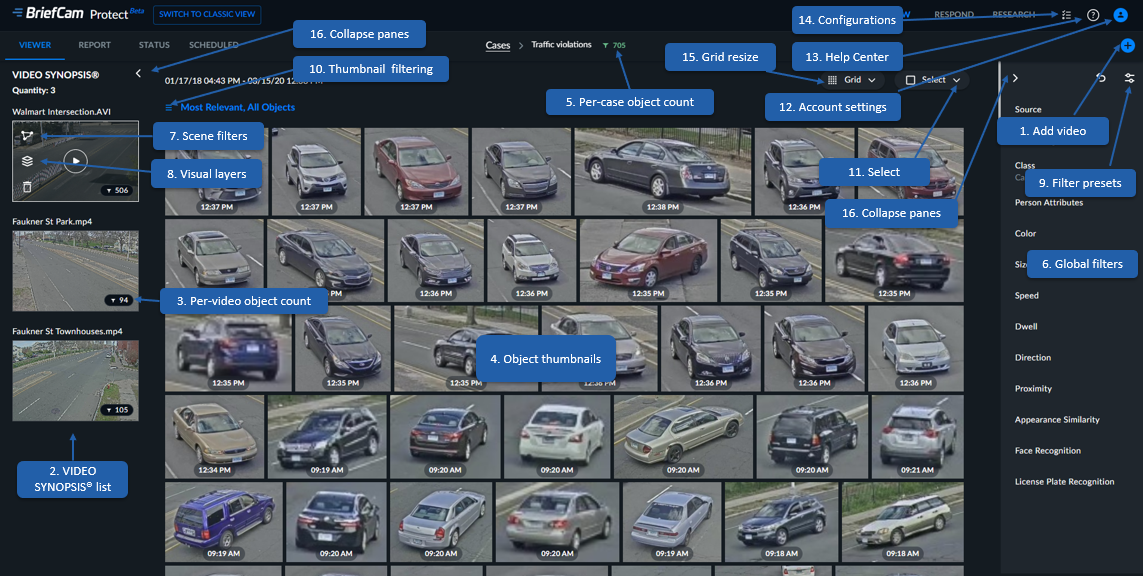
When opening a case, the browser page defaults to the VIEWER tab, which includes the following:
Select – Selects, unselects or clears thumbnails on page
BriefCam Help Center link
Grid resize
Collapse panes – You can collapse the SYNOPSIS list and filters for a larger view of the detected objects. You do this by clicking the arrow icons marked below in red. When these sections are collapsed, you can open them again by clicking the arrow icons.
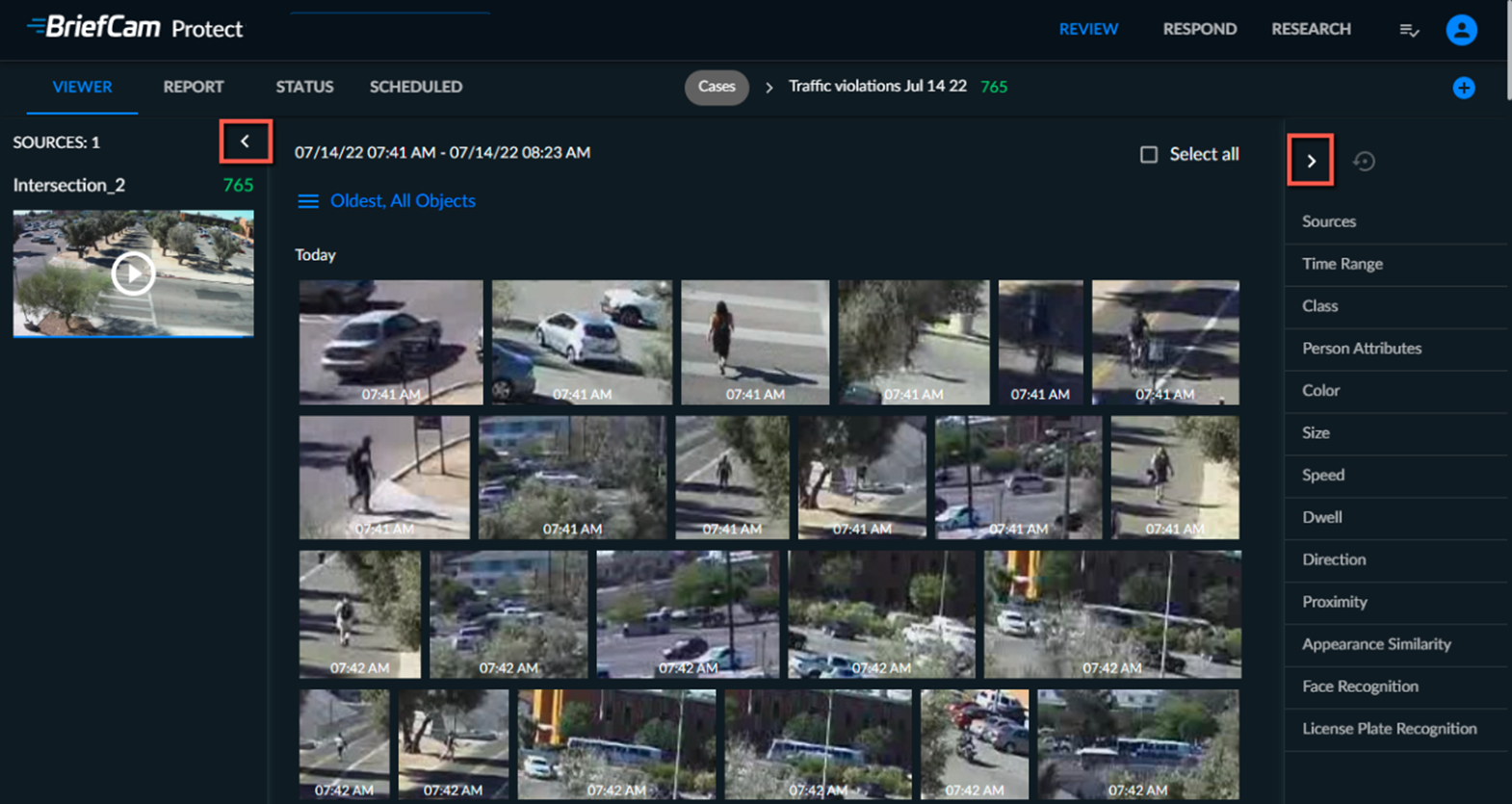
When you click these arrows, your screen will look something like this:
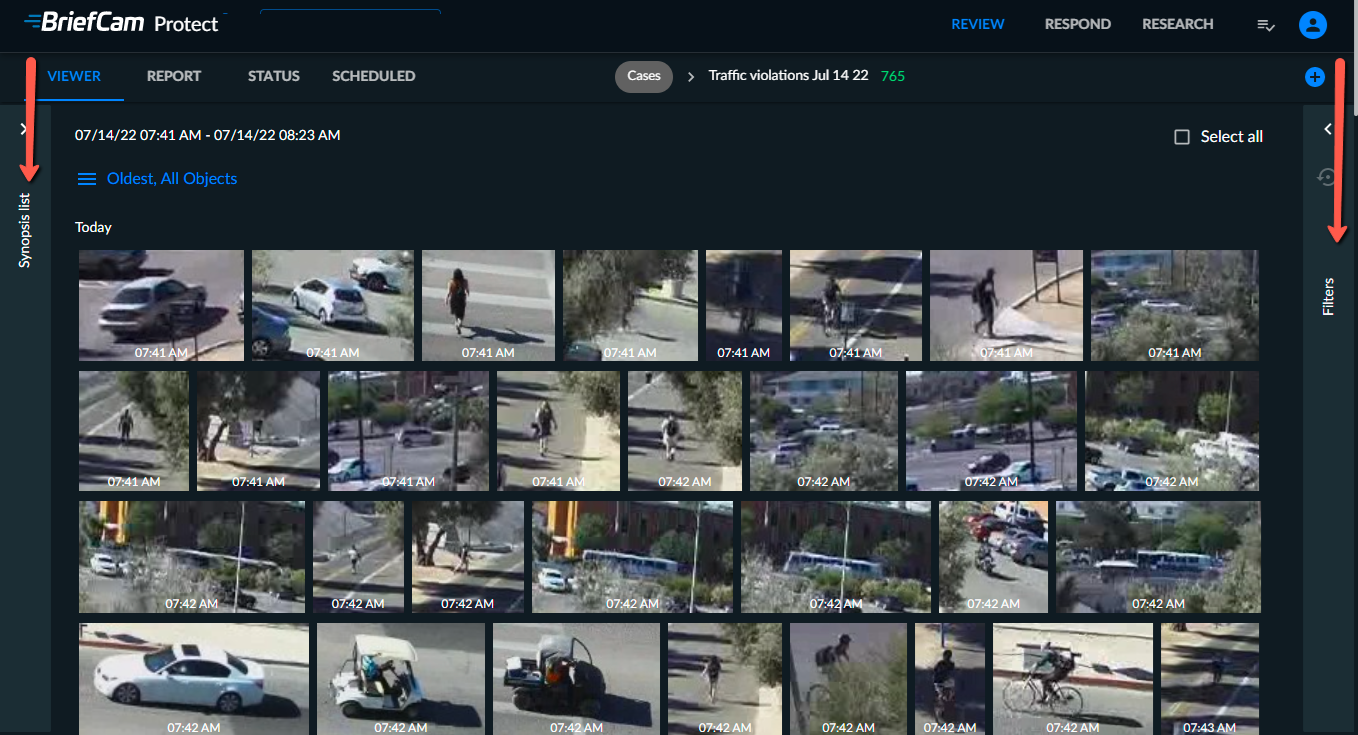
Note that you can copy the time range by hovering over the time range and clicking the copy  icon.
icon.