Face Recognition
You can search for faces across sources regardless of the angle of the face or the date of the sources.
Many factors affect the performance of face recognition, including camera location (placement), distance of objects from the cameras, camera resolution (pixels), scene lighting, quality of the face image, angle of camera, and type of camera. For more information, see the Face Recognition white paper.
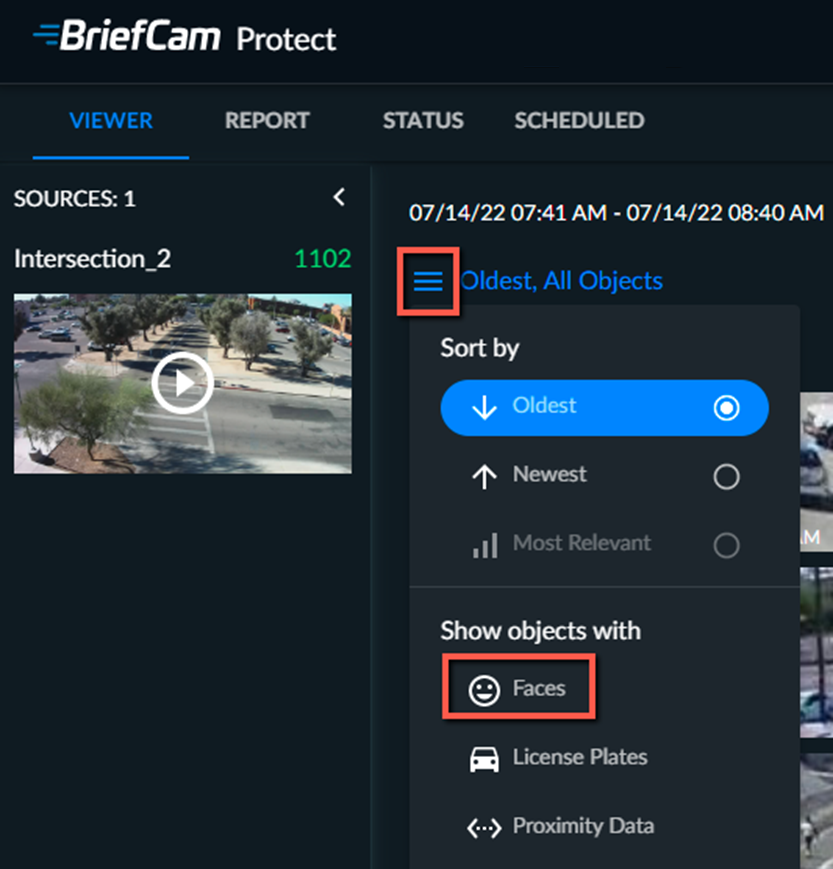
Click the three-line menu  and in the Show objects with section, select Faces. All recognized faces will be shown. However, only objects that are 2-3 star faces can be added to the Face Recognition filter. To reset this selection, unselect Faces.
You will see all objects that were detected as having faces.
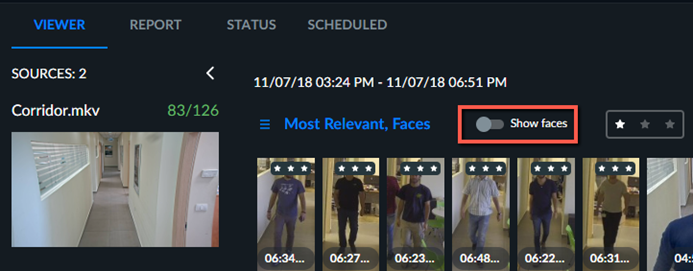
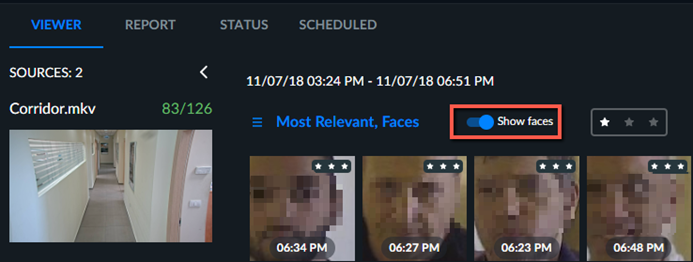
To see only the faces, turn on the Show faces toggle button.
Note that some of the images are blurred in this document to protect the identities of the people. They do not appear blurred in BriefCam.