Home page overview
On the top menu bar, you can use these tabs to do the following:

Item in menu | What can I do with it? |
|---|---|
Milestone logo | Click to return to the Home page of XProtect Web Client. |
Views |
|
Investigations |
|
Actions | Activate actions, for example, to open doors (see Activate actions). |
Alarms | View alarms from all cameras (see View alarms). |
Bookmarks | View the list of bookmarks (see Bookmarks). |
User menu | If you want to exit XProtect Web Client, click |
More menu | Click the More menu to:
|


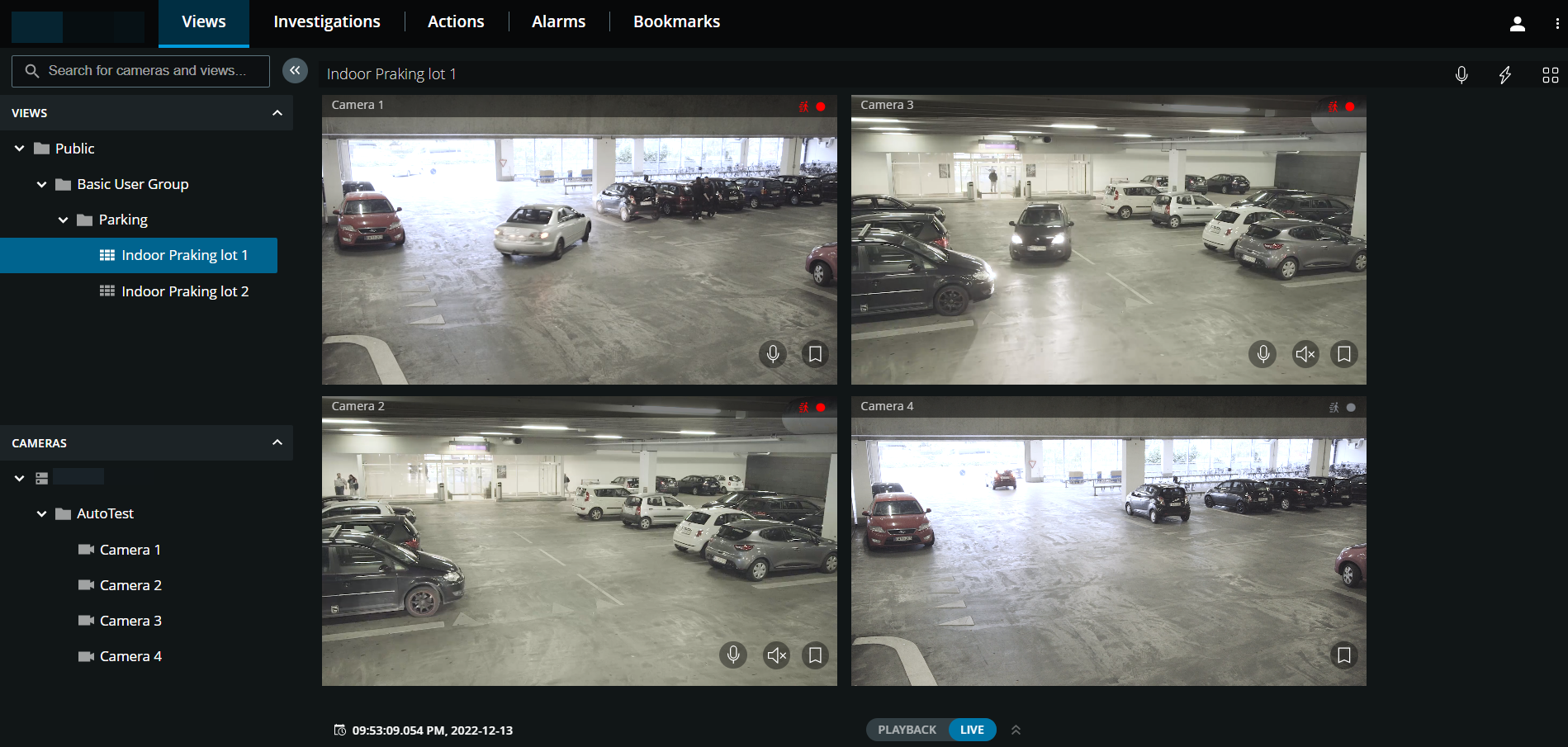
The left pane is collapsible. To collapse the pane, click  . You can also adjust the pane borders by dragging them to the left-hand or right-hand side.
In the pane, you can go to these pane sections to do the following:
Item in menu | What can I do with it? |
|---|---|
Search for cameras and views  | Find a folder, view, or camera by entering their name. You can also search for a camera by entering keywords from the camera description defined in XProtect Management Client. You can filter out the irrelevant items from the list of views. The relevant matches are highlighted (see Search for camera). |
Views | View videos from one or multiple cameras in live or playback mode. The Views pane section has a Show / Hide option. The Private and Public folders contain lists with subfolders with views inside. |
Cameras | View videos from one camera in live or playback mode. The Cameras pane section has a Show / Hide option. The camera groups and the related devices are organized in lists with folders with cameras inside. |