Play back recordings from one camera
 | "I've just spotted something on Camera 1. I want to pause live video and have a quick look at what happened." |
You can play back a recording from one camera on both the Views tab and the Investigations tab.
On the Views tab:
In the Cameras pane section, go to a folder with cameras and click a camera you want to view. The video starts playing in live mode.
On the timeline, click Playback for the timeline in playback mode to show up (see Using the timeline in playback mode).
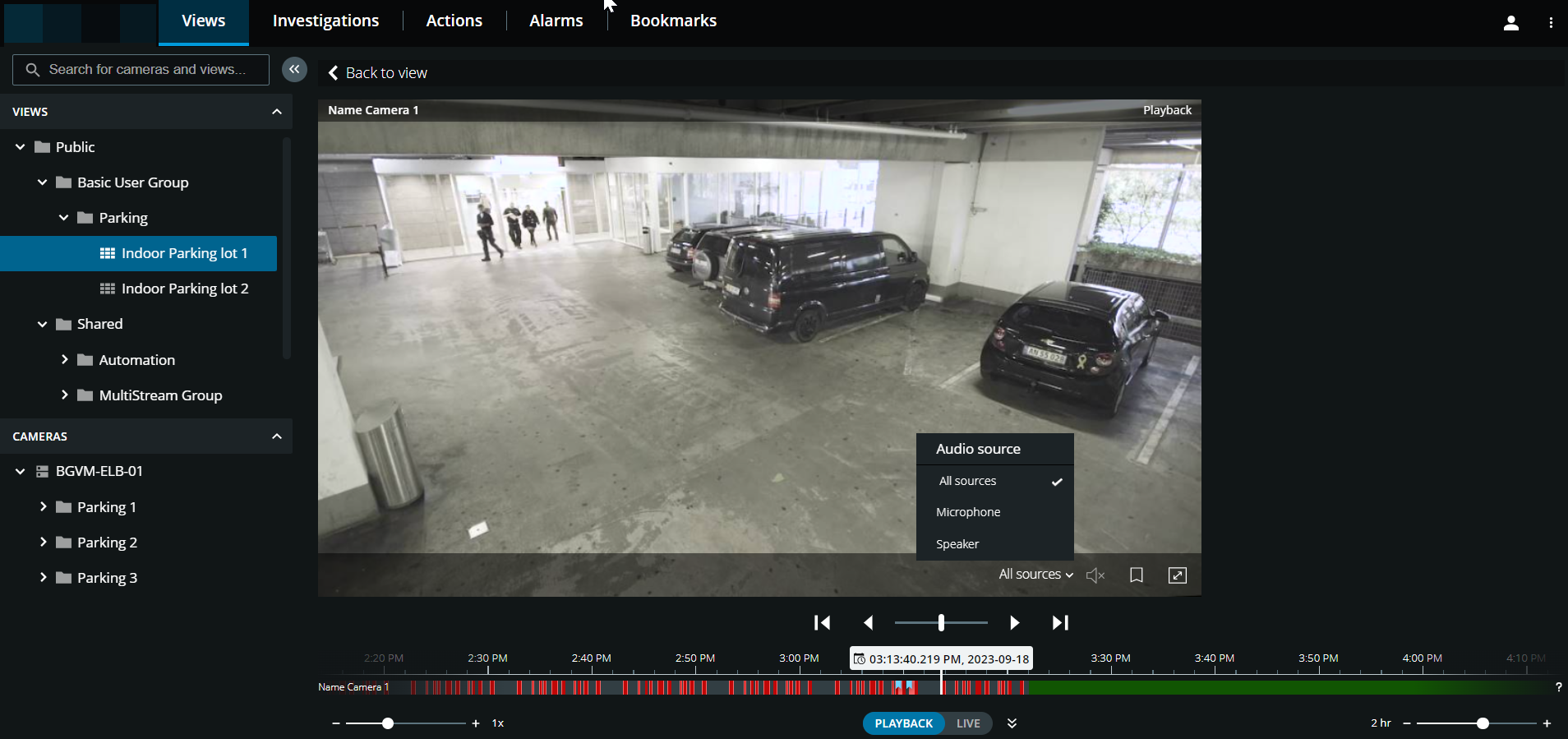
On the camera toolbar:
Item | What can I do with it? |
|---|---|
 | Select the audio source that you want to listen to when the video recording is with two-way audio (see Requirements for using push-to-talk, Playing back audio in video recordings). |
  | Start or stop playing audio with the video recording (see Requirements for listening to incoming audio). |
 | Add a bookmark to a recorded video to quickly locate relevant video sequences (see Add or edit bookmarks). |
 | Enter full screen. Click |
On the Investigations tab:
If you want to play back a recording from one camera but you have more than one camera in the selected group, you can remove the unnecessary cameras. To do this, follow these steps in Remove unnecessary cameras from video playback.
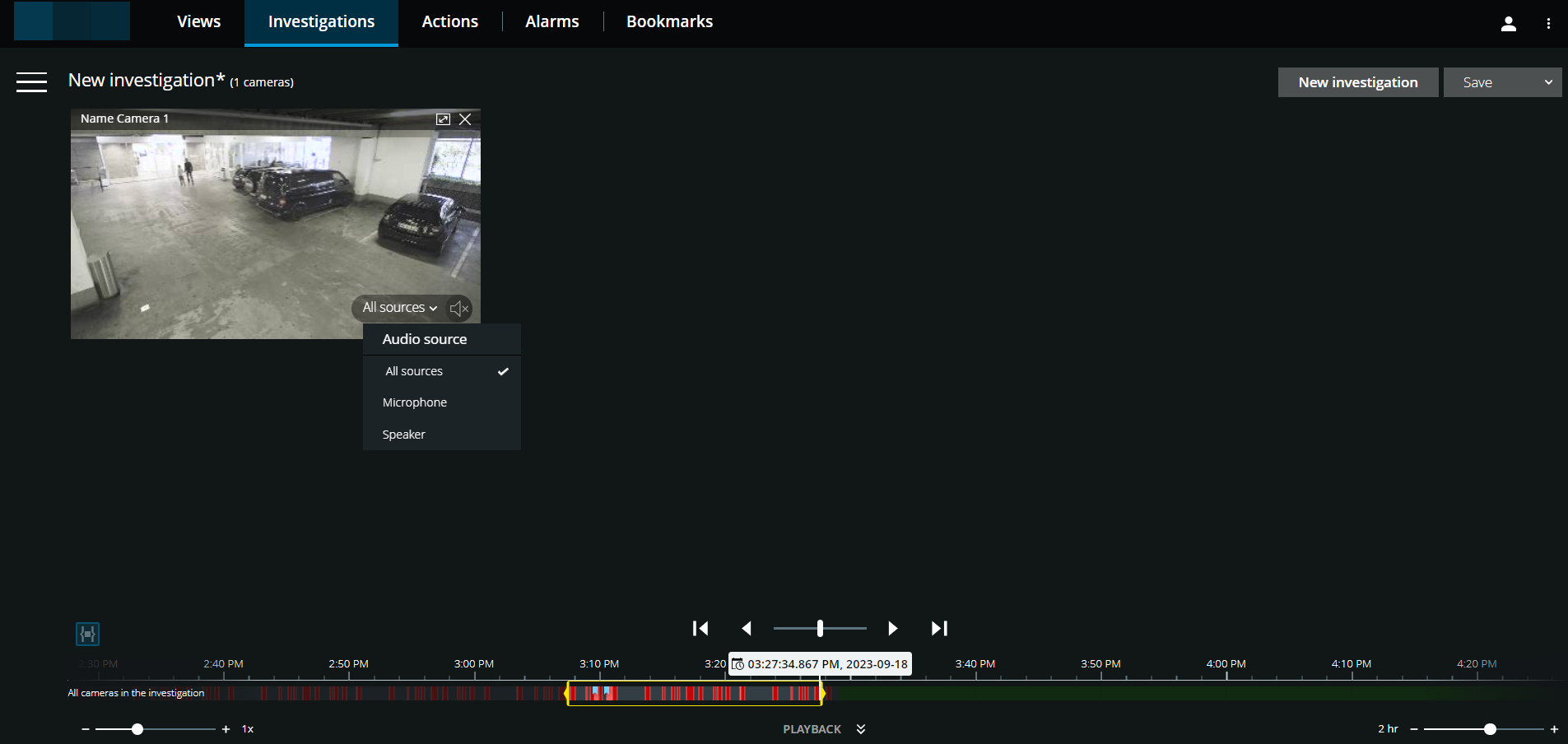
On the timeline, specify the time for the video playback, using the time selection mode or the time picker (see Using the timeline in investigations or Specify time for video playback).
Use the timeline controls to play the video backward or forward within the time selection brackets.
Optional. Click
to start or to stop playing incoming audio when you play the video recording forward at normal speed (for cameras that have microphones attached).Optional. Click
to start or to stop playing audio (for cameras with microphones and speakers attached). Select the audio source you want to listen to when the video recording is with two-way audio (see Playing back audio in video recordings).
Tip
For a bigger view, hover over the camera you want to expand and click on the camera title bar or click the camera thumbnail itself. Press Esc or click  in the upper-right corner to return to the default view.