Viewing live video
 | "What can I do with live video? And what are the red symbols in the upper-right corner of the video?" |
Viewing live video from one camera
On the Views tab, in the Cameras pane section:
Go to a folder with cameras and click a camera you want to view. The video starts playing in live mode.
See the time of the live video on the current time indicator.
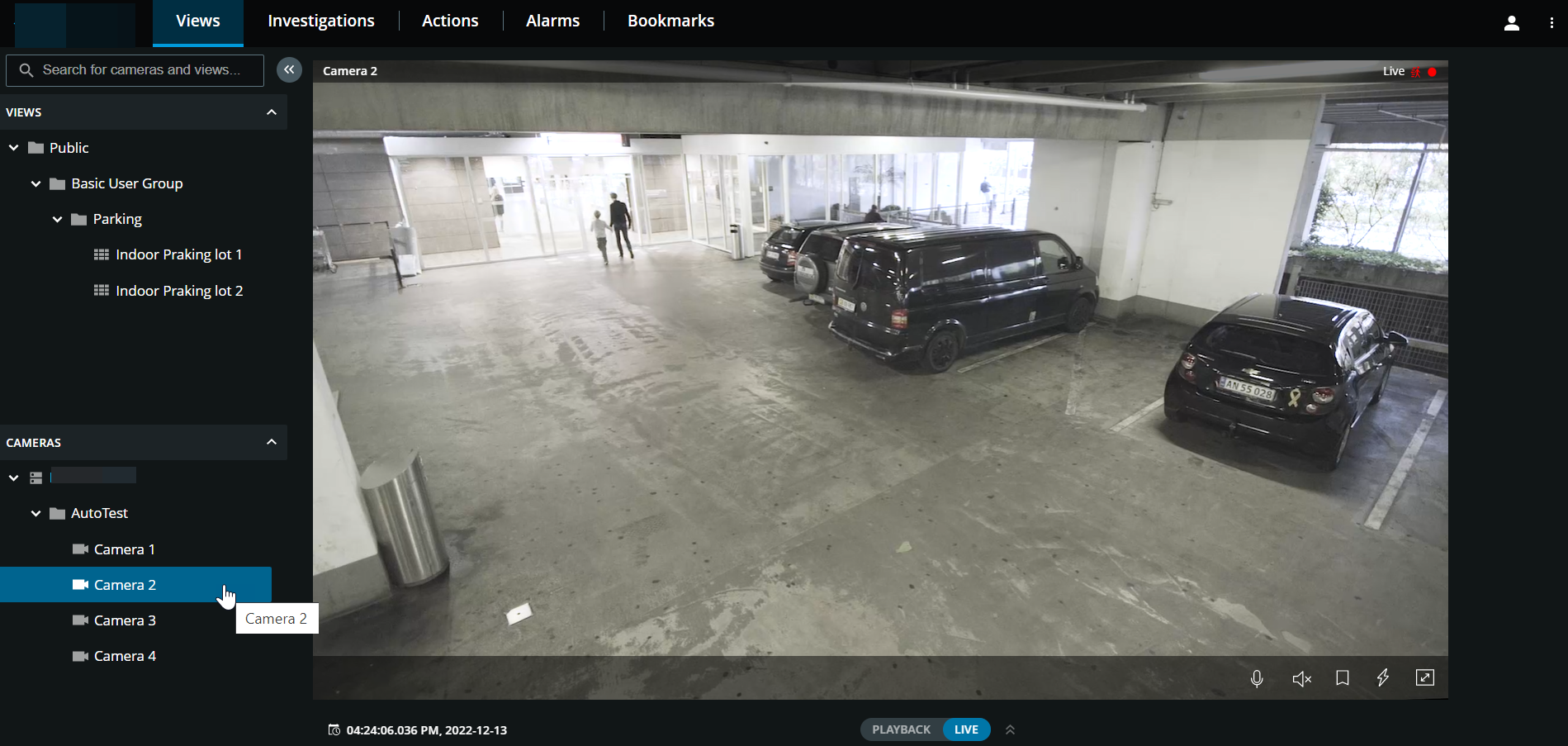
In the camera title bar:
See the name of the camera.
Check if the video that you are seeing is in live or playback mode.
Check if the camera is detecting motion, recording video, or both.
Symbol | Is motion being detected? | Is the video being recorded? |
|---|---|---|
  |  | |
 |  | |
 | | |
| | |
On the camera toolbar:
Item | What can I do with it? |
|---|---|
 | Move and zoom your PTZ camera (Only for PTZ cameras). |
 | Move your PTZ camera to a PTZ preset position that you specified in XProtect Smart Client (Only for PTZ cameras with presets). |
  | Start or stop listening to incoming audio (see Requirements for listening to incoming audio). |
  | Click and hold to start push-to-talk to one camera. Release the icon to end transmitting audio (see Requirements for using push-to-talk). |
 | Add a bookmark to a live video to quickly locate relevant video sequences (see Add or edit bookmarks). |
 | View all actions for the camera. Select and activate an action. |
 | Enter full screen. Click again or press Esc to exit full screen. |
 | Click to open the time picker and select a time and date to go to a specific point in time in the video (see Specify time for video playback). |
Viewing live video from multiple cameras
On the Views tab, in the Views pane section:
Go to a folder with views and click the relevant view. The video starts playing in live mode.
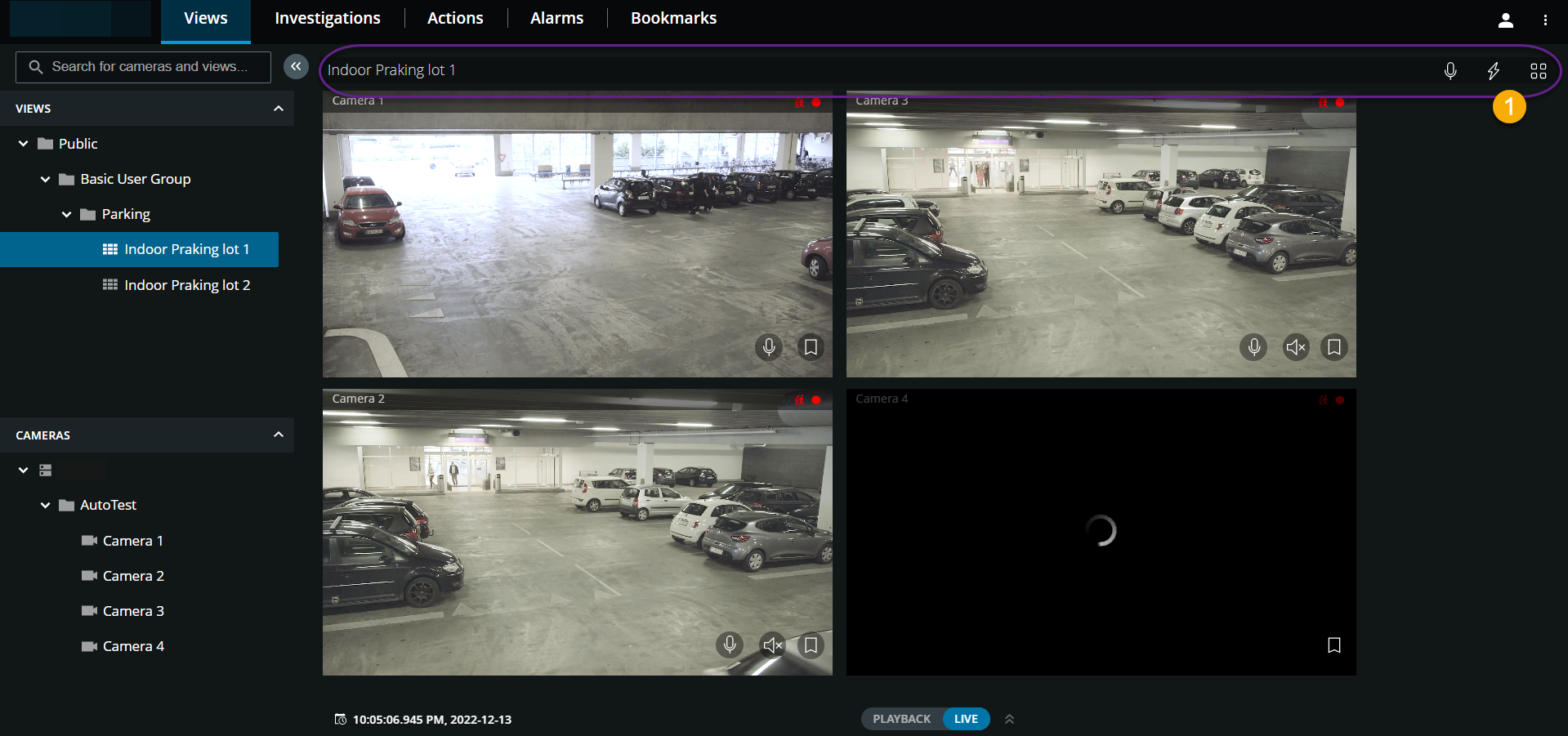
In the view of multiple cameras:
See live video from all cameras in the view.
See which of the cameras have microphones attached.
See which of the cameras have speakers.
Check if the cameras are detecting motion, recording video, or both.
See the time of the live video on the current time indicator. Click to open the time picker and select a time and date to go to a specific point in time in the video.
Click a camera to view live video from that camera only. To go back to the view with all cameras, click Back to view.
On the view toolbar  :
:
Click and hold
to start broadcasting audio to all the cameras in the view that have audio equipment.Click
 to view all actions for all cameras in the view. Select and activate an action.
If you want to use the entire screen of your computer when presenting cameras in a view, click
 to open the Grid view.
If you are on the Views tab and go to a specific group of cameras or a view and then go to another screen or log out, when you log in again and return to the Views tab, you can see the same group of cameras or view.
Note
Depending on your user permissions, you may be unable to view live video from specific cameras due to restrictions.