When trying to play the VIDEO SYNOPSIS or the original video, why am I getting The video scene is not available error?
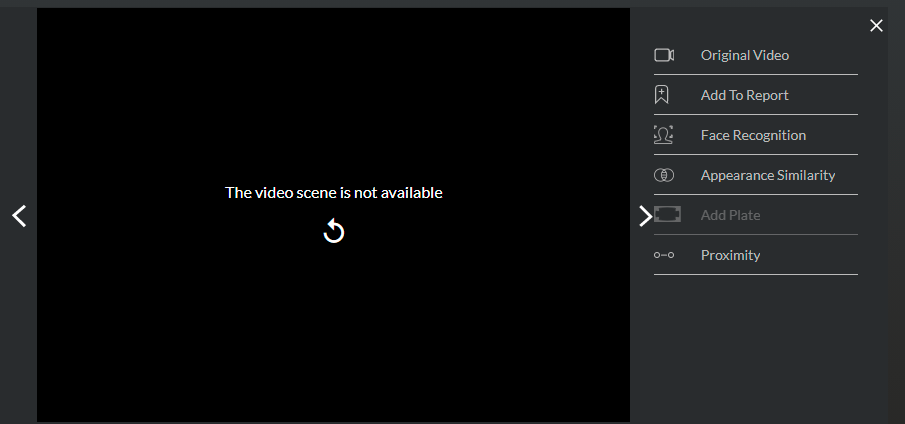
To resolve this issue:
Try to restart the scene by clicking on the retry icon
 .
.Wait 5 minutes before trying again. The original video may not have been rendered yet. In addition, this error may occur with alerts that were generated in the last 5 minutes.This is because the alerts are generated when processing the real-time stream, but to play the video BriefCam pulls it from the VMS recorder, and it takes time for the recorder to prepare the video and have it available for BriefCam.
Confirm that the Rendering service, the Video Streaming Gateway service and all other services are running. For additional information, see the Basic Troubleshooting section.
This may occur when a case is old and the original video was deleted.
Check that you are using a supported browser.
Confirm that you are using a supported video format.
Confirm that your Web services were configured correctly as described in the Web Services Issues topic.
Check that the internal port 5010 is not blocked.
Check that the hostnames in the following environment settings are configured properly:
ProWebClientAddress
clientNotificationEndPoint
BaseVideoUrl
ProWebApiAddress
DBLocalStorageAddress
VideoProcessingGateWayUrl
If you are unable to play a VIDEO SYNOPSIS and in the F12 network console, you see a "failed to load resource" error, try the following:
Open IIS.
Select the main server by left-clicking on it in the left-hand side bar
From the middle interface, locate and double click on the MIME Types block that has an icon with a music note sign.
Check to see if an .m3u8 exists, if it doesn't, proceed.
On the right-hand side bar, click Add.
Enter the following values:
File name extension: .m3u8
MIME type: application/x-mpegURL
Click OK.
Locate the .ts extension in the list and click the Edit button.
Change the MIME type of
.tstovideo/MP2Tand click OK.Save the IIS configuration by pressing CTRL+S.
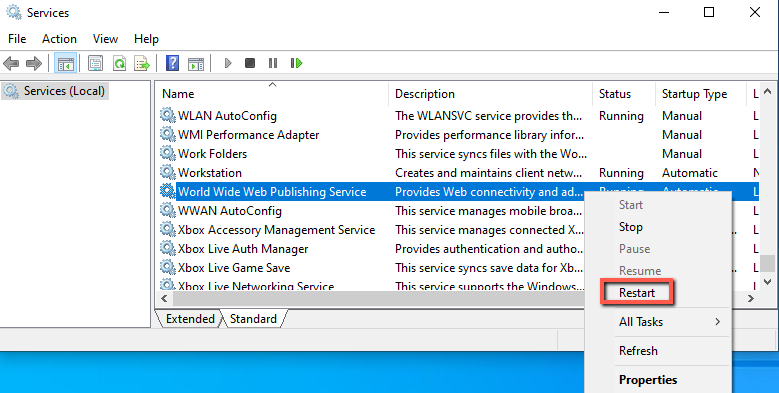
Restart IIS (by opening the Windows services, right-clicking on the World Wide Web Publishing Service and clicking Restart).
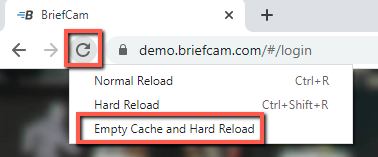
Refresh the Chrome browser by pressing F12, right-clicking on the Refresh icon and clicking Empty Cache and Hard Reload.