License Activation
BriefCam products should be activated and registered prior to first use. Use the supplied BriefCam License Activation tool and the provided product key to activate the software. Both online (Internet-connected) and offline activation modes are supported.
Online License Activation
To perform online activation:
Open a browser on the BriefCam system (which is connected to the internet).
Navigate to https://briefcam.prod.sentinelcloud.com/customer/login.
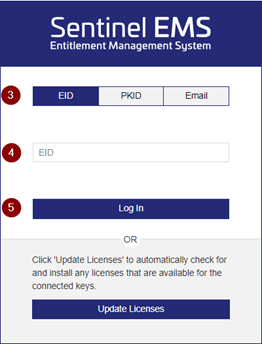
Click the EID button.
In the EID field, enter the BriefCam license provided by BriefCam.
Click the Log In button.
Click Register Later.
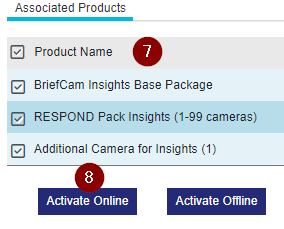
Select the product(s) you want to activate.
Click Activate Online.
Click Complete Activation.

Restart IIS.
Offline License Activation
There are two ways to activate the license offline: generating C2V and V2C files or using a V2C file provided by BriefCam.
Generating C2V and V2C Files
Generate a C2V File
To activate the license on a server that is not connected to the internet, you first will need to generate a Client to Vendor file “C2V” from the BriefCam server.
On the BriefCam server, open the BriefCam License Activation tool. By default, it is located on the desktop.

If it is not on the desktop, search for it in the Start menu or you can find it in the BriefCam Server folder.
Click the Offline tab.
Click the Collect Information button.
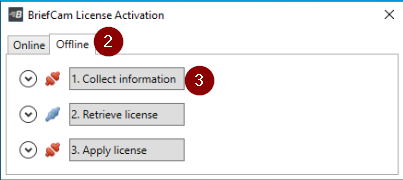
Select where to save the C2V file in the opened window.
Copy the file to an internet-connected machine.
Generate a V2C File
On an internet-connected machine, go to https://briefcam.prod.sentinelcloud.com/customer/login.
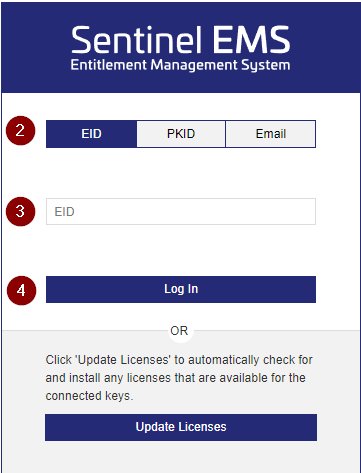
Click the EID button.
In the EID field, enter the BriefCam license provided by BriefCam.
Click the Log In button.
Click Register Later.
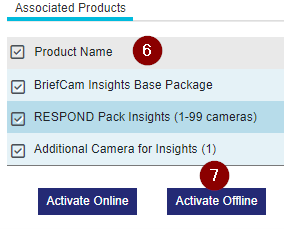
Select the product(s) you want to activate.
Click the Activate Offline button.
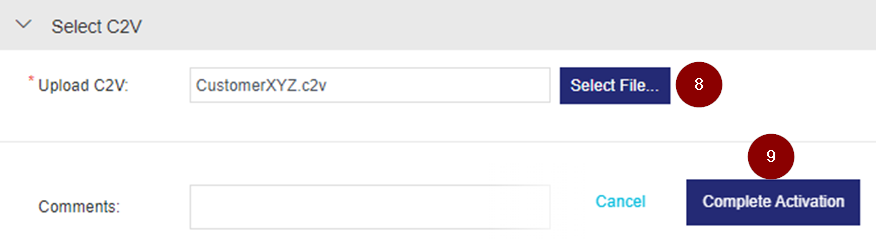
Click the Select File button. (You can also drag and drop the file.)
Select the C2V file that you generated earlier (see Generate a C2V File) and click Complete Activation.
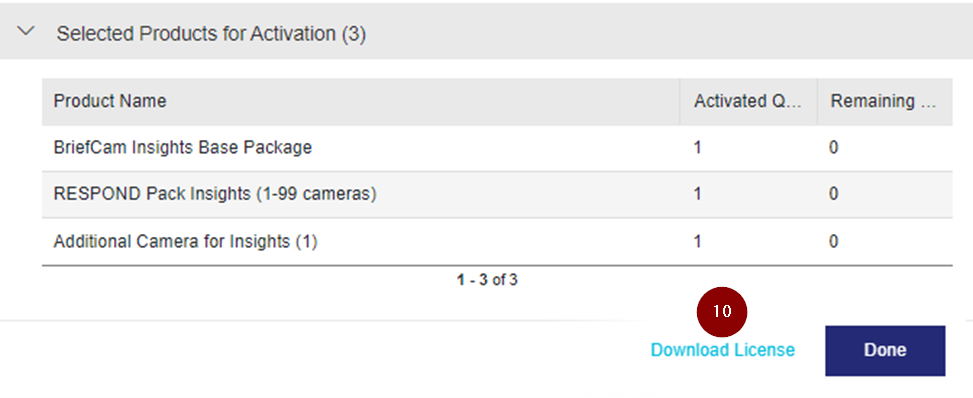
Click Download License.
Applying the V2CP File
You’ll now apply the V2CP file. Note that the file extension is .V2CP.
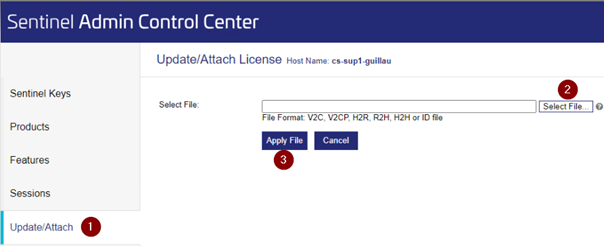
On the BriefCam server, open a browser and go to http://localhost:1947/_int_/devices.html.
Click Update/Attach.
Click Select File.
Select the V2CP file and click Apply File.
Restart IIS.