Help Center Installation (Optional)
BriefCam includes a Help Center that is accessible directly from the BriefCam product. If your organization allows access to BriefCam’s online Help Center, this installation is not required. You only need to run the Help Center installer if you are installing BriefCam for an offline deployment.
Installation Steps
To install the offline help files, right-click on the
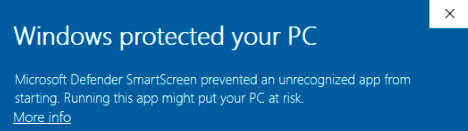
BriefCamHelpCenter_<Version number>.exefile and select Run as administrator.Note: If you are using the latest Windows Update and a Windows Defender alert appears, click the More info link and click Run anyway.
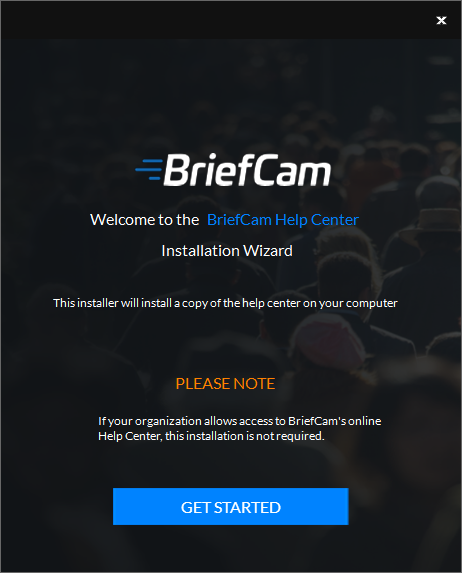
In the Welcome screen, click Get Started.
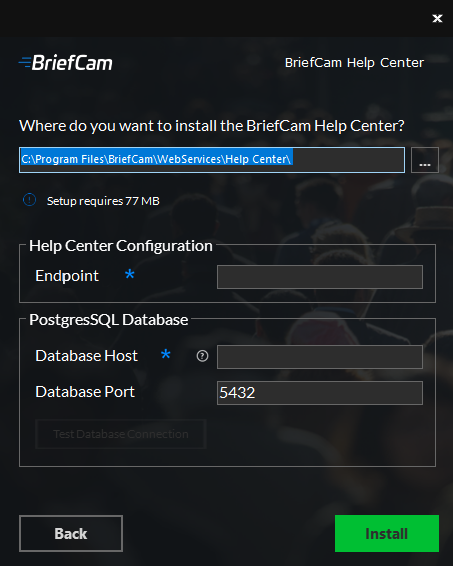
Select the location where you want to install the help files.
In the Endpoint field, enter the machine name or domain name where the help center will be accessible from.
Enter the database information.
Click Install.