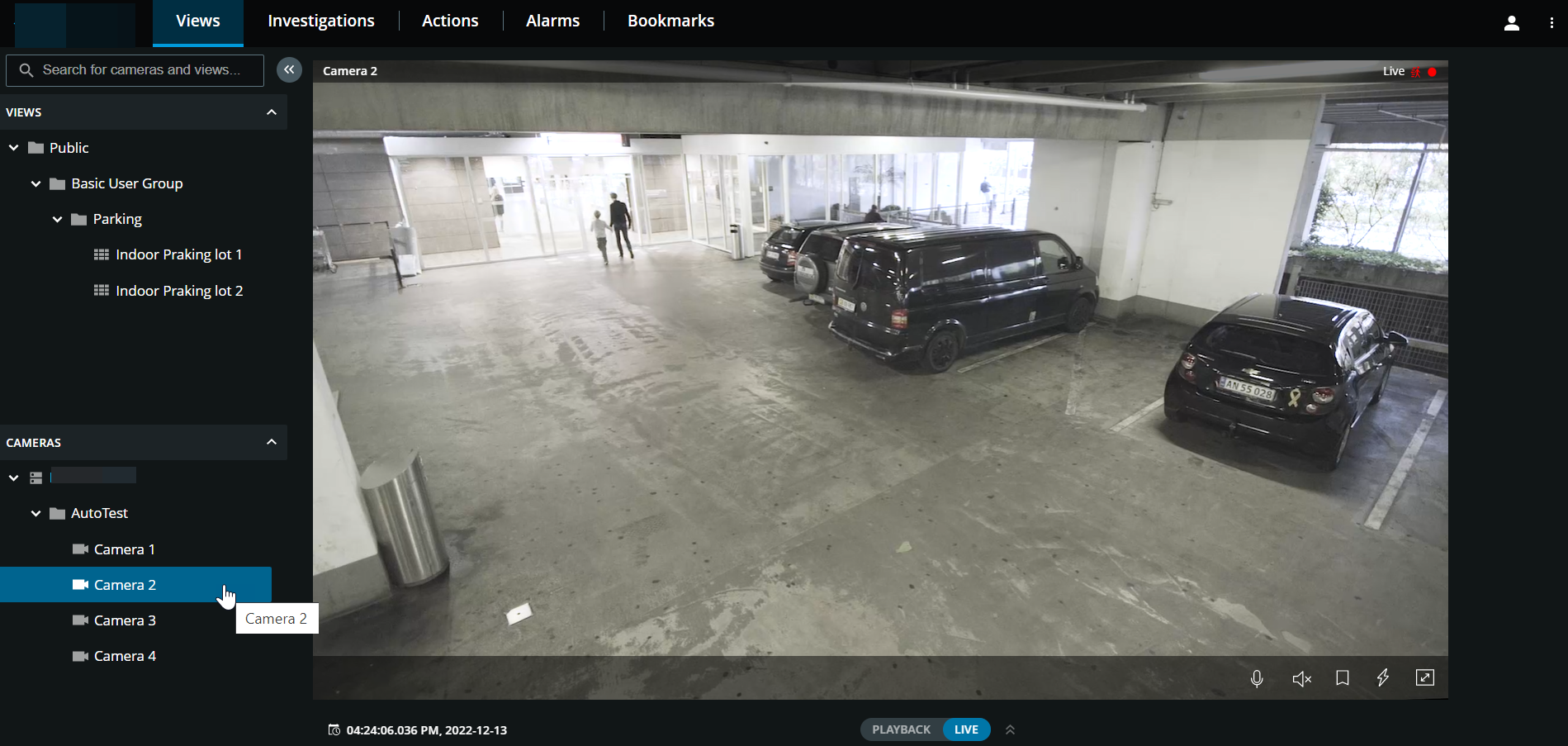
Browse to a camera
On the Views tab, you can go to a camera from the left pane.
In the Views pane section:
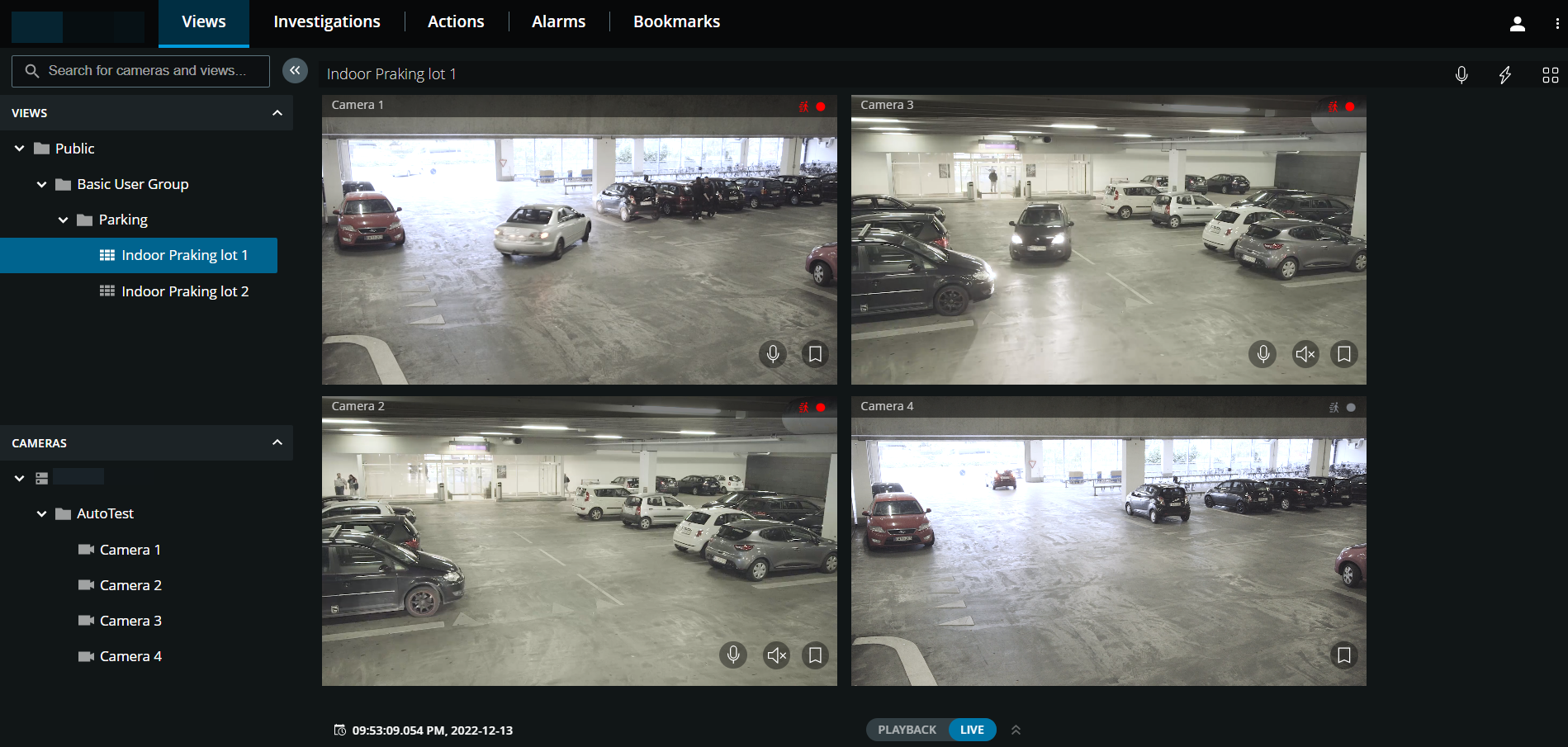
Go to a folder, then click a subfolder to see your views with cameras.
In a view with cameras, watch live video or play back recordings from every camera in that view. See which cameras have microphones and speakers attached. Also, create a quick bookmark in live video or a detailed bookmark in a recording.
Click a camera to view live video or to play back recordings from that camera (see Play back recordings from one camera).
In the Cameras pane section, select a camera to view videos in live or playback mode, see if the camera has any microphone and speaker attached, or create a quick bookmark in live video or a detailed bookmark in a recording.