Enable XProtect Update Manager inside XProtect Remote Manager
In XProtect Remote Manager, you can manage XProtect software updates remotely through integration with XProtect Update Manager. Instead of connecting to individual sites and using a separate update manager client, you can review available update patches, initiate update operations, and monitor progress directly in XProtect Remote Manager.
This centralized approach simplifies update management across multiple sites, reduces administrative effort, and helps keep your XProtect installations secure, stable, and up to date.
1. Install and configure XProtect Update Manager
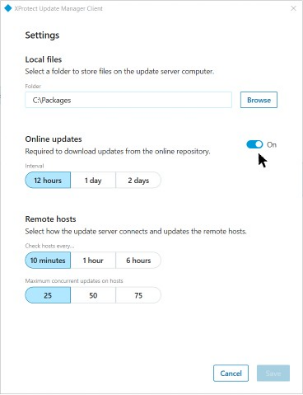
Make sure that XProtect Update Manager is installed and configured on your on-premises XProtect VMS, and set to use online updates:
In XProtect Update Manager, make sure to enable Online updates in the settings.
For information about how to install XProtect Update Manager, see Install XProtect Update Manager using the installation wizard.
2. Connect XProtect Cloud Connector to XProtect Update Manager
To manage XProtect updates remotely in XProtect Remote Manager, you must connect XProtect Cloud Connector to XProtect Update Manager.
To do this, follow the steps in Connect XProtect Cloud Connector to XProtect Update Manager.
3. Refresh XProtect Remote Manager
You can now use XProtect Update Manager in XProtect Remote Manager to view available update patches and manage software updates for your site.
In XProtect Remote Manager, open a site, and select Update manager in the menu.
If you don't see the Update manager menu item, click Check for updates to refresh the connection.