Patrolling tab (devices)
The following devices have a Patrolling tab:
PTZ cameras
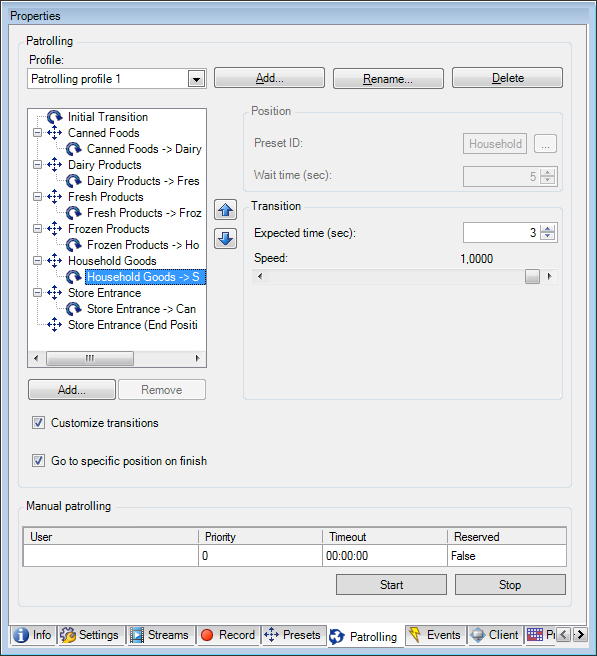
On the Patrolling tab, you can create patrolling profiles - the automatic movement of a PTZ (pan-tilt-zoom) camera between a number of preset positions.
Before you can work with patrolling, you must specify at least two preset positions for the camera in the Presets tab, see Add a preset position (type 1).
Patrolling tab, displaying a patrolling profile with customized transitions:
Tasks on the Patrolling tab
Name | Description |
|---|---|
Add | |
Preset ID | |
Wait time (sec) | |
Customize transitions | |
Go to specific position on finish | |
Manual patrolling | Monitor if the system is currently patrolling or a user has taken control. |
Start and Stop | Use the Start and Stop buttons to initiate and stop manual patrolling. See Specify PTZ session timeouts for information about how to specify how much time should pass before regular patrolling is resumed for all or for individual PTZ cameras. |
Manual patrolling properties
The Manual patrolling table shows the current status of the PTZ camera.
Name | Description |
|---|---|
User | Displays the user who has either reserved the PTZ session or started a manual patrolling and currently controls the camera. If a patrolling session is activated by the system, it displays Patrolling. |
Priority | Displays the user's PTZ priority. You can only take over PTZ sessions from users or patrolling profiles with a lower priority than yours. |
Timeout | Displays the remaining time of the current reserved or manual PTZ sessions. |
Reserved | Indicates if the current session is a reserved PTZ session or not.
|