Scenario: Use incident data to document the number of injured and additional circumstances
As the documentation of incidents is getting more comprehensive, you realize there is a need for documenting additional circumstances of each injury in a structured way. For example, in each incident project, you want to document:
How many people got injured?
Was an emergency contact notified?
Were goods also damaged in the incident?
If yes, what's the value of the damaged goods?
From the Site Navigation pane in XProtect Management Client, select Incidents and then Incident properties. Select the Categories tab.
Enable and define the following incident data:
Enable | Define | |
|---|---|---|
Incident data | Name | Description |
Whole number 1 | Number of people injured | |
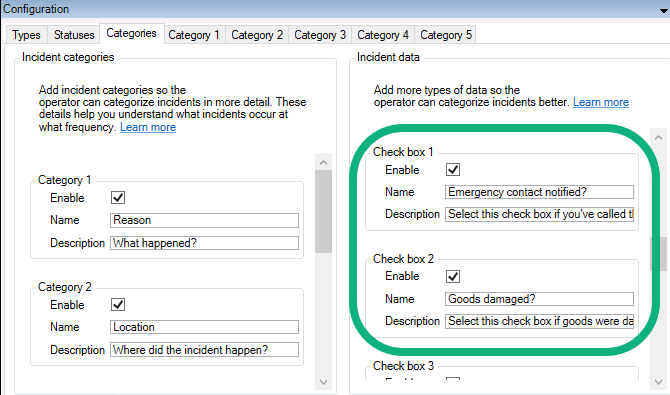
Check box 1 | Emergency contact notified? | Select this check box if you've called the employee's emergency contact. |
Check box 2 | Goods damaged? | Select this check box if goods were damaged. |
Decimal number 1 | Approximate value of damages (USD) | |
The next time the operators log in to XProtect Smart Client and update an incident project, they can use the incident data elements to document more details about workplace injuries.
How the enabled and defined incident data look in XProtect Smart Client
The names and descriptions of the incident data elements you enabled and defined will appear as labels and tooltips. To see them, select the Incidents tab, double-click an incident project to open it, and select the Categories tab.
