Scenario: Use incident categories to document why and where injuries occur
Workplace injuries keep happening, and the XProtect Smart Client operators create more and more incident projects to document the injuries, why you now better understand who is getting injured. You decide to document more circumstances about the injuries. For example, you can now see that:
Most injuries are related to falling or getting hit by an object. You want to ensure that every incident project has information about the reason for the injury
Most injuries occur in the laboratory and storage room, and a few occur in the offices. You want to ensure that every incident project has information about the location of the injury
To document the these details, you enable and define incident categories.
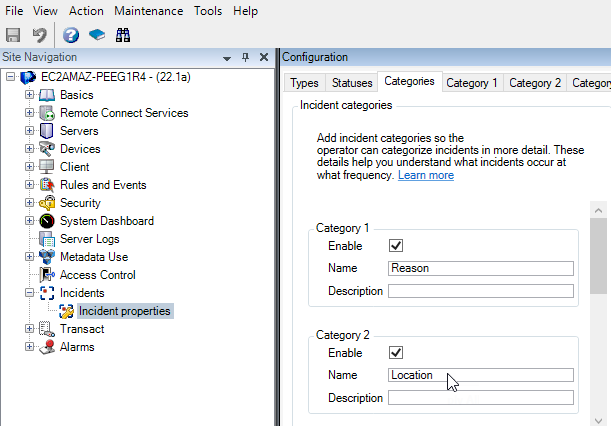
From the Site Navigation pane in XProtect Management Client, select Incidents and then Incident properties. Select the Categories tab.
Create the following incident categories:
Category | Name | Description |
|---|---|---|
1 | Reason | What happened? |
2 | Location | Where did the incident happen? |
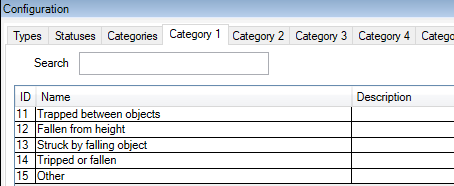
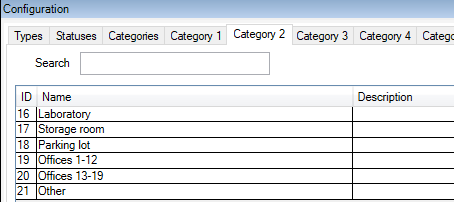
Next, on the Category 1 tab and on the Category 2 tab, you then create the values for the most common reasons and locations of the injuries.
Create the following values for the incident categories:
For category | Category names |
|---|---|
Category 1 (Reason) | Trapped between objects Fallen from height Struck by falling object Tripped or fallen Other |
Category 2 (Location) | Laboratory Storage room Parking lot Offices 1-12 Offices 13-19 Other |
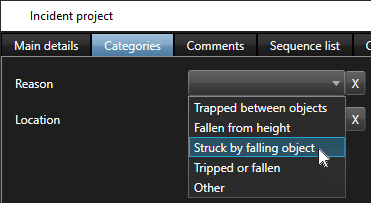
The next time the operators log in to XProtect Smart Client and update an incident project, they can assign the new categories and category values to the incident project.
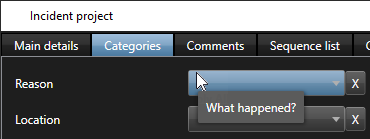
How the defined incident categories and category values look in XProtect Smart Client
The names and descriptions of the incident categories that you enabled and defined now appear as labels and tooltips. To see incident categories, select the Incidents tab, double-click an incident project to open it, and select the Categories tab.