The Tree pane
The Tree pane lists all the folders and files that are part of the specific case you’re working on and allows you to bring them into the canvas. You can sort by any of the columns or create complex sorting criteria. You can also add notes to specific files. You can also do wildcard searches running through all file names, extensions, and file notes.
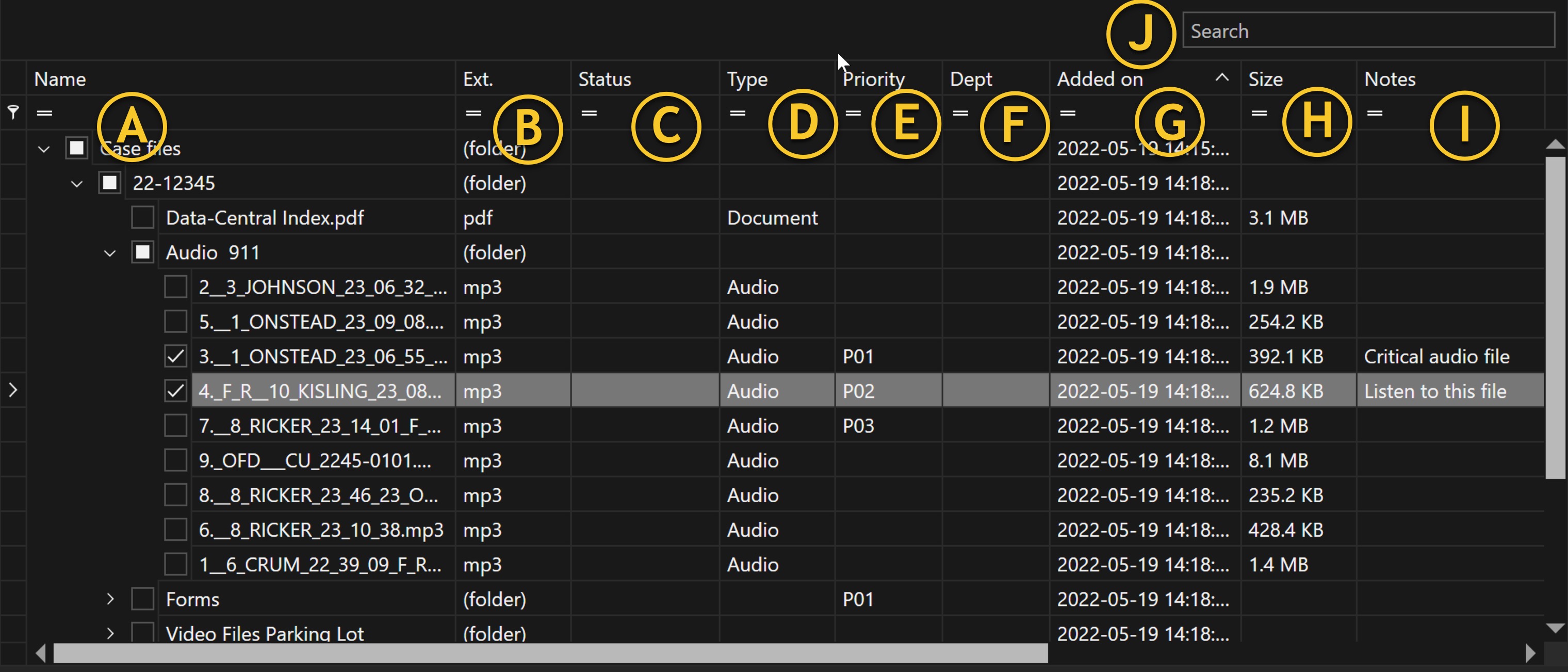
A | Name column | This column lists the folder and file names. By default, this column is not sorted in alphabetical order, but in the order in which you dragged the files into Data Central. If you click the column title, it will sort in ascending order. Click it again, and it will sort in descending order. If you right-click, you have the option to clear the sorting. |
B | Extension column | This column lists the extension for each file or shows that it is a folder. If you click on the filter icon ( |
C | Status column | This column shows the status of any processes being run in the background (i.e., video conversion). |
D | Type column | This column shows the file type (i.e., audio, video, image) |
E | Priority | This column displays the priority setting added by the user (configurable). |
F | Dept | This column shows the department or agency the files came from if this case was sent to you. |
G | Added on | This column shows the date these files were added to the case. |
H | Size column | This column shows the file size. |
I | Notes column | This column displays any notes that a user has typed, specifically to the file. To add a note, highlight a file and press Enter. |
J | Wildcard search | This field allows you to type in a keyword to search through all file names, extensions, file notes, and more. |
K | Sorting option | The sorting icon ( |
L | Folder/file tree | This shows the list of all folders and files within the highlighted case. To expand the folder, click the expand icon ( |
M | Folder options | If you right-click on a folder or file, a drop-down box will open. From this list, you can expand or collapse all folders, rename, set your priority, create a folder, and delete a file or folder. For more details, see the notes below this table. |


Note: Sorting option
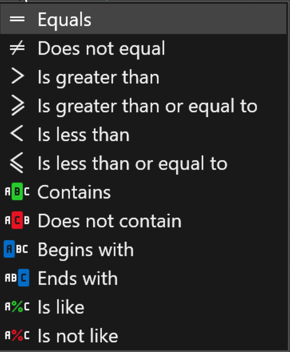
Equals, expects an exact match of what you’re looking for. |
Does not equal, finds everything that does not contain a match. |
Is greater than, finds items greater than the entered value. |
Is greater than or equal to, finds items equal to or greater. |
Is less than, finds items less than the entered value. |
Is less than or equal to, finds items equal or less than. |
Contains, finds the value if it exists in any part of the field. |
Does not contain, finds items that don’t contain the value. |
Begins with, finds values that begin with the exact match. |
Ends with, finds values that end with the exact match. |
Is like, allows you to filter based on character location within a word (i.e., M%S will find words starting with M and ending with S) |
Is not like, allows you to find words that don’t have characters in a specified location. (i.e., M%S will find words that do not start with M and end with S) |
Note: Folder options
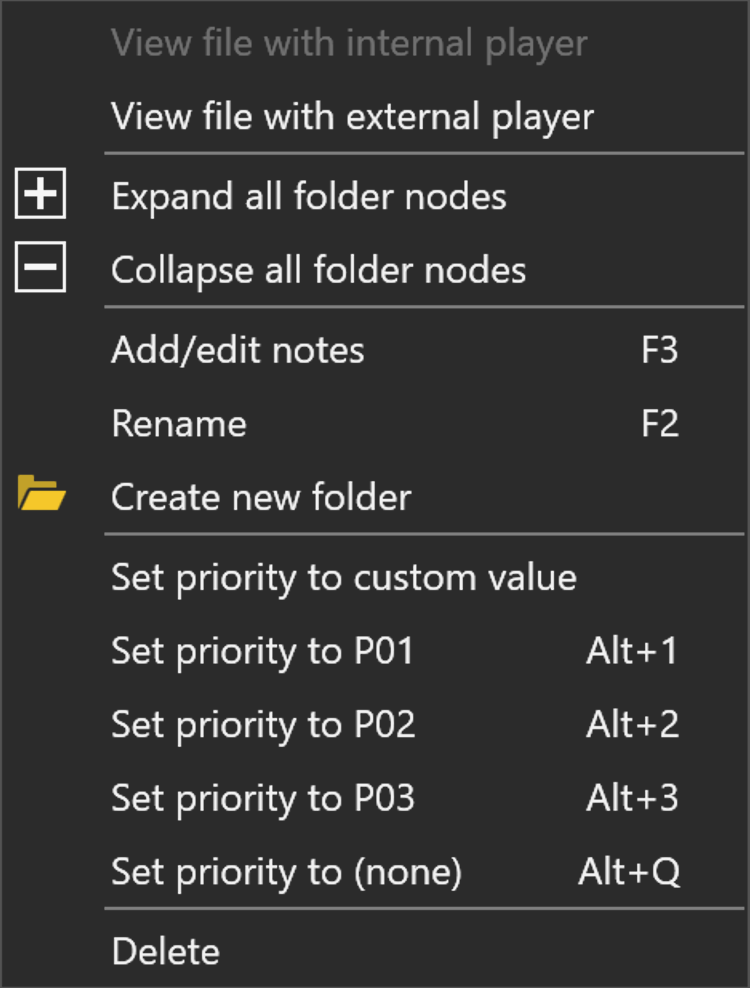
View the highlighted file with an external player or with the Data Central built-in player. |
Expand or collapse all the folders. |
Add or edit notes to the highlighted file. Shortcut key is F3 |
Rename the highlighted file. Shortcut key is F2 |
Create a new folder under the highlighted folder. You can also drag and drop the folder into another folder. |
Set the priority of each file or create a custom value or use the shortcut keys to quickly set the value. These key bindings and values are customizable. |
Delete the highlighted file or folder. |