NX (Network Optix) Integration
Integration Summary
VMS Partner | Product | Version | Last Tested BriefCam Version | Integration Level | H.265 Support |
NX (Network Optix) | NX Witness VMS | 6.1 | 2025 R1 SP1 | Real time alerts integration (L2a) | Yes |
NX (Network Optix) | NX Witness VMS | 5.0.0.35270 | 6.4 Hot Fix 1 | Integration for on-demand and real-time (L2) | Yes |
Directory Connection
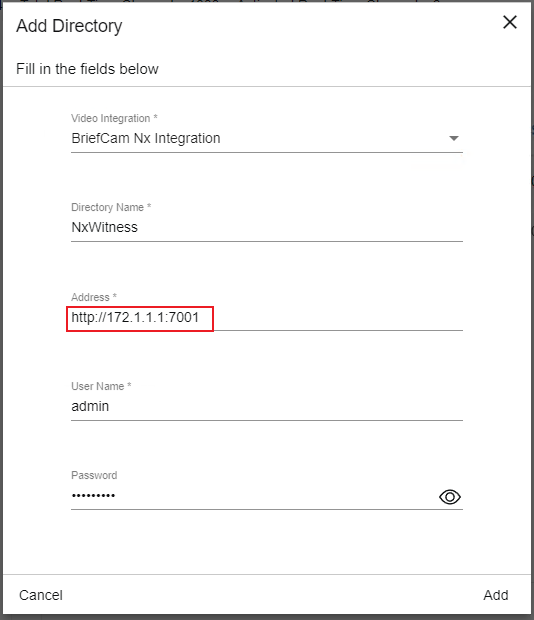
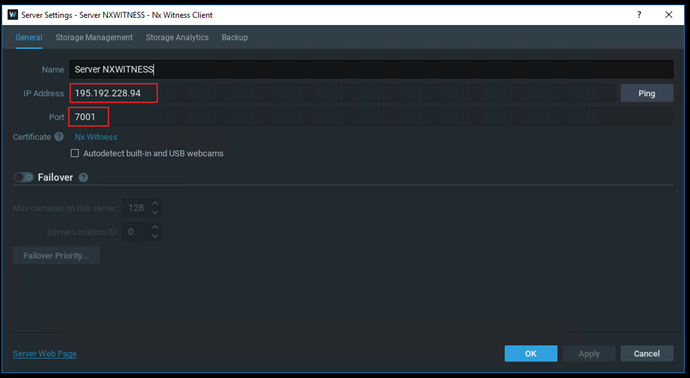
The NX Integration plugin uses a URI to connect to the VMS. The syntax of the URI is:
http://{vms-ip-address/hostname}:{vms-port}
For example: http://172.1.1.1:7001 or http://nxwitness:7001
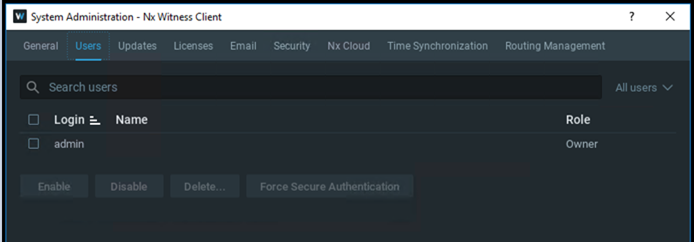
The user’s credentials for the Directory connection are setup in the NX Witness Client’s System Administration in the Users panel.
The user must have at least an Administrator role.
The NX Integration plugin uses a digest authentication, which needs to be set up for the user that will be used for BriefCam integration.
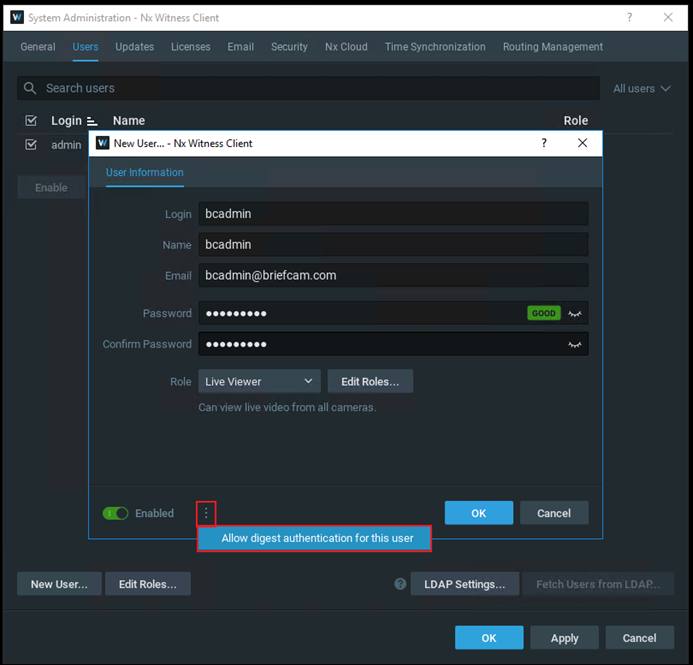
Once the digest authentication is setup, this user’s credentials can be used for setting up the directory in the BriefCam Server.
Security Configuration (for 6.1)
For NX Witness 6.1, before beginning to work with the integration, do the following:
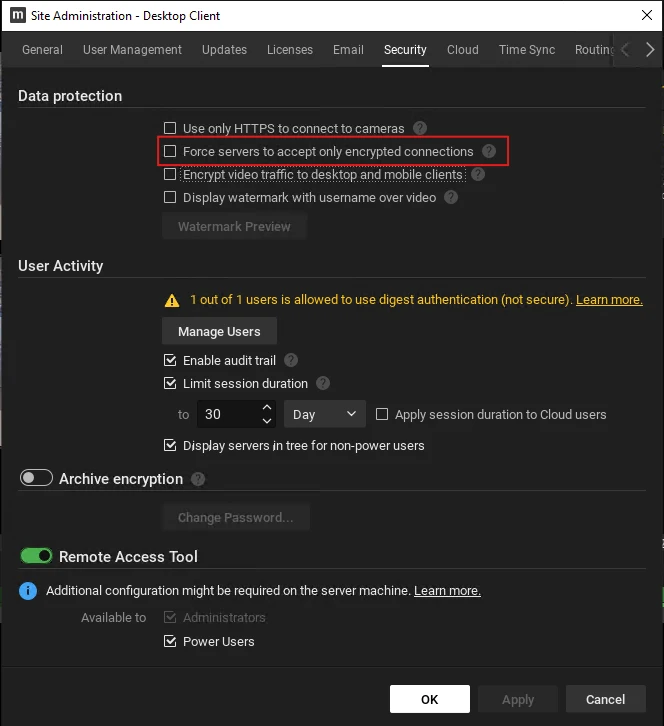
Go to the Site Administration.
Open the Security tab.
Uncheck the Force servers to accept only encrypted connections checkbox. This is checked by default.
Sending Alerts to NX Witness
Alerts can be sent to NX Witness’ UI.
The following information is sent to NX:
Date/Time - Timestamp of the event
Event - Hardcoded “BriefCamAlert” for all the alerts generated by BriefCam
Source - Camera Name
Description - Includes all of the above and the following added information:
RuleName
Objects:
WatchList
Type
Confidence
ObjectClass
AlertType
Color
UpperWear
LowerWear
Bag
Hat
Mask
Related Cameras (and their IPv4 address)
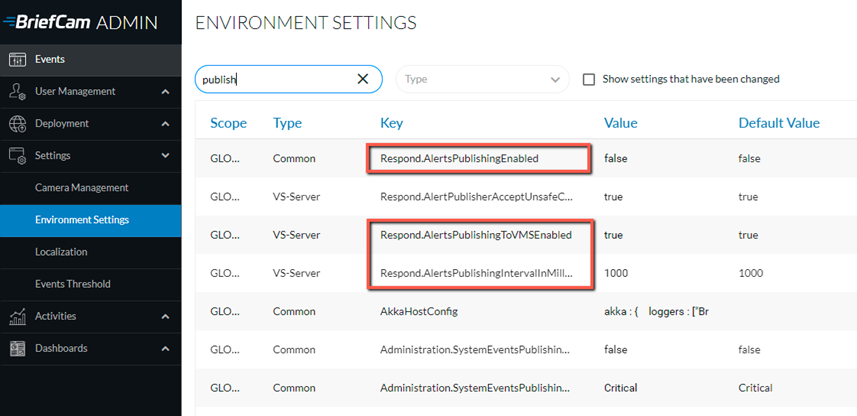
In the BriefCam Administrator Console’s Environment Settings section, there are three settings relevant for sending alerts outside of BriefCam:
To send alerts outside of BriefCam, set the Respond.AlertsPublishingEnabled setting to true.
To send alerts to a VMS, check that the Respond.AlertsPublishingToVMSEnabled setting is set to true.
To change the polling interval, use the Respond.AlertsPublishingIntervalInMilliseconds setting.
Note
If you make changes to the settings, you need to restart or start the VSServer service.
Settings File
There is one setting in the BriefCam.NxIntegration.ini file.
[Fetching] ;SecondsFromNowNotRecordedYet = 300
This setting is used when the VMS has not yet recorded the newest footage to the archive. This setting prevents the user from accessing videos that are too new and returns NoRecordings.
To use this setting, remove the semicolon from the beginning of the row. If the semicolon is not removed, the plugin will always fetch the newest recordings.
Known Limitations
Bounding boxes when playing the original video are not supported.