Creating a Group Detection Rule
If you are usign the Next-Gen engine, you can receive alerts when a group of a pre-defined size forms for a certain amount of time. This helps prevent crowds and allows you to monitor groups for public safety or for quality of service.
To create a Group Detection alert:
In the RESPOND module, select the ALERTS tab.
Click the CREATE A RULE button.
Select the Count filter.
Select the Group Detection option. Note that this option cannot be combined with other filters except for the Area scene filter. If you combine group detection with an Area scene filter, the group detection will only take into consideration the area that you defined in the Area scene filter when looking for the formation of groups.
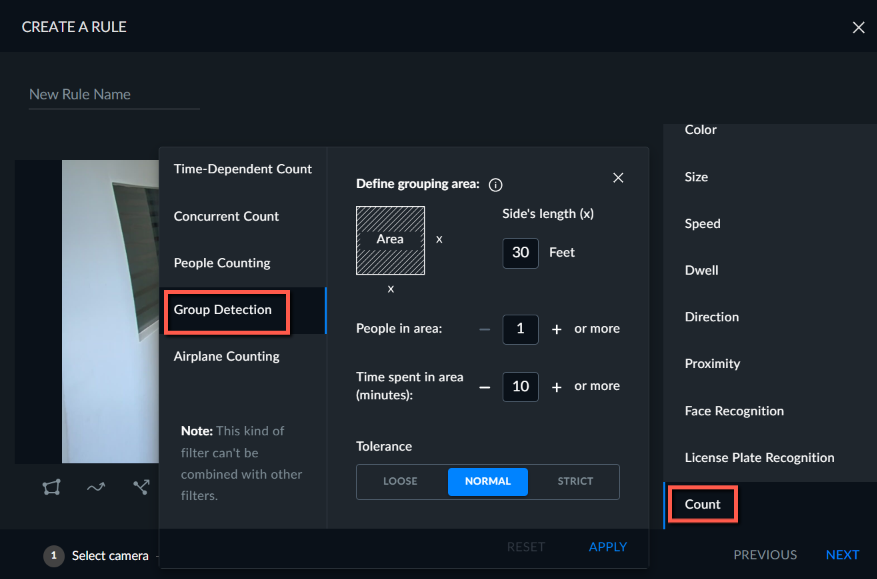
Now you’ll define what a group is. For example, you can send an alert when there are 10 people in a 5x5m area for over 2 minutes.
Define the grouping area, which can be a square area only, by defining the side of the square. For example, if you enter 5, the area will be 5x5.
Define the minimum number of people that need to appear in the grouping area to trigger an alert.
Define the minimum amount of time the people need to dwell in that area for it to be concerned a group.
You can change the Tolerance.
Click APPLY.
Note that:
The grouping algorithm will run once every 120 seconds (2 minutes) by default. The value can be changed in the OX6.PeopleCountingUpdatingFrequencyInSeconds environment setting.
The algorithm will extract the XY-locations of people via their feet.
The alert will contain a snapshot of the frame when the alert was sent.