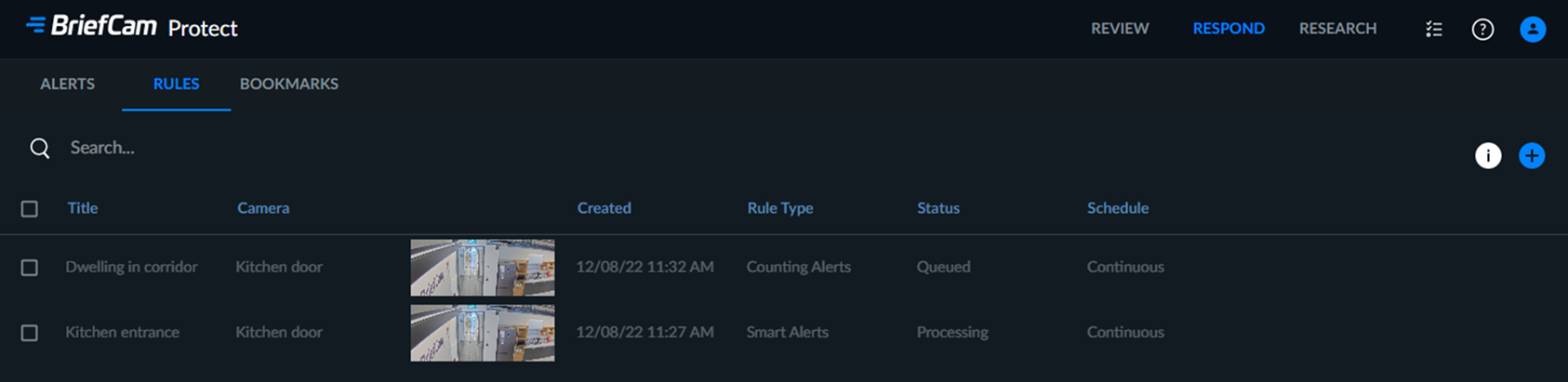
The RULES Tab
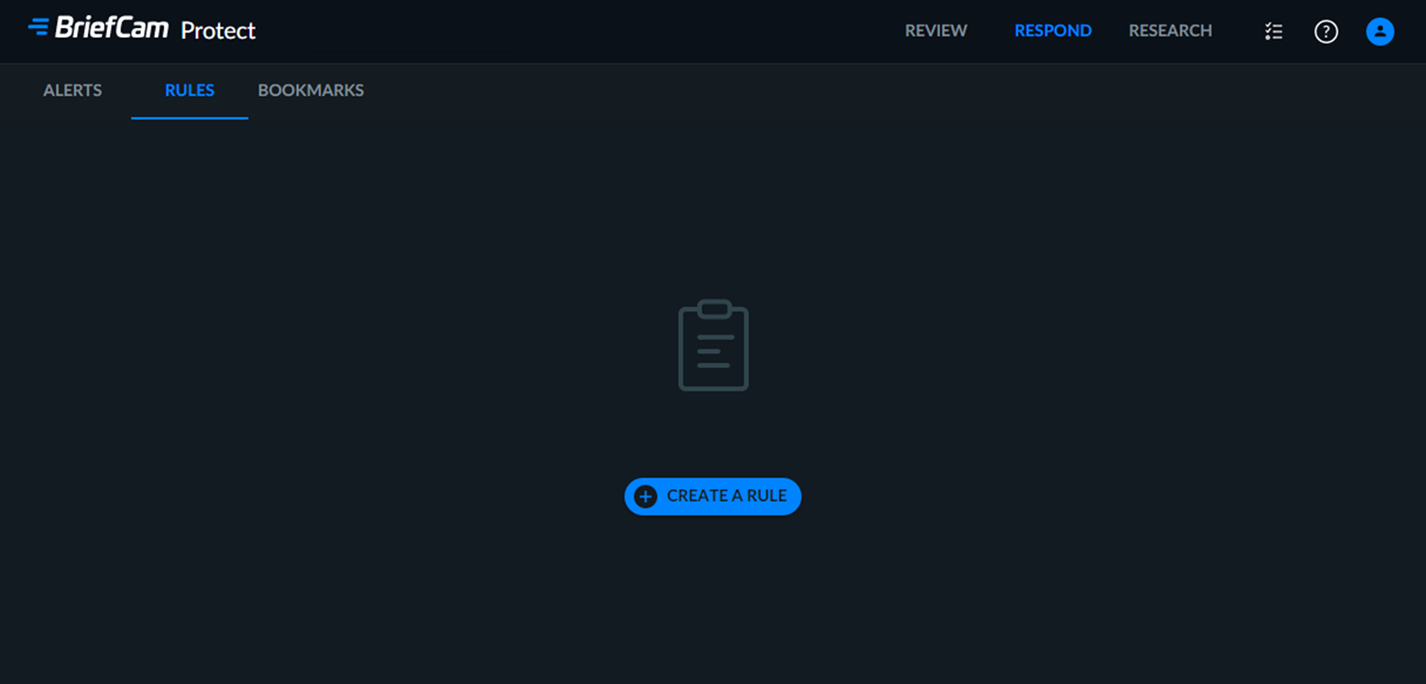
The RESPOND solution’s RULES tab displays a searchable list of defined rules that trigger alerts when events captured by specific cameras match predefined filter conditions. This list will be empty if no rules have been added.
Note
RESPOND rules are only possible to set if there are available RESPOND licenses (which also signify the available number of real-time GPU workers). For scheduled RESPOND rules, different rules and cameras can consume the same license as long as they don't overlap in time. For example, a new rule can be set if there are available licenses at the desired schedule.
Creating a Rule
To create a rule that will trigger an alert:
In the RULES tab, click the CREATE A RULE button.
Select either Smart Alerts, Real-Time Alerts or People Counting Alerts. Note that if you are using the Next-Gen engine, you will not see this screen. For additional information, see the BriefCam Next-Gen Engine Guide.
Click .
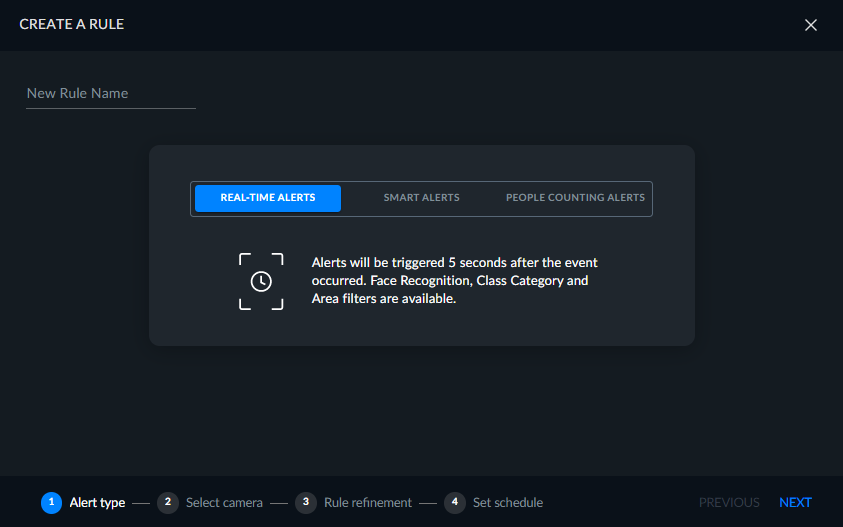
In the screen that opens, specify a name for the rule.
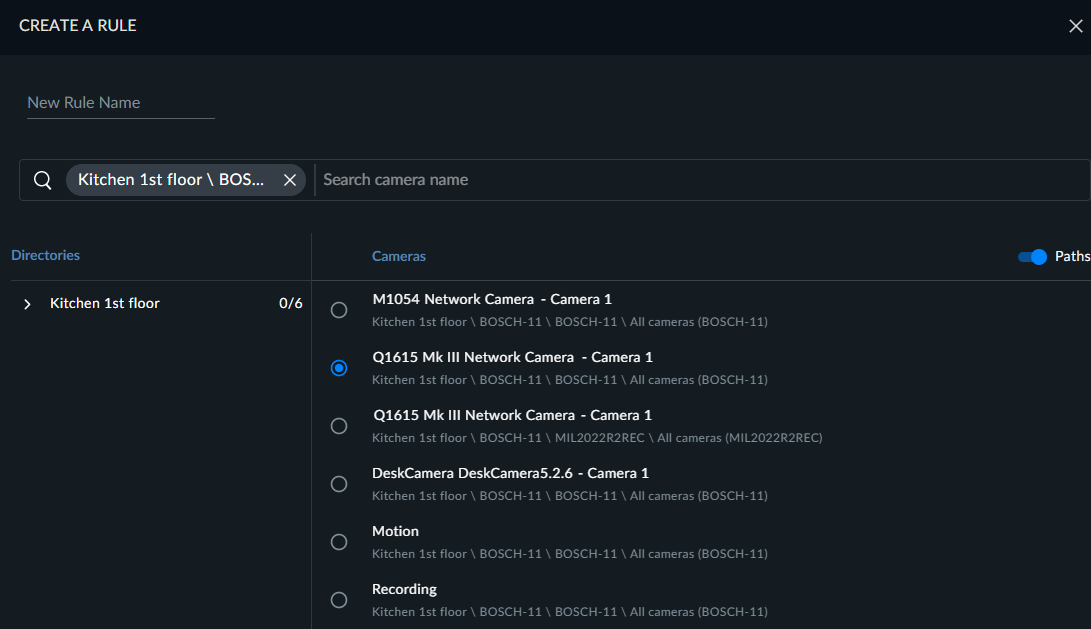
Select the desired source camera from the list and click NEXT.
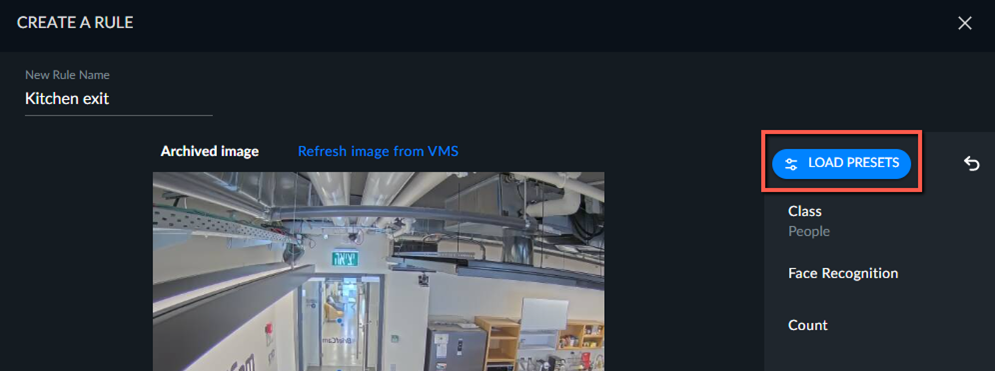
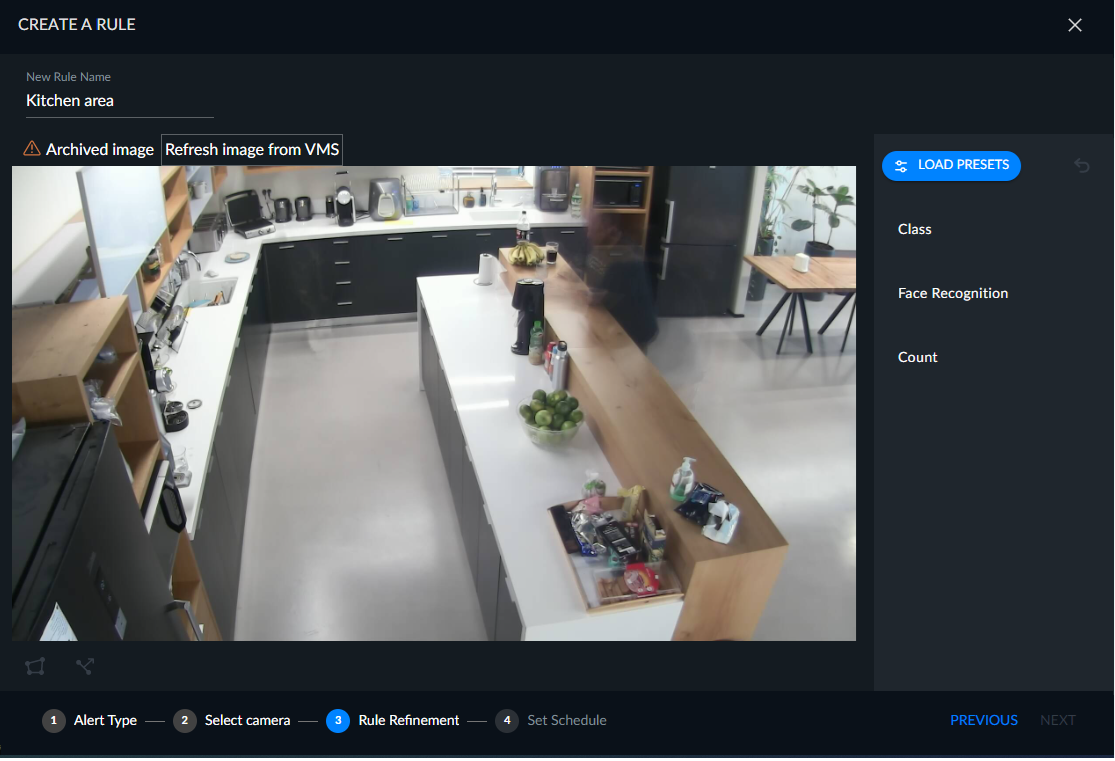
Give the rule a name and apply any desired filters.
You can also click the LOAD PRESETS button and use a preset that was defined in the REVIEW module.
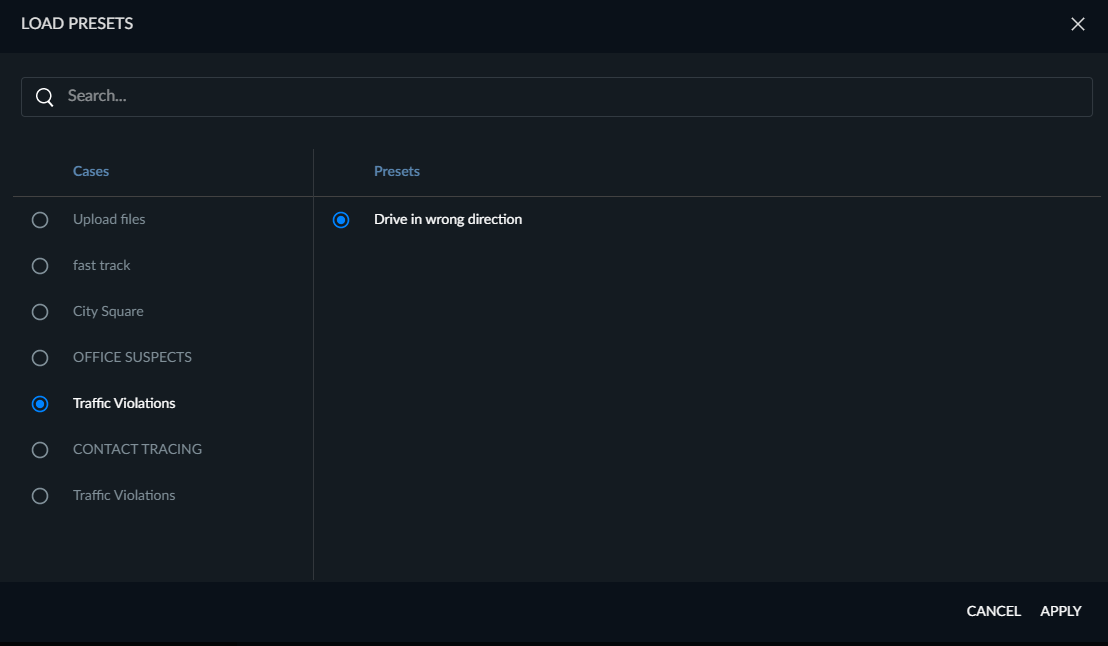
From the Load Presets screen, select the case where the preset was defined.
Select the preset that you want to use. Note that if the Source, Time Range, and/or Appearance Similarity filters are saved in the preset, they will be ignored since those filters are not available in the RESPOND module.
Click the APPLY button.
Click NEXT.
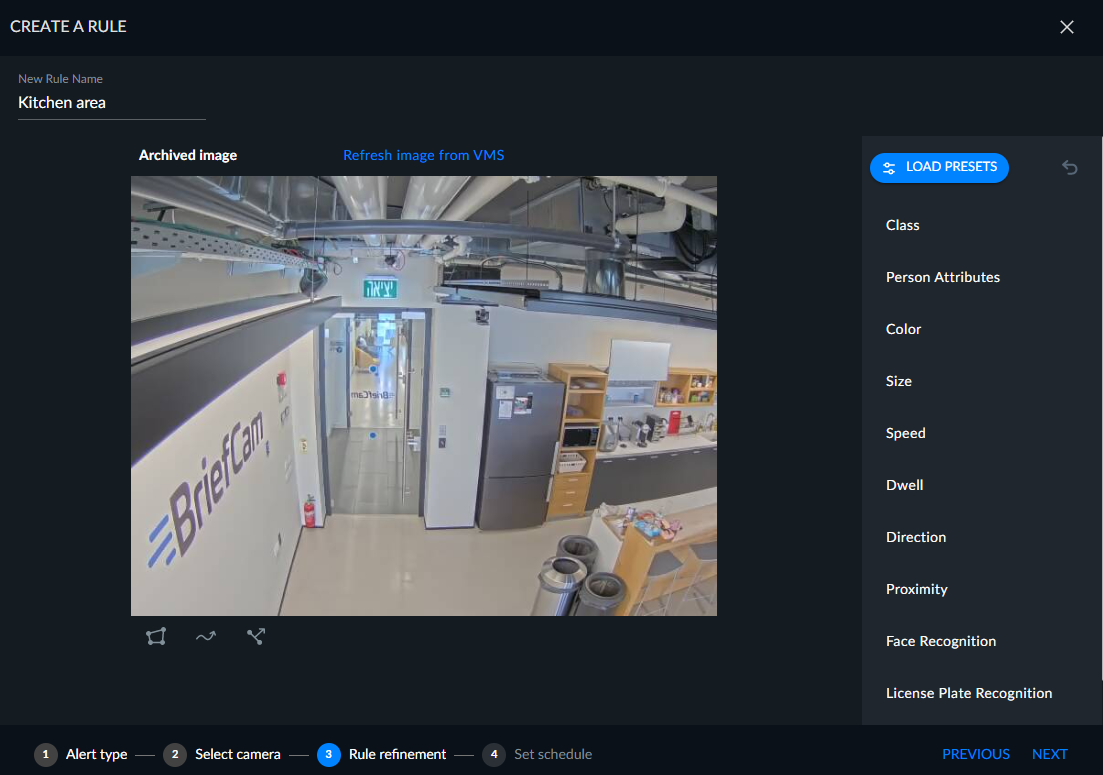
Notice that the image that is displayed is an archived image (as shown in the top left corner of the image). The archive image is displayed because getting a fresh image from the camera might take some time due to the VMS. The background image is saved by default every five minutes while processing the stream – the latest background image is used temporarily when setting up a rule/dimension. The default of five minutes can be changed in the
OX.inifile’sBGImageGenerationIntervalMinutesparameter.When there is a newer image available, you can click on the Refresh image from VMS button also in the top left corner.
You cannot create a rule if there is no live image available. In this case, the NEXT button will be disabled.

Note that for real-time alerts:
Not all filters are available for real-time alerts.
You cannot select both the Class and Face Recognition filter in the same rule.
The Count filter can be selected in addition to either the Class or Face Recognition filter.
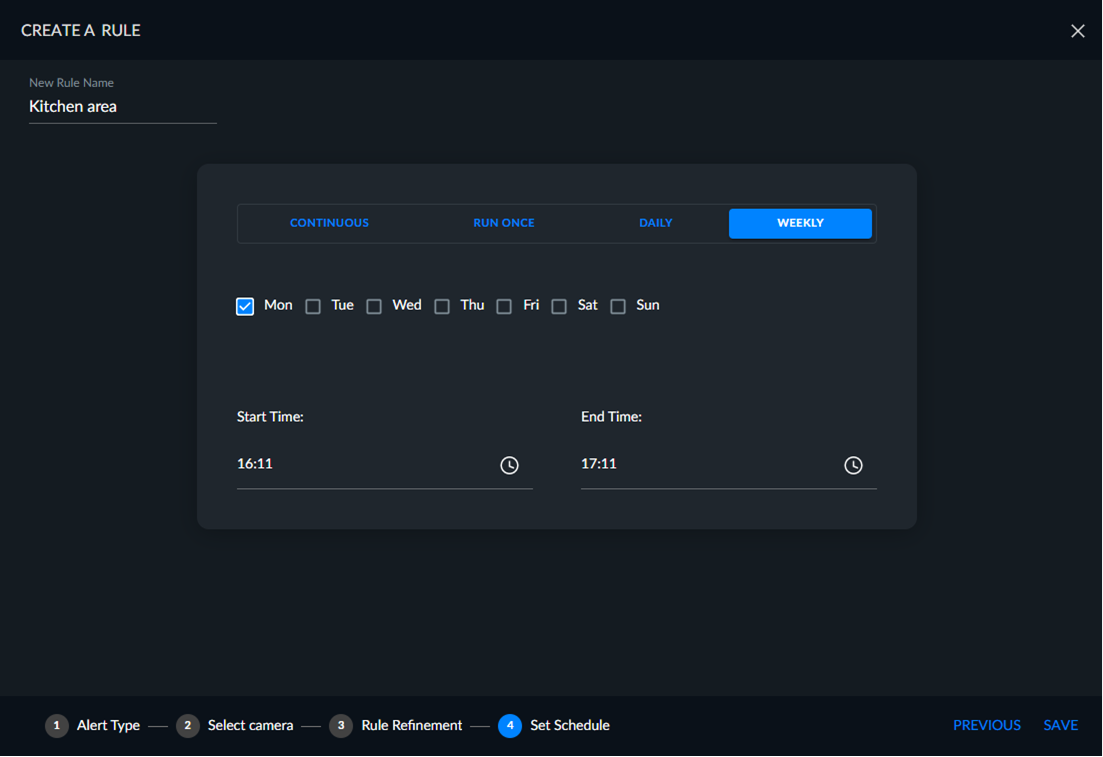
Set a schedule for the rule: Continuous, Run Once, Daily or Weekly and then click NEXT.