Video Integration Tester (VIT)
The Video Integration Tester (VIT) can be used to test the connection to VMSs outside of BriefCam.
Using the VIT you can:
See which VMS integrations/plugins are installed.
Select a camera and see the live image to demonstrate BriefCam's RESPOND module.
Send a BriefCam alert to the VMS (for integrations that support this).
Get the URL of the stream of the camera. This will let you take the URL and go to the media player, for example, and play the live stream. Note that this behavior is integration specific and will not work on all integrations. For example, it will not work for integrations where the username and password in the RTSP string are encrypted.
Test the fetching of the video so that you can rule out fetching issues when troubleshooting.
Implementation Steps
Run the Video Integration Tester (VIT) from:
C:\Program Files\BriefCam\BriefCam Server\VideoIntegrationTester.exe.From the drop-down list, select the integration that you want to test.
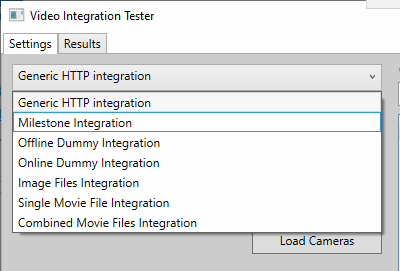
Enter the address of the server, the server’s user name (such as admin), the user name’s password (if there is one), and click the Load Cameras button.
See that your camera list is populated.
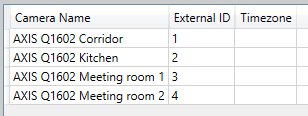
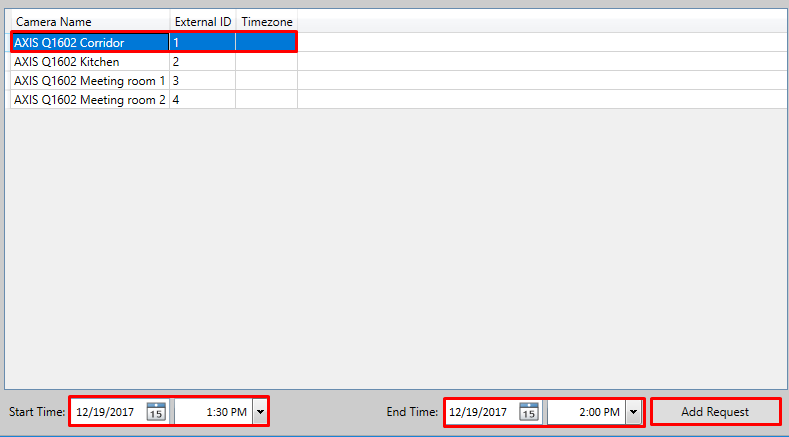
Select a camera, set the start/end times, and click the Add Request button.
Check the results in the Results tab.
Go to
C:\Program Files\BriefCam\BriefCam Server\Exportsand confirm that video files have been fetched and stored on the disk, that their folder names match the request times, and that their video is actual footage of the request time frame.Repeat the test on both permanent recording and motion detection cameras to ensure that the software works in both modes.