Basic Troubleshooting
When you encounter an issue with BriefCam, first try the following:
Essential services
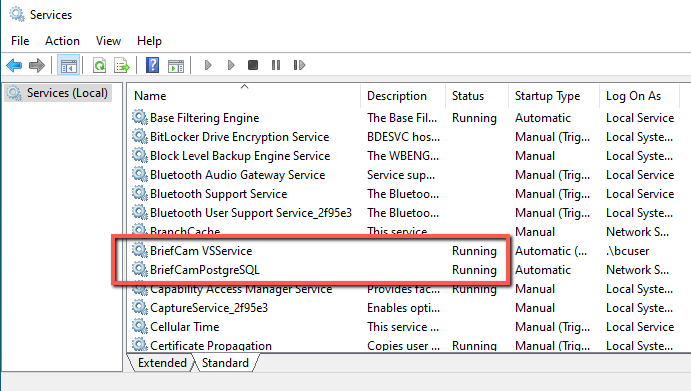
From services.msc, check that the BriefCam VSService and BriefCamPostgreSQL services are running.
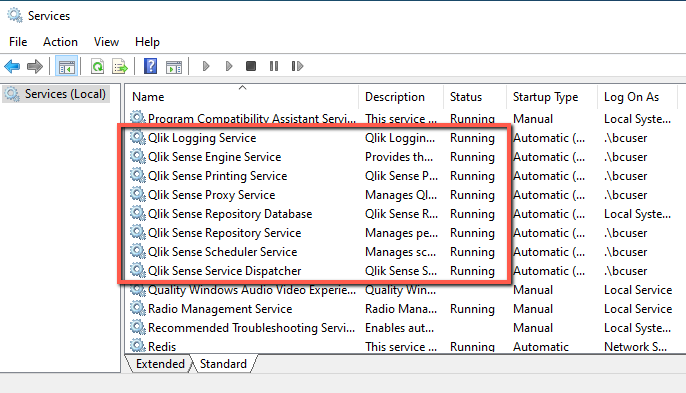
If you are using the RESEARCH module, check also that the Qlik services are running.
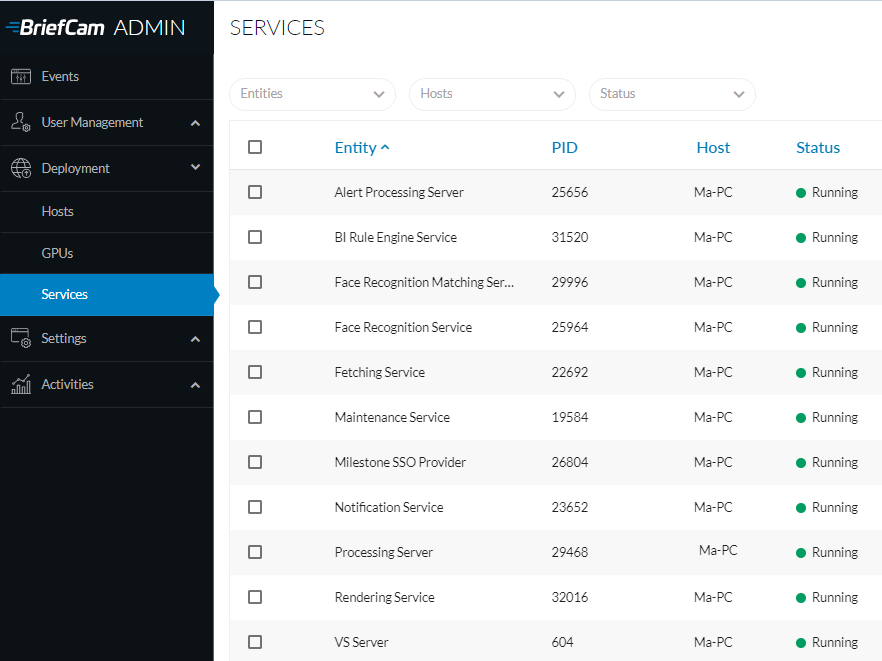
Check that the relevant services are running (in the BriefCam Administrator Console) and check that the Process ID (PID) is not changing.
Hardware
Check that there is enough disk space and RAM. If there is not enough remaining RAM, open the Task Manager and locate the app or service that is consuming the RAM.
Check that the CPU usage is not too high on the VSServer/DB machine. If the CPU usage is too high, open the Task Manager and check which other app or service is consuming the CPU.
Event Viewer
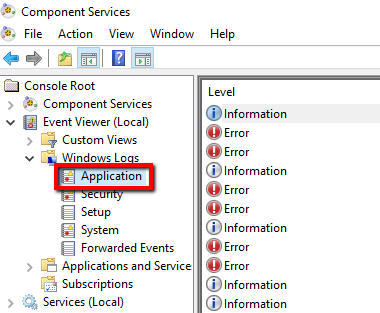
If there is a BriefCam error, check if the System/Application logs of the Event Viewer have errors with the same or similar timestamps as the BriefCam logs.
To launch the Event Viewer, from the Start menu, type Event Viewer into the search box.