Deployment Configuration
The Deployment view gives an overview and control of the entire BriefCam environment.
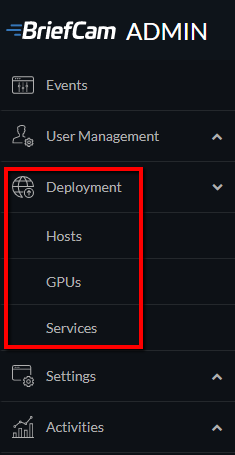
Hosts
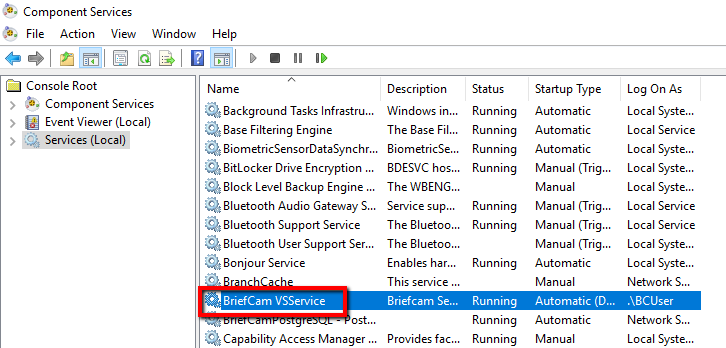
When BriefCam is installed, one service, the BriefCamVSService, is registered on the operating system. This service is responsible for starting, stopping and managing additional BriefCam services, such as the Processing Server and the Rendering Service. If the BriefCam VSService is running, it will be registered as a host in the Hosts screen of the BriefCam Administrator Console.
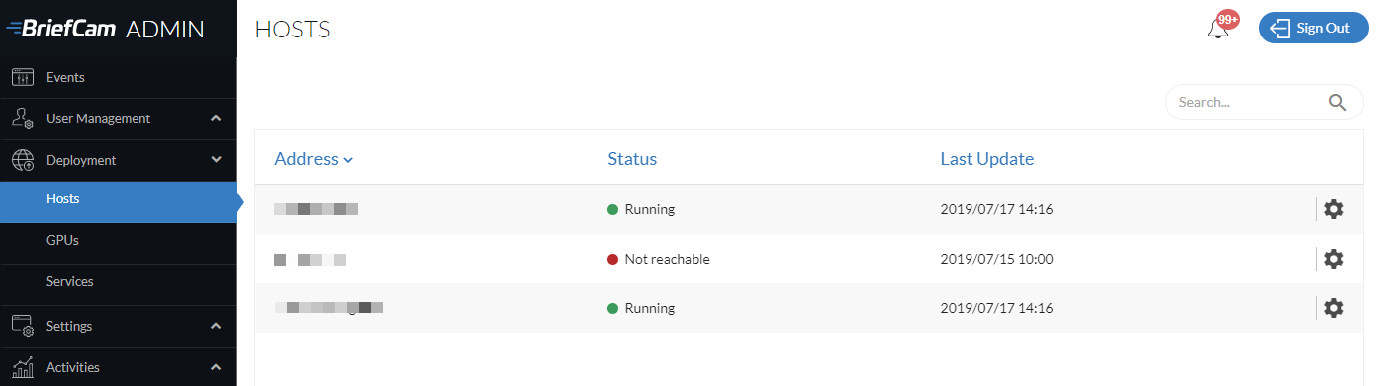
The Hosts screen contains a list of the machines where BriefCam is installed with a running BriefCamVSService.
For each host, click on the settings icon  and select the services that will run on the host. Only services supported by the host will appear on the list.
For next-gen engine hosts, there is no settings icon .
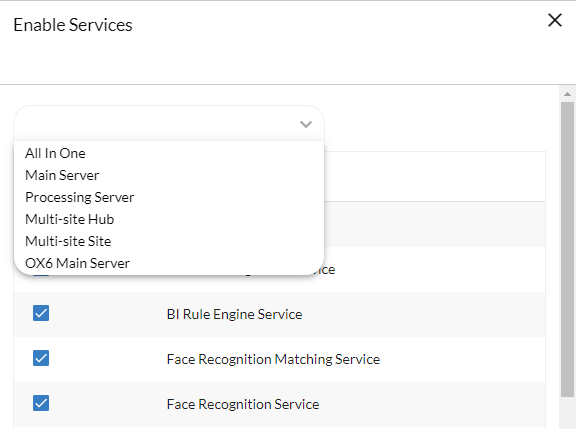
Instead of individually selecting the services, you can use the Templates menu to select the relevant services for various types of deployment. You can then customize the selections for your specific configuration. The following are the available templates:
All In One – All relevant services are selected
Main Server – All relevant services (the On-Demand processing server and Real-Time processing server are not selected)
Processing Server – Only the Processing Server is selected
Multi-site Hub – Services specific for the Hub are selected
Multi-site Site – Services specific for a Site are selected
OX6 Main Server – Services specific for a server that will be running the Next-Gen engine are selected.
You can delete stopped or unreachable hosts that are associated with the Windows-based OX5 engine.
If a host is deleted, the GPU will remain visible in the GPUs screen. The host will be marked as "Unknown".
When adding a service to the host, the service will appear in the Services view in a stopped state.
When removing a service from the host, the service will be stopped and removed from the Services view.
The VSServer service can only run on one host. If you want this service to run on a different host, you need to first stop the service and uncheck the service’s checkbox from the host’s Enable Services screen.
The Video Streaming Gateway Service and the Notification Service should only run on one host.
When selecting the Processing Server or Alert Processing Server:
If there are no GPUs configured, the service is added to the Services screen with a warning symbol. You will have to go to the GPUs screen to configure the GPU for this host.
If you try to start a Processing Server or Alert Processing Server without a configured GPU, the service will fail.
Note that the Push Alerts Service is for future use and is not supported in this BriefCam version.
GPUs
In standalone and site deployments, the GPUs screen provides a centralized location for configuring GPUs across the entire BriefCam deployment environment.
Caution
This functionality is not applicable for the Hub since the Hub only aggregates data that is collected from the sites and does not do any processing on the Hub.
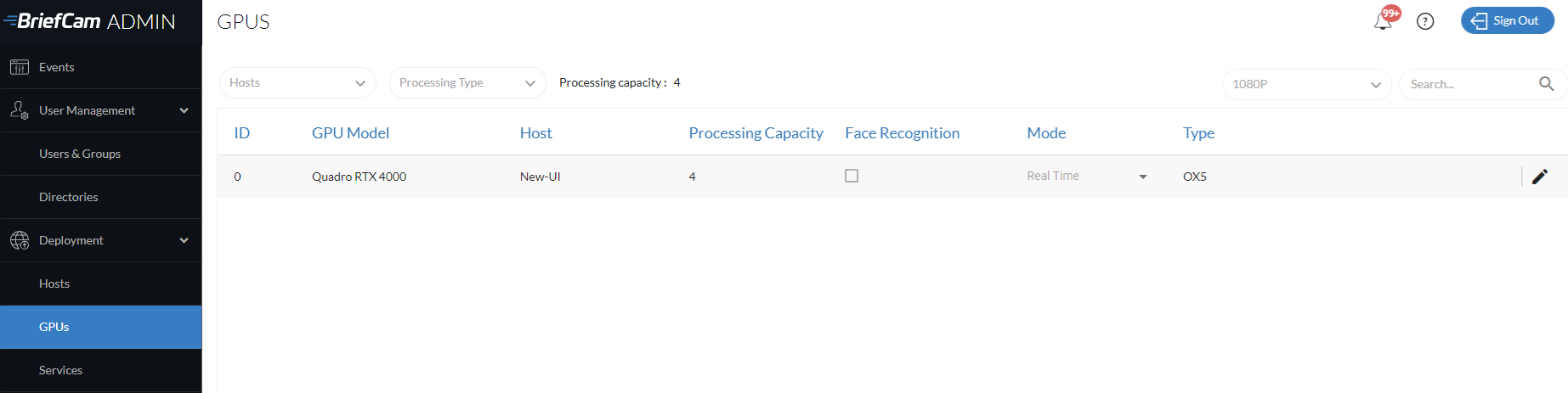
For every machine that contains a Processing Server or Alert Processing Server, you need to configure the GPUs for the machine.
Caution
BriefCam does not support using more than one type of GPU on the same machine.
Processing Capacity
The Processing Capacity column lets you assign a capacity to a GPU so that it is not over-utilized with rules. This is used together with the ability to set a processing weight for each camera.
The weighting system only applies to real-time processing. All on-demand tasks are treated as having a processing weight of 1.
At the top of the screen, the total processing capacity is displayed.
For GPUs configured as real-time, set the processing capacity using the Supported NVIDIA GPU Hardware table. Find the GPU that best describes your environment and copy the value from the Real-time channels column into the GPUs screen’s Processing Capacity column.
The actual required processing capacity can be higher or lower depending on the activity level in the scene. Therefore, when initially setting up the system, check to see if the rules are working as expected. If they are not, tweak the processing weight of the cameras to make sure it reflects the resolution and scene complexity.
In general, if the number of RESPOND channels and processing capacity is too high there will be processing crashes and rules will become inactive. In this case, lower the processing capacity.
Face Recognition
The Face Recognition checkbox is only available for on-demand GPUs.
Check the Face Recognition checkbox for only one GPU in the entire cluster. This GPU will be used for face recognition ranking and feature extraction. Each loaded face, either from the Review process or an external file, is ranked and the features are extracted (see the Face Recognition Quality section in the BriefCam User Guide).
Processing Mode
Each GPU card can be assigned to a processing mode: On Demand, Real Time, or Training.
BriefCam’s engine's On Demand and Real Time modes are used by the different modules as follows:
REVIEW | RESPOND | RESEARCH | |
On Demand | Run Now, Daily, Weekly | X | Run Once, Daily, Weekly |
Real Time | X | Continuous, Run Once, Daily, Weekly | Continuous |
The Training mode is available for OX6 GPUs and used when training a custom class. For additional information, see Enabling and Configuring the Custom ClassifID Feature.
Note
Make sure to have a GPU configured for on-demand if you will be using the REVIEW module and a GPU configured for real-time if you will be using the RESPOND and/or RESEARCH modules.
When editing the mode, the combo box only displays the relevant values based on the services selected in the Hosts screen. If only the Processing Server is configured, the combo box will display only On Demand and None. If only the Alert Processing Server is configured, the combo box will display only Real Time and None. If both are not configured, the combo box will display only None.
If you want to completely disable a specific GPU, change its processing mode to None.
Services
In standalone and site deployments, the Services screen is a centralized view of all of the available BriefCam services in the BriefCam cluster.
In Hub deployments, the Services screen shows the services available for the specific Hub.
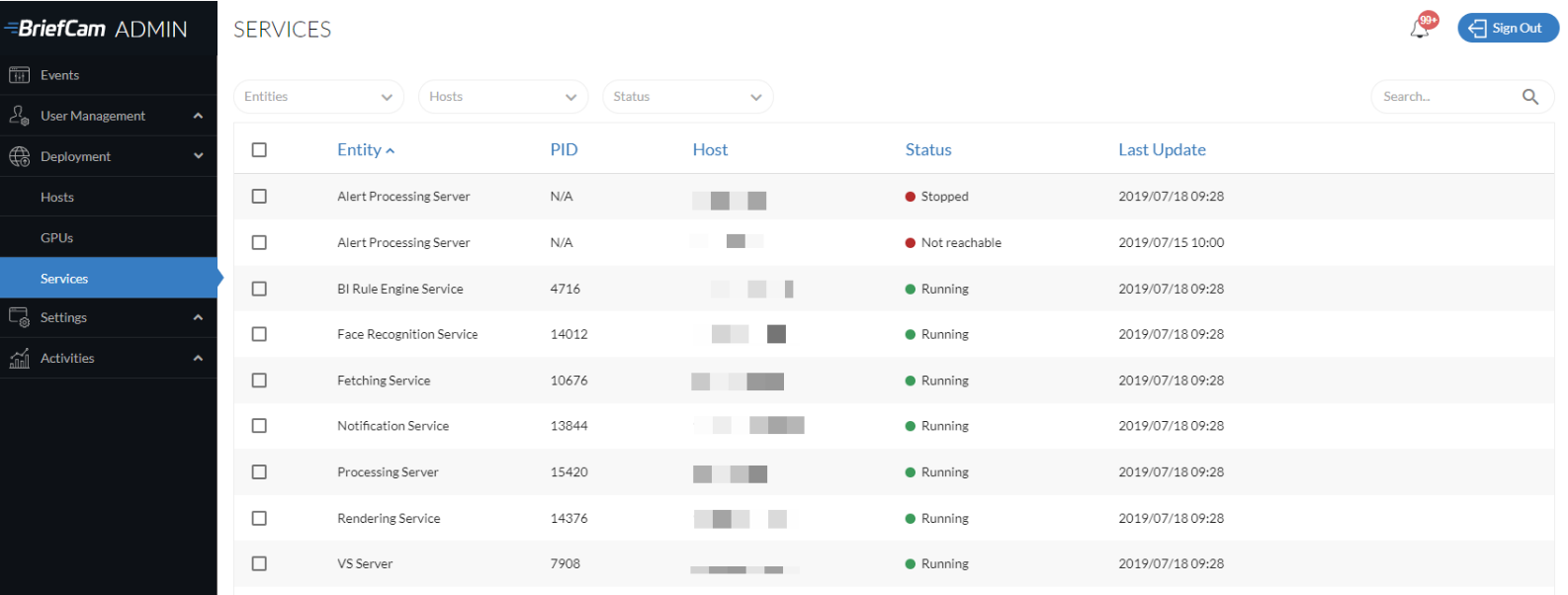
When hovering over a service, there are up to four buttons available: export log, stop, start, and restart.

The Restart button restarts a running service or starts a stopped service.
You can start or stop multiple services, by selecting multiple services and clicking the start or stop icon at the top right of the screen. To restart multiple services, click the stop icon and then the start icon.
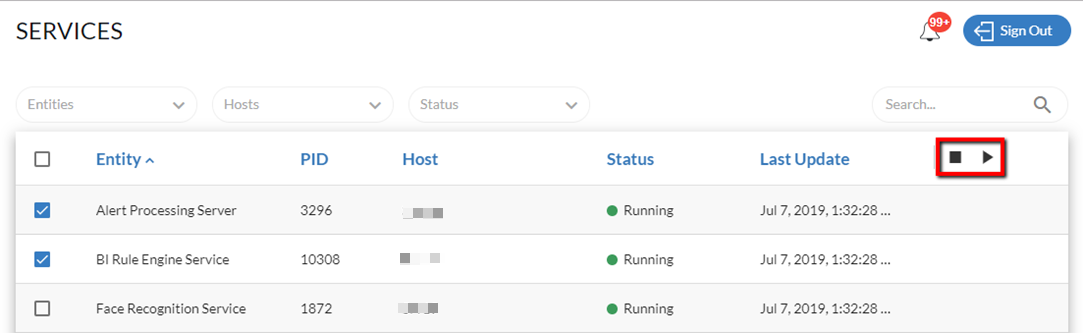
Upon completion of theBriefCam cluster setup, be sure to click the Start button for the relevant services.
If a service’s Status is Stopped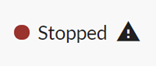 and you do not need this service, it is best practice to go to the Hosts screen and disable the service to save on resources. Once you disable a service from the Hosts screen, it will no longer appear on the Services screen. For example, if you have a single GPU that is configured as On Demand and you selected the All-In-One template, the Alert Processing Service will have a Status of Stopped.
The status of the services can also be seen at the top of the Events screen and are color-coded as follows:
Green – All services of this type are running.
Yellow – At least one service of this type is not running.
Red – All services of this type are not running.
