Enabling and Configuring the Custom ClassifID Feature
If you are creating custom classes, carry out the following steps:
In the Users & Groups screen, click the permission icon for users and groups that should be allowed to create custom classes, and select the Allow training of custom classes check box.
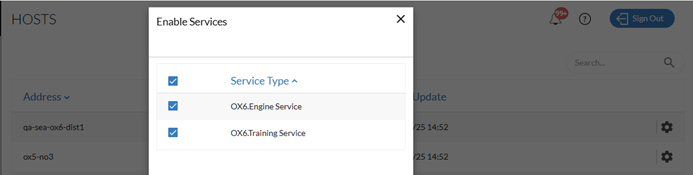
In the Hosts screen, to the right of the host that will service the training, click the settings icon.
Make sure that the OX6.Training Service is enabled.
Configure an OX6 GPU to handle the training:
Open the Deployment menu and select GPUs.
Edit one of the OX6 GPUs and change the Mode to Training.
Click the Update button.
In the Services screen, start the OX6.Training Service. Wait until the service is in Running state.
Custom classes can now be trained on the BriefCam client.
After the training is completed, change the GPU mode back to its original mode and restart all engines.