Rendering Settings
To save resources on the machine where the Rendering service is running, the temp path where case reports are downloaded to (Windows temp folder) can be changed. This is done in the Cache.CacheRoot environment setting. Make sure to use the environment setting that is associated with the Rendering Service type.
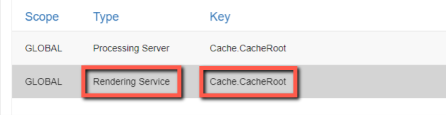
Note that this setting affects the temp (cache folder) and the export file will then be downloaded to the downloads folder.
This folder is part of the Maintenance cycle (DeleteLocalFilesPollingInterval.TotalMilliseconds).
Converting File Formats to MP4
When uploading a file fails and you see the following error in the Rendering Service log: “One or more streams of ‘file name’ yield negative or zero duration”, converting the files to the MP4 format may solve the issue. You can do this using the UploadFileFormatsConvertMp4 environment setting.
In the setting, enter the file formats that you want to convert to MP4. For example, enter .3GP (making sure to include the period). You can also enter multiple file formats as shown in the image below.
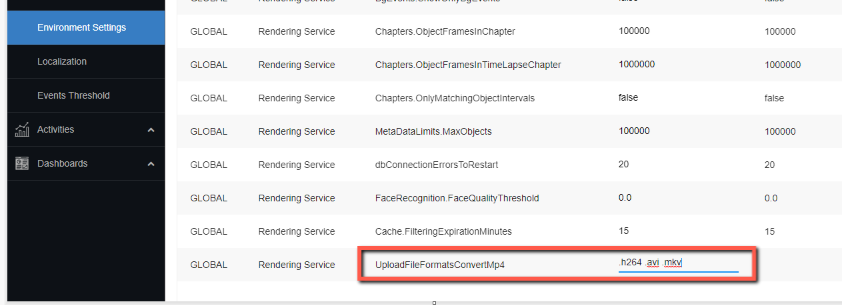
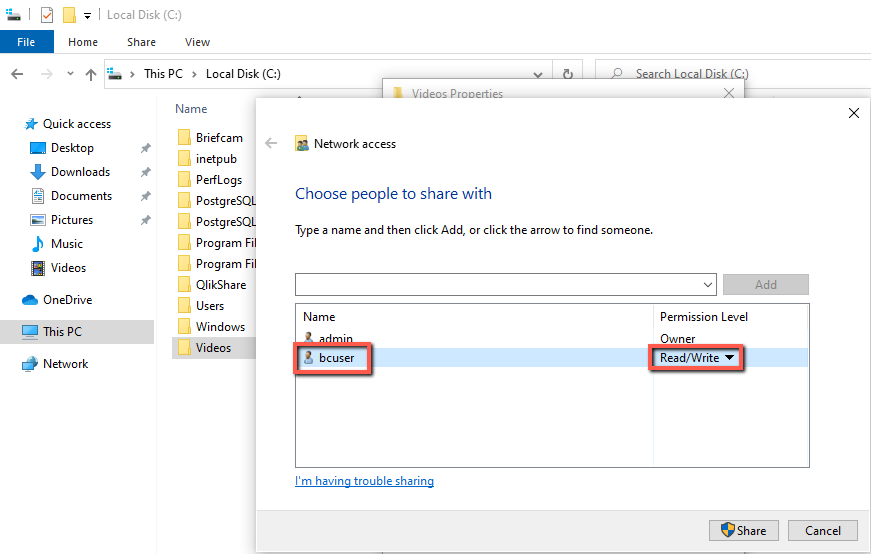
If you are uploading the files from a network folder and want to use this functionality, you need to give the BriefCam user (which by default is bcuser) write permissions to that folder.
If the file is not supported or does not play on a VLC player and/or failed to be converted manually, the automatic conversion will fail.