

Adding a recorder
This process only applies to OnGuard versions 8.1 and up.
- Open the System Administration in OnGuard and log in, then select the Video menu and click on the Digital Video ... menu item.
- Go to the Video Recorder tab, then click the Add button on the left-hand bottom side of the window to add a new video recorder device.
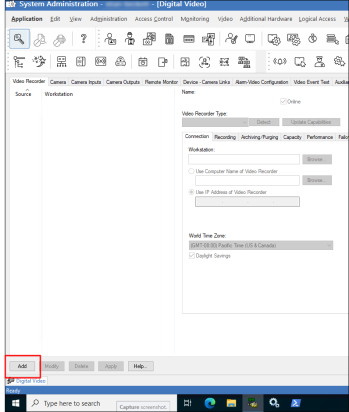
- Specify the various fields as described below:
-
Name: Enter a unique name for this video recorder entry
-
Video Recorder Type: Select Milestone from the list
-
Workstation: Enter the workstation name where OnGuard LS Communication Server is installed
-
Use Computer Name/Use IP Address of Video Recorder:Choose either option, and enter the IP or host name of the XProtect Recording Server.
-
XProtect Management Server: Open the list and choose the management server that was attached to OnGuard in the Adding a Management Server topic.
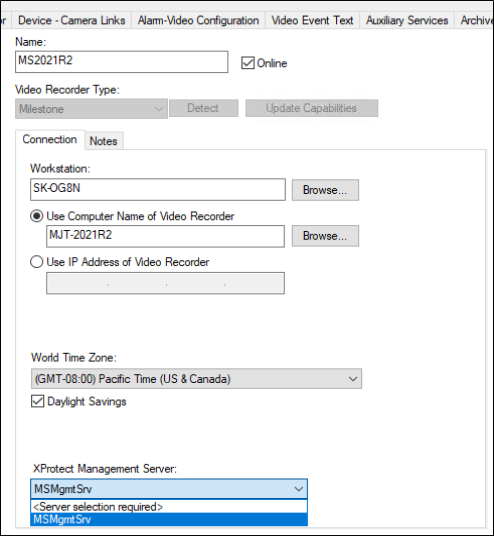
- Click OK to save the Video Recorder configuration.
- Click OK on the warning about a full download to the panel.
- Select the monitor zone and click OK to complete adding the recorder.