View alarms
 | "Camera 3 detected motion at around 4:00 PM and sent me an alarm. It looks like a burglary. I want to see what exactly happened and show the video to my security officer." |
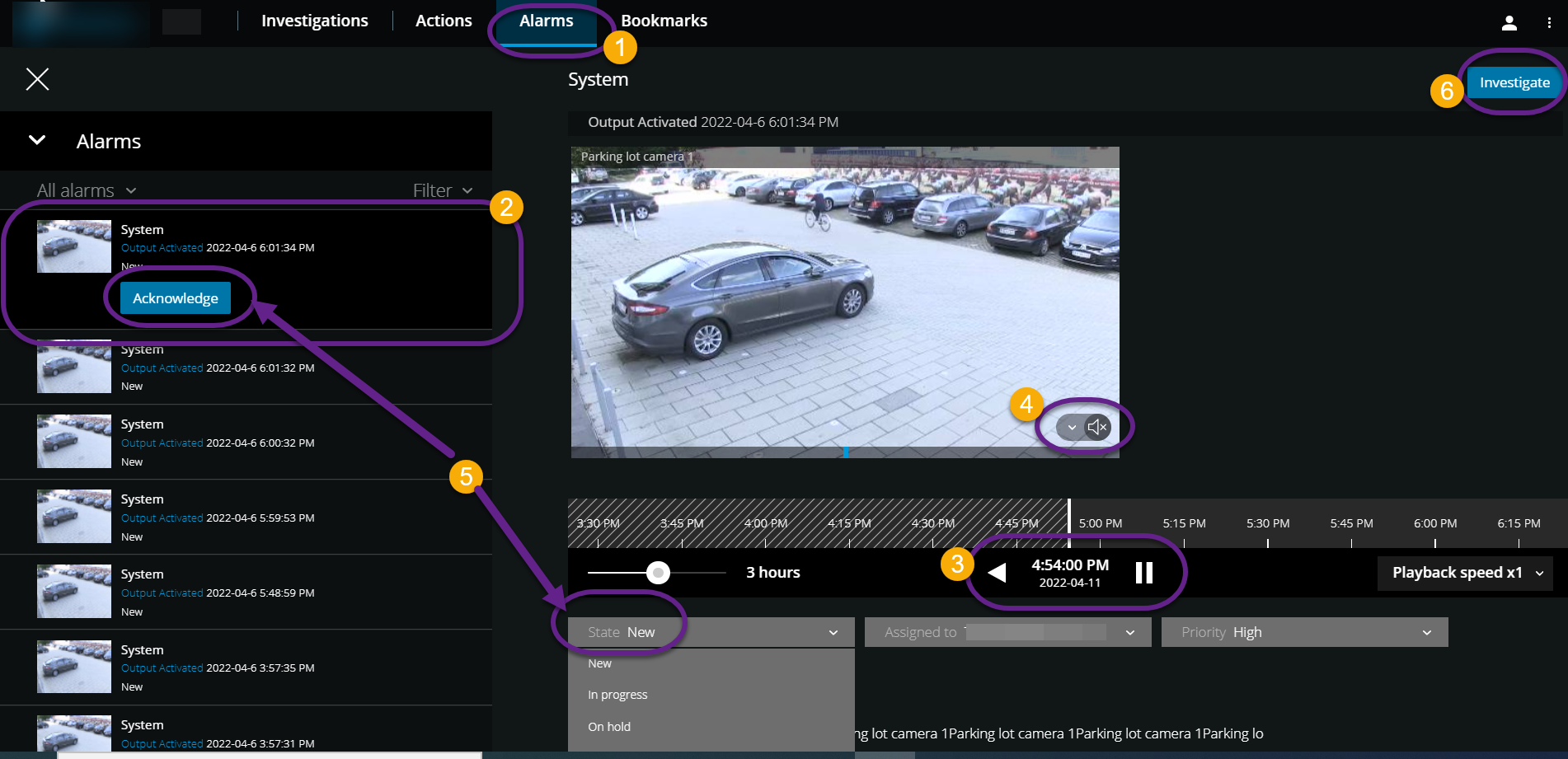
On the Alarms tab  :
:
Find and click the alarm
 that you want to view the video for. From the Filter list, you can filter the alarms by states and priorities.
Play the video backward or forward and check when the image that you are seeing was taken
 .
.Start or stop playing audio for the video playback when you play it forward at normal speed
 (see Playing back audio in video recordings).
Change the state of the alarm by clicking the Acknowledge button or by selecting another alarm state option from the list
 .
.To save the video for later or share it with others, click Investigate
 .
.Follow the steps in Prepare video export and download.
What else can trigger alarms?
A camera stops working.
A pane of glass gets shattered or broken.
A locker gets broken into.
A blacklisted license plate is seen on camera.
Note
You can receive notifications on alarms regardless of the screen on which you are in the app. By clicking the notification, you'll go to the alarm details. This functionality requires a Milestone Care Plus subscription package.
Note
To view alarms, ask your system administrator to set up alarms and to give you sufficient user permissions.