Prepare video export and download
 | "I want to download my investigation and show it to my security officer later. What do I do?" |
In XProtect Web Client, the available video formats are:
Format | Description |
|---|---|
AVI package | A standard file format supported by most media players. Choose this if in doubt. |
XProtect package | You can only view the XProtect format with the XProtect Smart Client – Player. The XProtect Smart Client – Player application is not included with the exported data from the XProtect Web Client, only with the XProtect format exported from the XProtect Smart Client ImportantXProtect packages exported from XProtect Web Client 2025 R3 can only be imported and viewed using XProtect Smart Client – Player version 2025 R3 or newer. If you're preparing the package for others, ensure they’re aware of this requirement. |
MKV package | The recording camera chooses the codec to use. You can only play the video if you have the necessary codecs installed. |
Note
Your system administrator specifies which formats are available to you. For security reasons, all formats are disabled by default in the mobile server.
In XProtect Web Client, the exports have the following settings:
Re-export is prevented in any video format
Optional. Exports can be password-protected
256-bit AES encryption
Digital signatures are added.
For more information about supported security-related features in clients, see the complete feature list, which is available on the product overview page on the Milestone website (https://www.milestonesys.com/products/software/xprotect-comparison/).
Steps to prepare video exports and download
Note
You must have specific user permissions to prepare a video export and download a video export package. Follow your company policy when sharing video evidence.
On the Investigations tab:
Select
 .
.Open your Investigations.
Select the investigation that you want to download.
Select
 .
.Optional. To include audio in your video export package, select the Include audio in the package check box.
Optional. To encrypt your video export package with AES encryption, select the Encrypt with password check box.
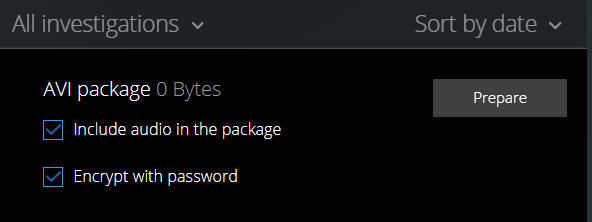
Select Prepare to download the video in the format you need.
Note
You can prepare a video export and download it later. In the prepared export, the number of video recordings might differ from the number of cameras you added to the investigation. The reason is that some cameras might not have recordings within the time span you specified.
If you selected to encrypt your video export package with a password, enter a password and select Set.
Select Download
 to download the prepared video export. You will find your downloaded files in the download folder of your web browser.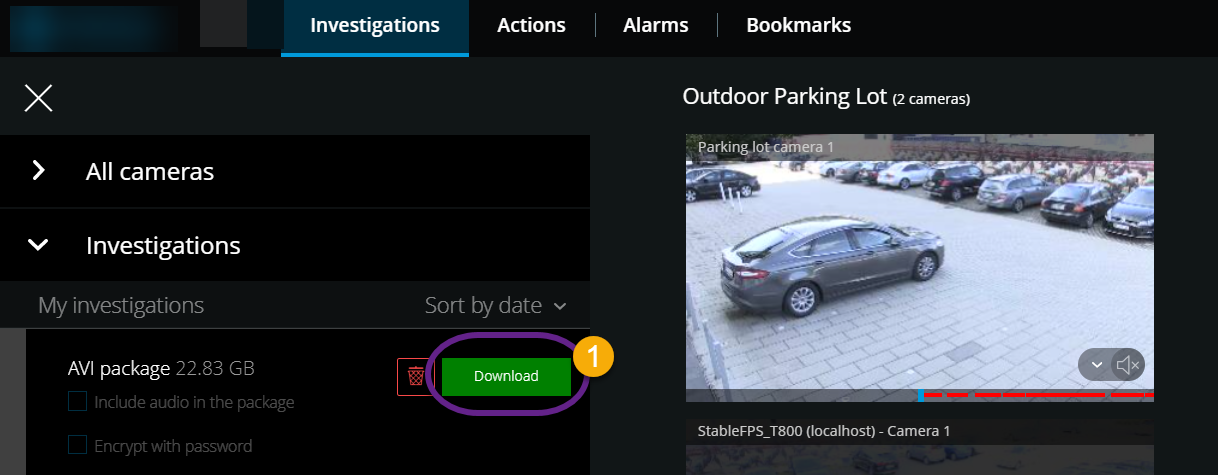
Note
If you have encrypted your video export package with a password, extract the .zip file using a compression tool that supports AES encryption, for example, 7-Zip, BitLocker, and AxCrypt. Extracting the .zip file with tools not supporting AES encryption might cause issues.