Update or delete your investigation
 | "I want to update the name and the state of an existing investigation and delete another investigation. How can I do that?" |
On the Investigations tab, click  to open the side panel.
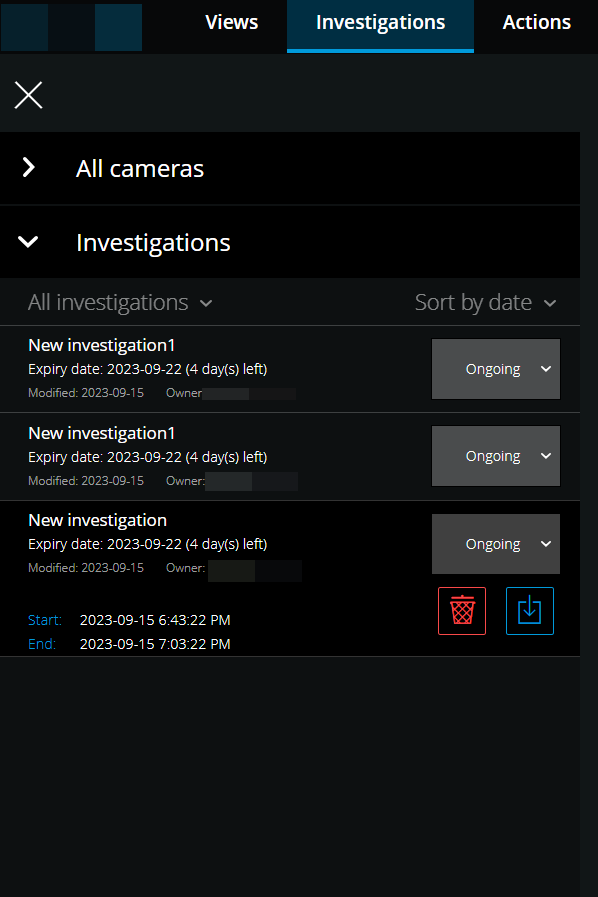
In the side panel:
Click Investigations to see all your investigations.
In the My investigations list, go to and click the investigation that you want to update or delete.
Item | What can I do with it? |
|---|---|
[name of investigation] | Click to edit the name of the existing investigation. |
Expiry date | See the expiry date of the investigation when the retention time of investigations is enabled. |
 | Delete the investigation. |
 | Prepare and download investigations in a selected video format (see Prepare video export and download). |
 | Manually set your investigation state to Ongoing or Completed. |
 | Sort your investigations by:
|
Note
When you open an investigation and replace an audio device attached to a camera that you have already included in that investigation, the system will play the audio from the previously attached audio device. To complete the update and start playing the audio from the new audio device, restart the XProtect Web Client first, then click Save to update this investigation (Only for cameras that have microphones or speakers attached).