Recordings from multiple cameras
You can play back recordings from multiple cameras on both the Views tab and the Investigations tab.
On the Views tab:
In the Views pane section, go to a folder with views and click the relevant view. The video starts playing in live mode.
On the timeline, click Playback for the timeline in playback mode to show up (see Using the timeline in playback mode).
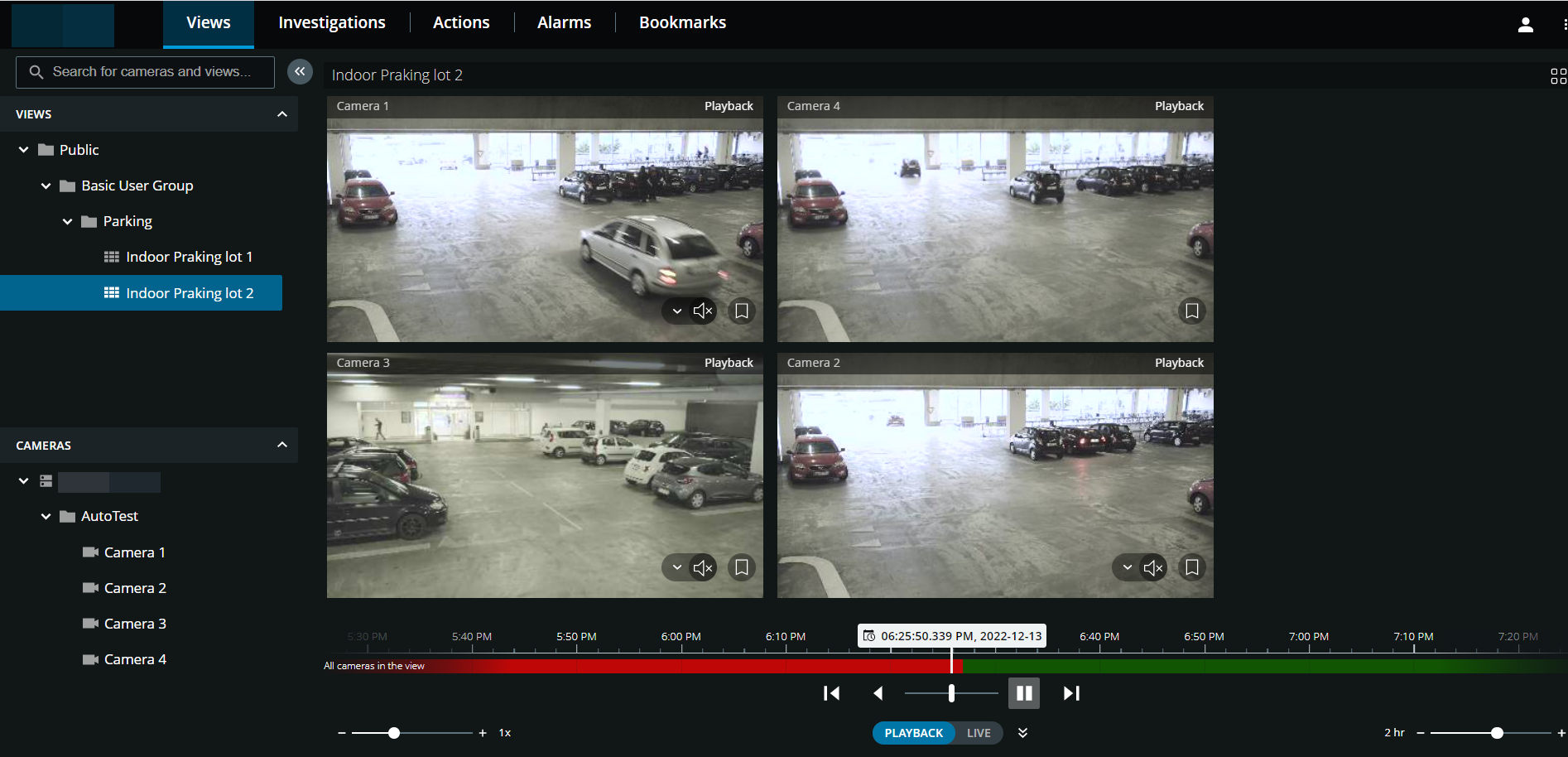
In the view of multiple cameras:
See recordings from all cameras in the view.
See which of the cameras have microphones attached.
See which of the cameras have speakers.
Click a camera to view a recording from that camera only. To go back to the view with all cameras, click Back to view.
On the view toolbar:
If you want to use the entire screen of your computer when presenting cameras in a view, click
 to open the Grid view.
On the Investigations tab, you can play back recordings without creating an investigation.
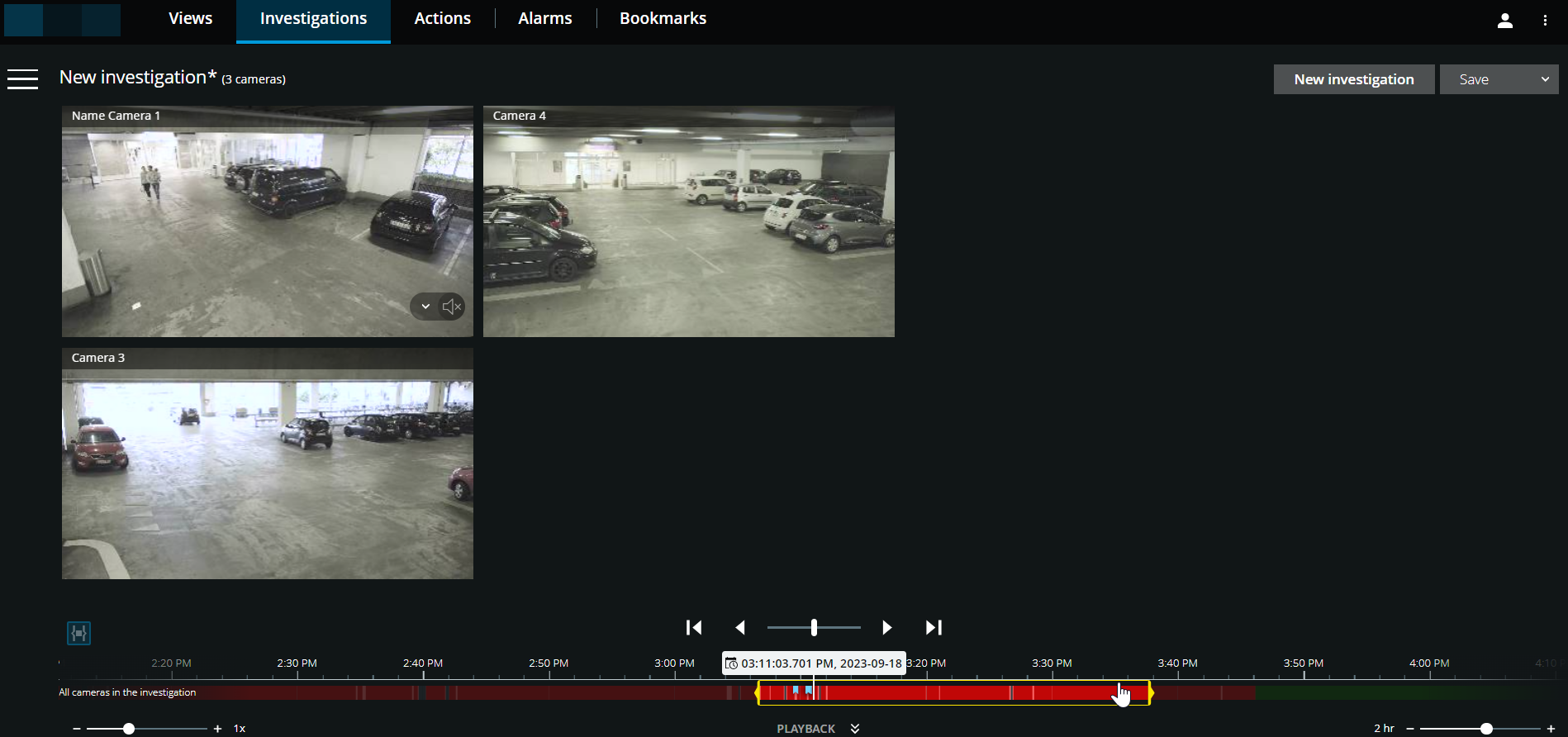
In this mode, you can:
Choose the cameras that you want to play back and remove those cameras that do not have recordings for the specified time (see Remove unnecessary cameras from video playback).
Specify the time of the recordings that you want to play back (see Specify time for video playback).
Specify the start and end time for the recordings (see Using the timeline in investigations).
Play back the recordings from all cameras in the selected camera group at the same time.
Start or stop playing audio with the video recording from a specific camera in the selected camera group (see Playing back audio in video recordings).