View Smart Wall content
You can view both live and recorded video on your video wall. If your video wall is not already up and running, you start the video wall by sending the Smart Wall monitors to your computer displays or to new floating windows. You can then drag the floating windows onto the physical monitors that are connected to the computer that drives the video wall. See also Smart Wall display options.
Note
To change or control what is displayed on a video wall, you must use the Smart Wall control. See also The Smart Wall control.
Insufficient user permissions can prevent cameras from displaying video on your video wall
Steps:
In the Views pane, expand Smart Wall.
Expand your preferred Smart Wall definition.
To view Smart Wall content in the main view, select the monitors one at a time.
To view Smart Wall content in any of your displays or in a new floating window:
Right-click the monitors, one at a time.
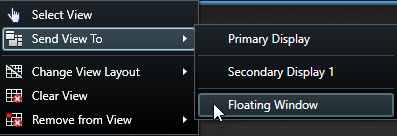
Click Send view to and select one of these options:
Primary display - opens in full screen mode in your current display
Secondary display - opens in full screen mode in your secondary display if any
Floating window - opens in a new floating window