Displaying content on video walls
Your video wall may be preconfigured to display video from certain cameras. However, you can use the Smart Wall control to push cameras and other types of content to the video wall, for example, alarms, hotspots, images, and the Smart Map.
Depending on the situation and the environment, you can combine different types of content to improve response times and effectiveness. For example, if you want to display a picture of a suspect so that people on patrol know who to look for, you can add an image. If you want to provide guidance for response measures, you can add text.
What can you display?
Alarms
Bookmarks
Cameras or whole views
Carousels
Images and snapshots
Hotspots
HTML pages
Maps
Smart map
Text
Most of these elements, you must add to the video wall through the toolbar of the view item.
 >

Display or change cameras on video walls
You can change the cameras that are being displayed on the video wall. Immediately, other operators who are watching the same video wall will see the changes.
Steps:
See also View Smart Wall content.
Switch to live or playback mode.
To add a camera from a view:
Open the view that contains the camera that you want to add.
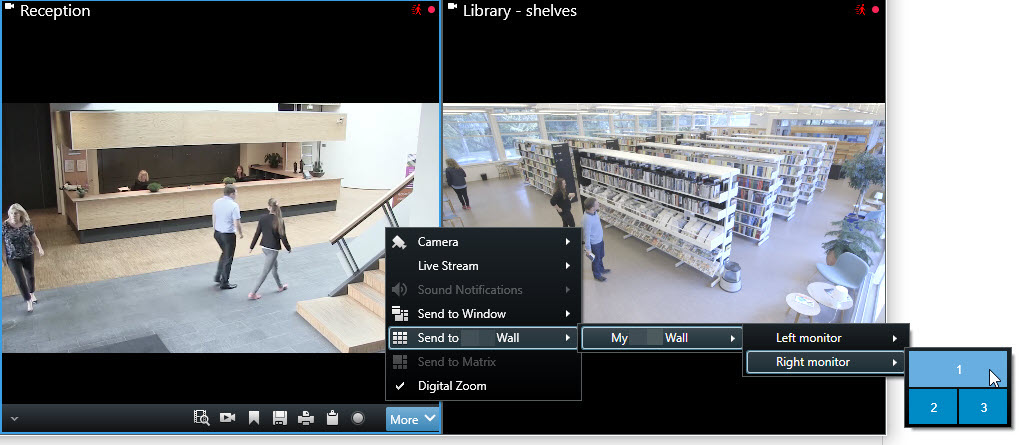
In the camera view item, click More > Send to Smart Wall. Then select the Smart Wall definition, the Smart Wall monitor, and finally the view item.
To add a camera from the Cameras pane:
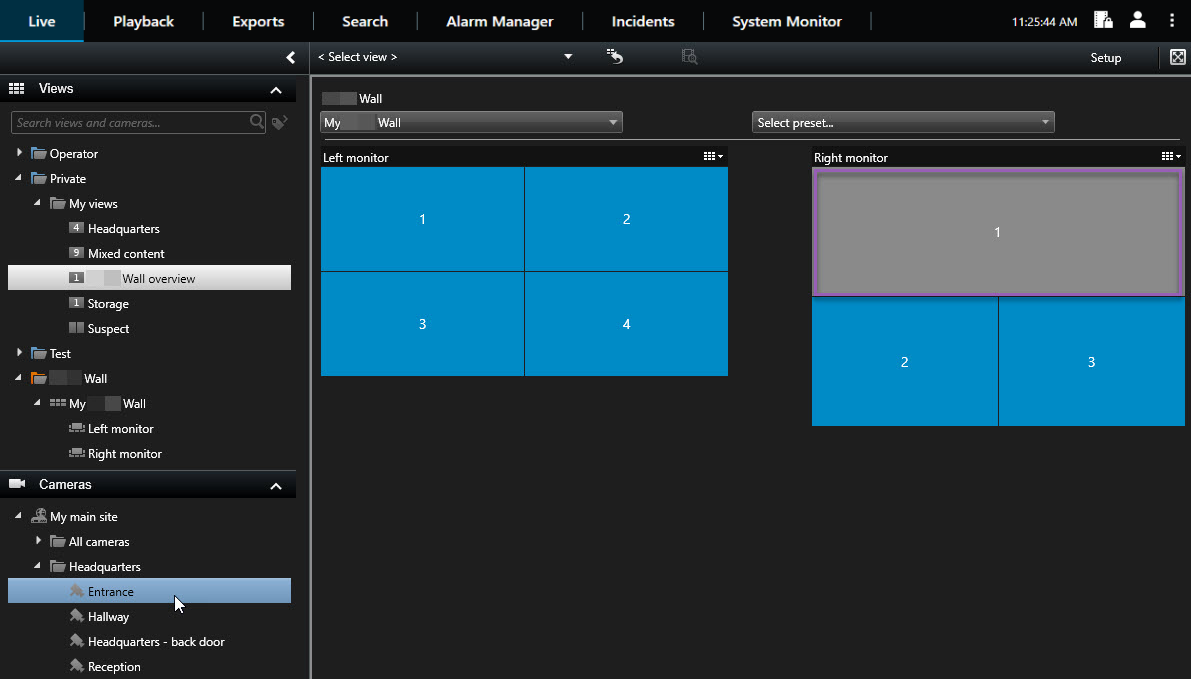
Open a view that contains the Smart Wall control.
In the Cameras pane, find the camera that you want to add.
Drag the camera to a view item in the Smart Wall control.
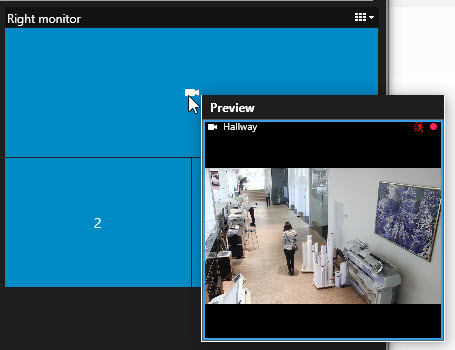
To verify that you added the correct camera, check the video wall or click the camera icon in the Smart Wall control. A preview appears.
Add entire views to video walls
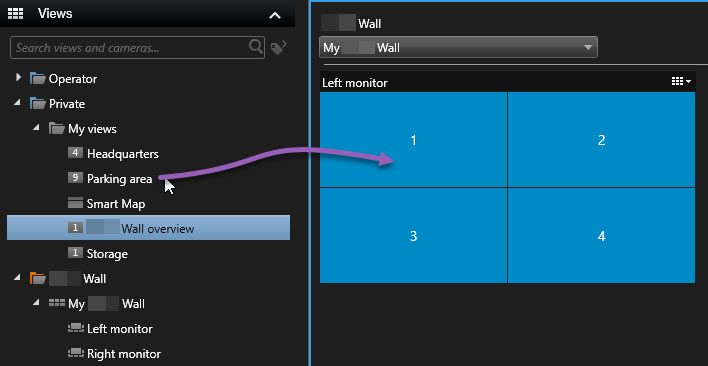
You can share an entire view with other Smart Wall operators by sending the view to a Smart Wall monitor. What is currently being displayed on that monitor is then replaced by the content of the view.
Steps:
Make sure that your video wall is running. See also View Smart Wall content.
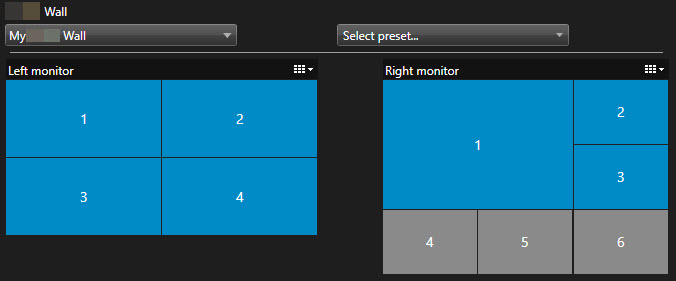
In live or playback mode, open the view that contains your Smart Wall control.
Note
Milestone recommends that you open the Smart Wall control in a new floating window.
In the Views pane, find the view that you want to send to the video wall.
Drag the view into a view item in the preferred Smart Wall monitor and then release.
Display text on video walls
Displaying text on your video wall is useful when you want to provide information to operators who are using the video wall.
Requirements
To send text from an existing view, first you must add the text to a view. See also Add a text and an image to a view.
To add text using drag-and-drop, make sure that your text editor supports drag-and-drop operations
Steps:
To add text from a third-party text editor:
Open the view that contains your Smart Wall control.
Write the text in your preferred text editor.
Select the text.
Drag and drop the text into a view item in a Smart Wall monitor.
In the window that appears, you can edit the text even further. Click Save.
Immediately after, the text appears on the associated display or physical monitor.
To add text that has already been added to a view:
Open the view that contains the text.
Hover over the view item. The camera toolbar appears.
Click More > Send to Smart Wall and then select the preferred video wall.
Select the Smart Wall monitor and finally the view item inside the monitor.
Immediately after, the text appears on the associated display or physical monitor.
Display alarms on video walls
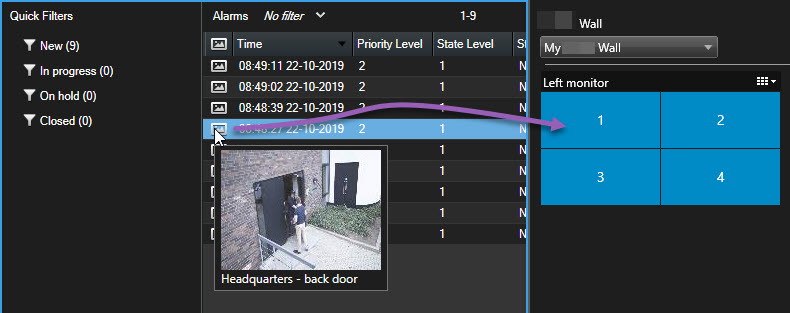
You can share a prioritized overview of all alarms by adding the Alarm List to a video wall. This allows you to view and work with details about the alarm directly from the video wall.
You can also display individual alarms on your video wall by dragging and dropping the alarm from the Alarm List.
Display bookmarks on video walls
Sending a bookmark to a video wall can help you quickly share a still image or a video sequence of an incident, for example a suspicious person, with operators who are watching the video wall.
Steps:
Create a bookmark. See also Add or edit bookmarks or Bookmark search results.
In the window that appears, click Display on Smart Wall and select the preferred video wall.
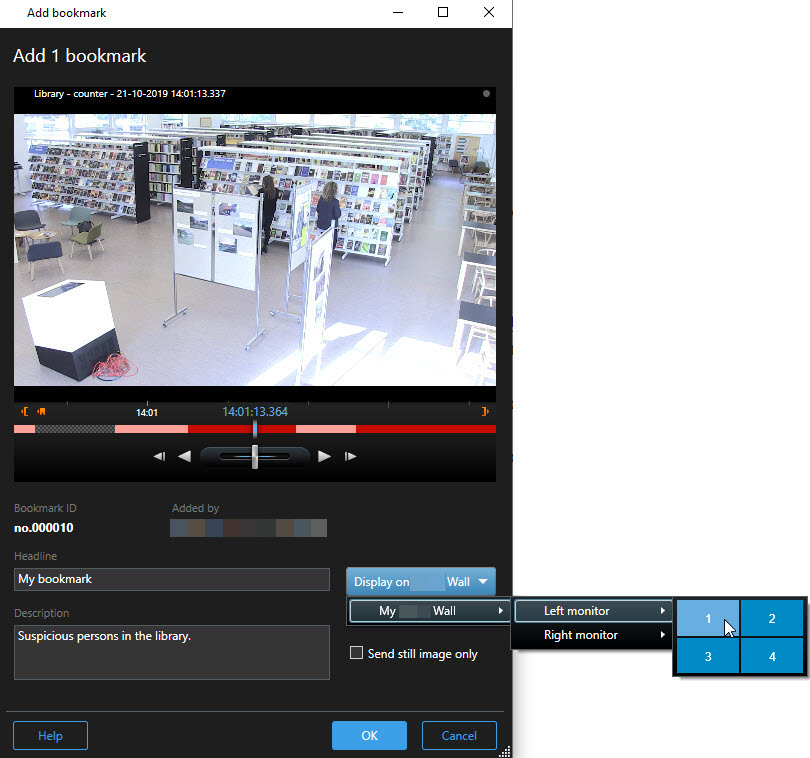
Select a Smart Wall monitor and then a view item within the monitor.
To send a still image instead of the video sequence, select the Send still image only check box.
Click OK to save your changes. The bookmarked video sequence appears on the associated physical monitor.
XProtect Smart Wall and smart maps
If you are using XProtect Smart Wall, you can view the smart map on your video wall and share it with other operators who are using the same video wall. The current zoom level, the location that you have navigated to, and the layers that are visible are maintained when sent to a video wall.
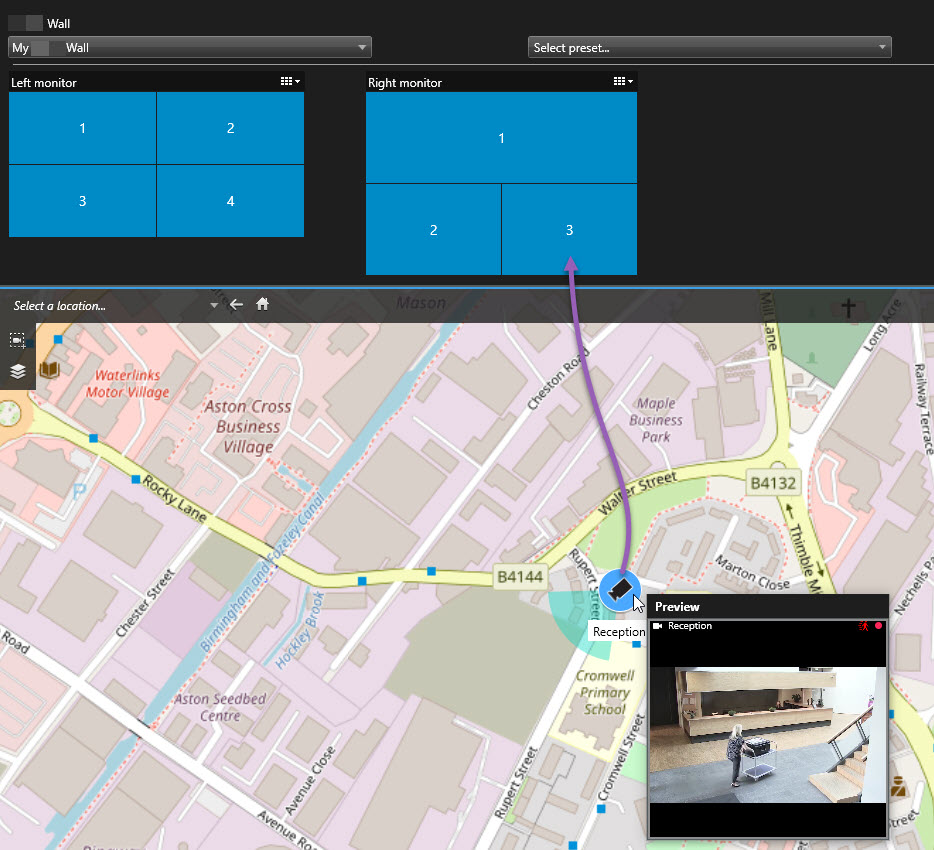
Drag cameras from maps or smart maps to video walls
If a particular camera on your map or smart map recorded an incident, and you want to share the video from that camera, you can drag the camera from the map to the monitors of your video wall.
Tip
You can also drag cameras from maps in floating windows and secondary displays.