View the status of live video
In live mode, at the top of each camera view item, camera indicators show the status of the video.
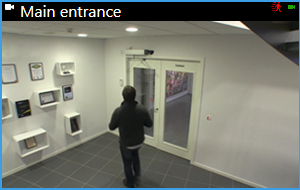
Indicator | Description |
|---|---|
 | Motion is detected. The indicator is shown until you acknowledge that you have seen it by selecting the view item to reset the motion indicator. NoteIn the camera properties, you can add sound to notify you when there is motion. |
 | The server connection to the camera is lost. |
 | Video from the camera is being recorded. |
 | A connection to the camera is established. This icon is only relevant for live video. |
 | Playing back recorded video. |
 | No new images were received from the server for more than two seconds. |