View recorded video in playback mode
In playback mode, all cameras in a view display recordings from the same time shown in the main timeline. You can play back or browse recordings by using the controls and features in the main timeline.
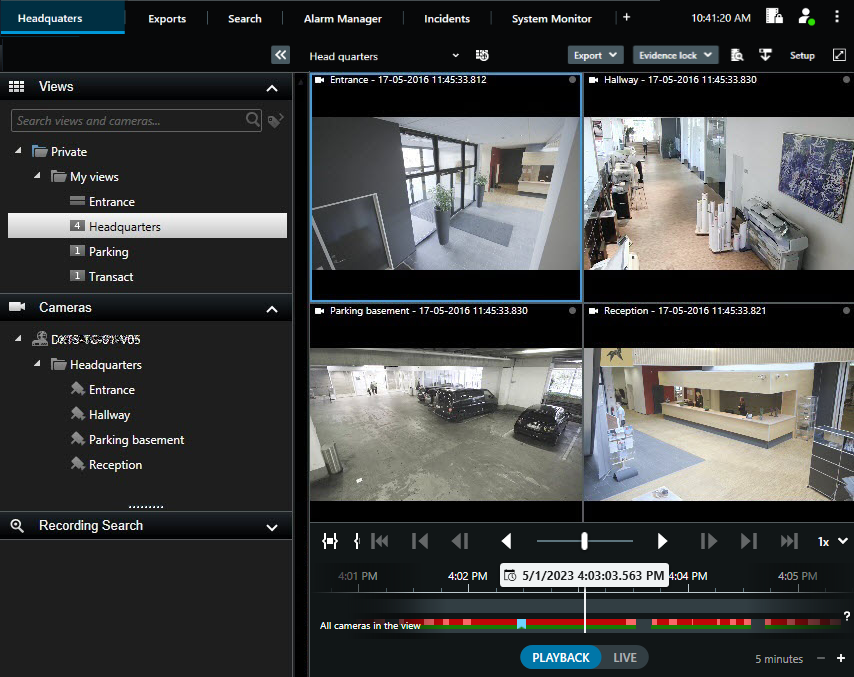
Select a view in the tree structure or use keyboard shortcuts. See Default keyboard shortcuts.
Switch to playback mode.
Browse using the main timeline. See Navigating the recordings from the timeline.
Optionally. Perform various actions on the camera toolbar. See The camera toolbar.
Optionally. Select a time span for exporting video. See also The timeline controls and Exporting video, audio, and still images.
Optionally. Create an evidence lock.