The camera toolbar (camera view items)
All camera view items have a camera toolbar. The camera toolbar is available in live and playback mode and appears when you place the cursor inside a camera view item.
Tip
If you want to temporarily hide the camera toolbar when you move your mouse between view items, press and hold the CTRL key.
The icons you see in the toolbar depend on:
The products and features available to you.
Whether you’re viewing video in live or playback mode.
The features available for the type of camera shown in the view item.
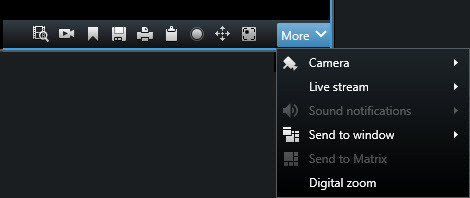
Feature | Description |
|---|---|
 | |
 | |
 | |
 | |
 | |
 | |
 | |
 | |
 | |
 | Requires XProtect Incident Manager. Starts an incident project. See Create an incident project in real time. |
 | Requires XProtect Hospital Assist. Blurs the video in the view item for a period of time. |
 | Requires XProtect Hospital Assist. Adds a sticky note to the camera view item. |
More > Camera | |
More > Send to window | |
More > Send to Smart Wall | Shares the camera stream by sending it to one of your video walls. See See the Display or change cameras on video walls section in Using XProtect Smart Wall. |
More > Send to Matrix | |
More > Digital zoom |