Zoom digitally in camera view items
You can zoom in digitally to see close-up details in both live and playback mode.
The process is the same for all camera types, but there are some key differences:
Digital Zoom: Available for fixed and fisheye cameras, for all recorded videos.
PTZ Cameras: When you zoom in on live video from a PTZ camera, the camera lens moves, changing the focal length and affecting what is recorded.
To zoom in:
Select the camera view item. If you can’t zoom in video, on the camera toolbar, select More and then Digital zoom.
Zoom in on an area:
Mouse wheel: Scroll to zoom in or out.
Click and drag: If the cursor is crosshair-shaped, select a corner of the area you want to zoom in on, drag to the opposite corner, and release the button.
Keyboard shortcut: Press SHIFT and then hold and move the mouse to select a zoom level from a slider.
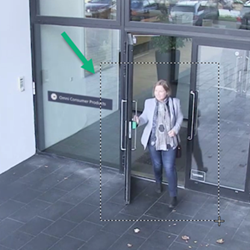
If you want to zoom in on another area, in the overview frame, use the directional PTZ navigation buttons to drag the zoom area frame or select a position outside the zoom area frame.
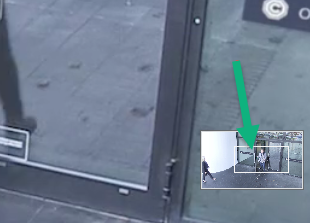
Adjust the zoom:
Use the directional PTZ buttons to shift the zoomed-in area.
In the overview frame, drag the zoom area or click outside the zoom area to reposition.
Return to normal zoom:
Press the mouse wheel or the middle mouse button.
Scroll the mouse wheel to zoom out.
Click the Home icon on the PTZ navigation buttons.