The camera settings (Properties pane)
You can fine-tune how video is displayed in camera view items, adjust how you pan, tilt, and zoom using your mouse or joystick, and set up sound notifications for motion detection.
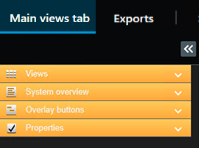
To customize these settings, in Setup mode, in the Properties pane, you can view and edit properties for the selected camera.
Setting | Description |
|---|---|
Ellipse button next to Camera name | |
Live stream | |
PTZ click mode | |
Maintain Image Aspect Ratio | |
Update on motion | |
Sound on motion detection | |
Sound on event | |
Display settings | Show/hide the camera title bar and indicators for one view item |
Video buffering | |
Apply to all | Select to quickly apply the properties you selected for one camera view item on all camera view items in the view. |