Find and open saved searches
You can find and open saved searches.
On the Search tab, click
 to the right of Search filters.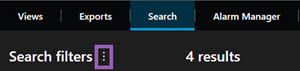
In the list that appears, click Open and manage searches. A window appears.
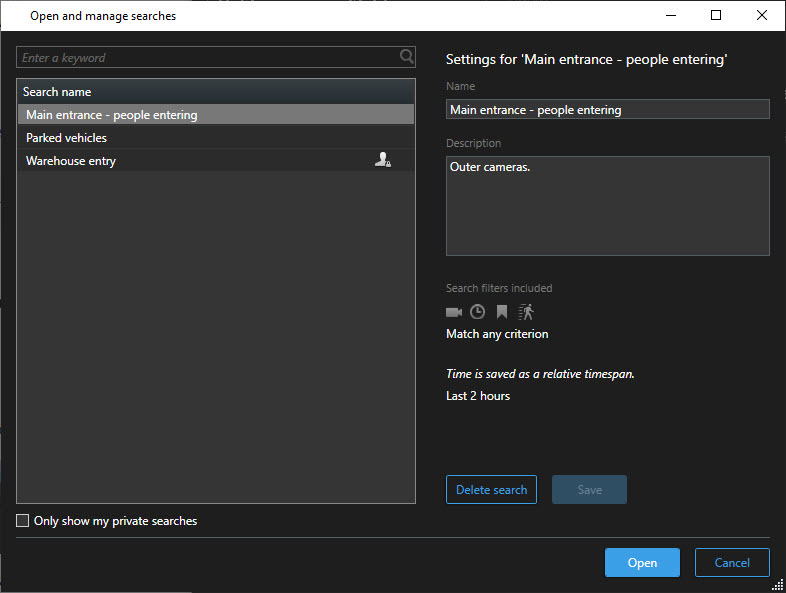
Find and double-click the search that you want to open, or click Open. Immediately, the search is run.
Tip
If many searches are listed, you can use keywords to find the search. The search includes both the Name field and the Description field.
You can modify the search, for example, by adding cameras. Click
> Save to save the changes.