Edit buildings on Smart Map
Once a building has been added to Smart Map, you can change the name of the building, and adjust the position, the size, dimensions, and angles. You can also add, remove, or reorder levels.
Steps:
Navigate to the building on your smart map. If necessary, zoom in.
On the workspace toolbar, select Setup.
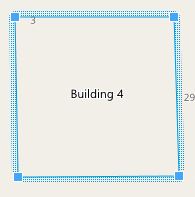
Click anywhere inside the building. A blue-ridged border indicates that you can edit the building.
To rename the building, go to the top of the right-side pane and click
 . Change the name and click
  . To cancel, press Esc.
To adjust the corners, click and drag them to a new position.
To add or remove levels, see Add or remove levels from buildings.
Select Setup again to exit setup mode and save your changes.