Add patrolling profile
When you add a patrolling profile, you and other users can see the new patrolling profile in the PTZ menu.
In the view, select the relevant PTZ camera where you want to add a new patrolling profile.
On the camera toolbar, click the PTZ icon
 to open the PTZ menu.
Click Manage patrolling profiles to open the dialog box.
Follow the steps below and click OK to close the Manage patrolling profiles window.
Click
 below the Patrolling profiles list to add a new patrolling profile.
Enter a name for the profile and press Enter. You can always rename it later.
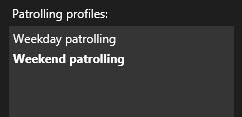
The new patrolling profile is added to the Patrolling profiles list. You can now specify the positions and other settings for the patrolling profile.
Delete patrolling profile
To delete an existing profile, select the profile and click  .
.