Add devices to smart map
If the geo-coordinates of the device have been specified in XProtect Management Client by your system administrator, the device will automatically be positioned on the smart map when you add it. If not, you must position the device yourself in its exact geographic location.
Tip
If your system administrator has specified the geo-coordinates of the device, you can easily find the device on a smart map. Contact your system administrator to enable Smart Maps in XProtect Smart Client.
Select the view that contains the smart map, and then click Setup.
To add a device or a group of devices:
Tip
Before you add the device, it's a good idea to zoom in to the location on the map. This makes it easier to accurately position the device if the device has no geo-coordinates.
Expand the System overview pane, find the device or device group, and then drag it to the point on the smart map where you want to display it. You can drag devices afterward to reposition them
On the smart map toolbar, select
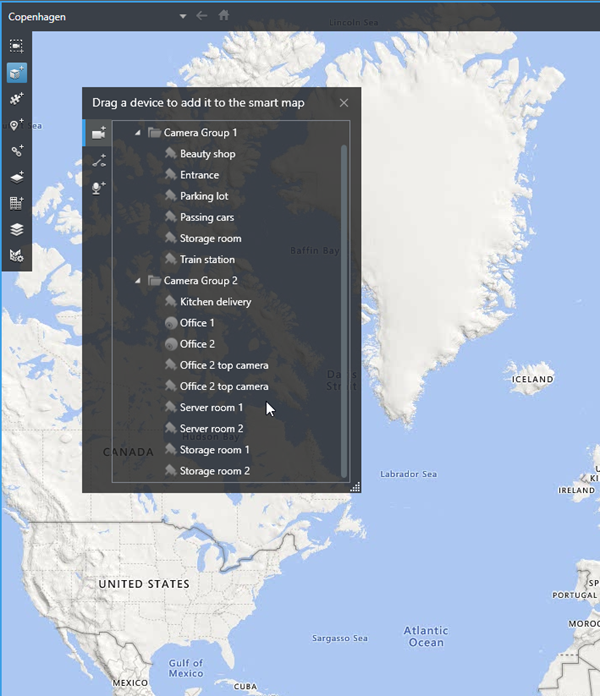
 Add a device, and then select the device type.
Example: In the case of a camera, select
 Add a camera, and then select the camera.
Drag the device to the smart map
To save the change, click Setup to exit setup mode.