Respond to access requests
When someone tries to enter a building using a door controller and access is denied, an access request is sent to your app. Depending on your access control system, you can respond by, for example, unlocking the door to let the person enter.
If you are using a VMS that supports push notifications, open the access request from the notification bar. This example is from an Android tablet. It may look different on iOS.
Or:
Open the app, and in the list of servers, tap the server that you want to connect to.
Open Access control:
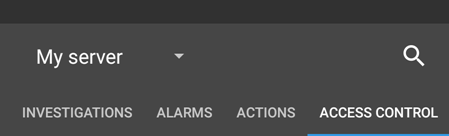
Android - Tap the Access Control tab, then tap
 and select Access requests.
iOS - Tap
 , then tap Access requests.
Tap an access request to open it. After opening the access request, you will see:
Live video from the cameras at the door.
Details about the person who tries to enter.
Note
After two minutes, access requests disappear from the list. You can find them in the Events list.
To switch cameras, swipe the live image left. If there are more than two, swipe several times.
Optional. Tap
 (Android) or
  (iOS) to start playing incoming audio. Tap
  (Android) or
  (iOS) to stop playing audio (Only for cameras that have microphones attached).
Optional. Tap and hold
 to start push-to-talk. Release the icon
  to end transmitting audio (Only for cameras that have speakers).
Now you can either Lock or Unlock the door.
To play back the video before or at the time when the cardholder tried to enter:
Tap the live image. The live video feed displays in a bigger view.
Tap
 (Android) or
  (iOS) to switch to playback mode. In the changed view, you can still view the live video at the top.
Optional. If the camera has audio devices (microphone and speaker) attached, you can listen to the incoming and outgoing recorded audio when you play the video recording forward at normal speed (see Find and view video recordings).