Use custom server certificates for communication with the failover web console
XProtect Management Server Failover Web Console supports HTTPS connections. You can enable HTTPS during the configuration wizard and use a self-signed certificate, or you can configure HTTPS later using a custom certificate issued by your organization's PKI or a commercial certificate authority.
This article describes the requirements and steps for configuring HTTPS access to the Failover Web Console with a custom certificate.
Certificate requirements
Certificate Authority (CA) certificate
You need a Certification Authority (CA) certificate that issues the server certificate. The CA certificate must meet the following requirements:
Format: Base-64 encoded X.509 certificate file
(.crt)in PEM formatFile name:
cacert.crtCertificate store: Trusted Root Certification Authorities on the local computer
Note
If your CA certificate is in DER format, convert it to PEM before continuing.
Server certificate
You need a server certificate issued by the CA certificate described above. The server certificate must meet the following requirements:
Subject Alternative Name (SAN):
Hostname of both Management Server failover nodes
Fully qualified domain name (FQDN) of both Management Server failover nodes
Virtual IP address of the failover cluster
Certificate file: Base-64 encoded X.509 certificate file
(.crt)Certificate name:
server.crtPrivate key: Unencrypted private key
(.key)Private key name:
server.keyCertificate store: Trusted Root Certification Authorities on the local computer
Note
If your server certificate is provided as a .pfx file, extract the .crt file and the corresponding unencrypted .key file before continuing.
Configure HTTPS with a custom certificate
Complete the following steps on each failover node:
Copy
cacert.crtto:C:\Program Files\Milestone\XProtect Management Server Failover\safekit\web\conf
Copy
server.crtandserver.keyto:C:\Program Files\Milestone\XProtect Management Server Failover\safekit\web\conf
Verify that the certificates are valid:
Open PowerShell as an administrator and navigate to:
cd "C:\Program Files\Milestone\XProtect Management Server Failover\safekit\web\bin"
Verify the CA certificate:
.\checkcert.ps1 -t CA
Verify the server certificate
.\checkcert.ps1 -t server
Confirm that both certificates pass validation.

Copy
httpd.webconsolessl.conffrom:C:\Program Files\Milestone\XProtect Management Server Failover\safekit\web\conf
to:
C:\Program Files\Milestone\XProtect Management Server Failover\safekit\web\conf\ssl
Restart the safekit webserver service.
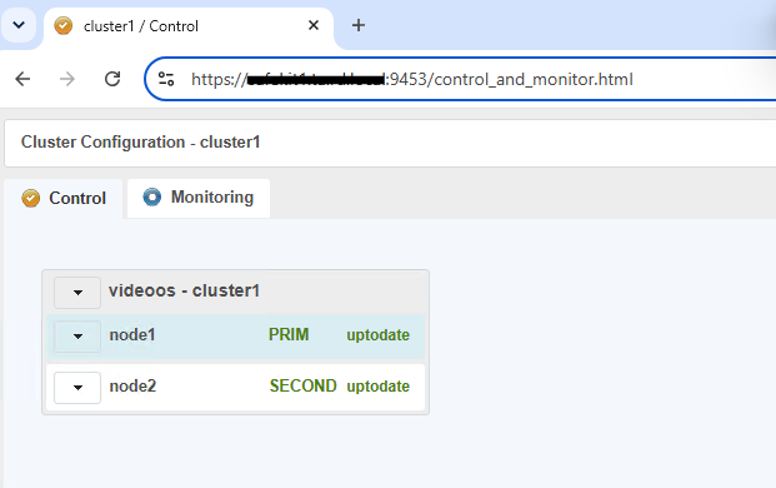
After you complete these steps on both failover nodes, the XProtect Management Server Failover Web Console is available over HTTPS on port 9453.
Access the web console from another workstation
To access the XProtect Management Server Failover Web Console from a workstation outside the failover cluster, make cacert.crt and server.crt available in the Trusted Root Certification Authorities certificate store on the workstation. You can then connect to the web console using the cluster's virtual IP address.