Users
The term users primarily refers to users who connect to the surveillance system through the clients. You can configure such users in two ways:
As basic users, authenticated by a user name/password combination
As Windows users, authenticated based on their Windows login
Windows Users
You add Windows Users through the use of Active Directory. Active Directory (AD) is a directory service implemented by Microsoft for Windows domain networks. It is included in most Windows Server operating systems. It identifies resources on a network in order for users or applications to access them. Active Directory uses the concepts of users and groups.
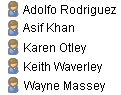
Users are Active Directory objects representing individuals with a user account. Example:
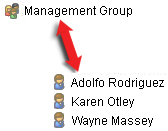
Groups are Active Directory objects with several users. In this example, the Management Group has three users:
Groups can contain any number of users. By adding a group to the system, you add all of its members in one go. Once you have added the group to the system, any changes made to the group in Active Directory, such as new members you add or old members you remove at a later stage, are immediately reflected in the system. A user can be a member of more than one group at a time.
You can use Active Directory to add existing user and group information to the system with some benefits:
Users and groups are specified centrally in Active Directory so you do not have to create user accounts from scratch
You do not have to configure any authentication of users on the system as Active Directory handles authentication
Before you can add users and groups through the Active Directory service, you must have a server with Active Directory installed on your network.
Basic users
If your system does not have access to Active Directory, create a basic user. For information about how to set up basic users, see Create basic users.
Users authorized through an Identity Provider (IDP)
An external identity provider (IDP) is an external application or service that stores and manages user identity information and handles authentication for other systems. You can associate an external IDP with the XProtect VMS so that users sign in to XProtect through the IDP.
External IDPs are commonly used to support central user management across multiple systems, single sign on, and multi-factor authentication (MFA). When a user signs in to XProtect via an external IDP for the first time, a user name is created automatically. The IDP provides a set of claims, and the VMS uses these to pick a name that is unique in the VMS database.
If you delete a user in XProtect and the same user signs in again from the external IDP, a new user is created.
Users and security – Password policy and authentication
XProtect supports external identity providers, multi-factor authentication (MFA), and risk-based authentication. These options help you meet international and national security guidance, including ANSSI recommendations. This section explains how password-based authentication works in XProtect and how to set a secure password policy.
A password is one way to verify a user's identity. Treat it as part of a wider access control approach that reflects how sensitive the system is, what the user can do, and how exposed the system is.
Passwords in XProtect
As mentioned above, XProtect includes various ways to create and manage users:
Windows users, signed in through the operating system or directory services.
Basic users, managed locally in XProtect.
Users signed in through external identity providers.
The password rules that apply depend on the sign-in method your organization is using. XProtect uses the operating system or the identity provider to check passwords and impose password rules.
Principles for a secure password policy
When you set a password policy for XProtect, match the rules to the risk. Different users and systems need different levels of protection:
Standard users
Administrators and other privileged users
Systems open to remote or internet access
Systems used in sensitive or regulated environments.
One single rule for everyone is rarely the right approach.
Password length and structure
Passwords should be long enough to resist brute force and guessing attacks.
For CAPSS-compliant environments, the password must be a minimum of nine characters and a maximum of 64 characters in length.
Passwords must not be:
Obtained from previous breach corpuses (by checking against an offline list from a reliable source, such as NCSC)
Dictionary words (where the whole password is a single dictionary word)
Three or more repetitive sequential characters (such as 'aaa' or 'abcd1234')
Context-specific words, such as the name of the service, the user name, or derivatives thereof.
We recommend that you:
Use long passwords or passphrases.
Avoid rules that only require a mix of character types.
Rules that are too strict can push users into unsafe habits, such as reusing passwords or writing them down in insecure places.
Password quality and weak password protection
Passwords should not be easy to guess or based on information about the user or the system.
Where the sign in method supports it, block:
Common or widely used passwords
Passwords based on user names, system names, or organization names
Passwords from known lists of breached credentials.
Blocking weak passwords works better than only requiring complex characters.
Password changes and lifecycle management
For standard users:
Do not force regular password changes unless you have reason to believe a password has been exposed.
Require a password change if a password has been shared or misused.
For administrators:
Apply stricter controls, because these accounts have more access.
Add extra protection, such as limited sign-in paths or multi-factor authentication (MFA).
User authentication and re-authentication:
The system requires the user to change their password when logging in for the first time.
Passwords should only be required to be changed upon suspicion that a password has been compromised. No previous password shall be allowed by the product.
Passwords should be stored hashed and salted with a unique salt per password.
Account lockout shall be set at ten attempts or less with a minimum of three.
Implement lockout sessions after a defined period of inactivity, requiring the user to re-authenticate. The inactivity period must be no longer than 15 minutes for admin roles and up to 120 minutes for operator roles or other roles used in a secure area for passive review of data.
Password storage and handling
Never store or send passwords in clear text.
XProtect uses the standard, secure sign-in methods provided by the operating system or external identity providers to keep passwords protected.
Users can use password managers to create, store, and manage strong, unique passwords.
Multi-factor authentication (MFA) (recommended)
A password on its own is often not enough to protect sensitive systems or remote access. For environments with higher security needs, turn on MFA through a supported identity provider.
MFA adds a second sign‑in step, such as a one‑time code sent to the user's phone through SMS or generated by an authenticator app, in addition to the password. This second sign‑in step makes unauthorized access much harder.
Administrator responsibilities
XProtect includes the tools to set up secure sign in, but as an administrator you are responsible for:
Choosing the right sign-in methods
Setting password rules that fit your risk environment
Making sure privileged accounts are well protected
Review your security controls regularly and adjust them as threats or system use change.