Logging in
When you launch XProtect Management Client, you must first enter your login information to connect to a system.
To log in:
Click the icon on the desktop to open XProtect Management Client.
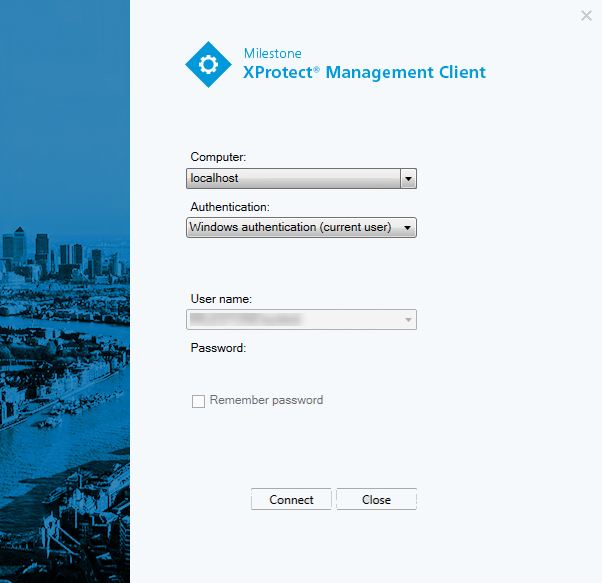
Specify the host name or the IP address of your management server in the Computer field.
Select authentication, enter your user name and password.
Login authorization
The system allows administrators to set up users so they can only log into a system if a second user with sufficient permissions authorizes their login. In this case, XProtect Smart Client or the XProtect Management Client asks for the second authorization during login.
A user associated with the built-in Administrators role always has permission to authorize and is not asked for a second login, unless the user is associated with another role that requires a second login.
Users logging in via an external IDP cannot be set up with a requirement to be authorized by a second user.
To associate login authorization with a role:
Set Login authorization required for the selected role on the Info tab under Roles, so that the user is asked for additional authorization during login
Set Authorize users for the selected role on the Overall Security tab under Roles, so that the user can authorize other users' logins
You can choose both options for the same user. This means that the user is asked for additional authorization during login, but can also authorize other users' logins, except their own.
Log in using a non-secure connection
When you log in to XProtect Management Client, you might be asked if you want to log in using a non-secure network protocol.
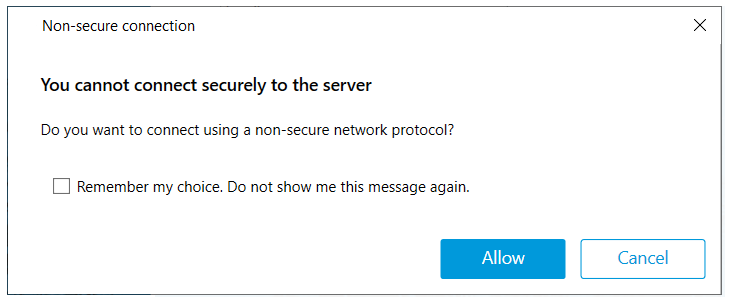
Click Allow to log in disregarding the notification. To avoid getting this notification in the future, either select Remember my choice. Do not show me this message again or click Tools > Options and then select Allow non-secure connection to the server (restart of Management Client required).
For information about secure communication, see Secure communication.
Change your basic user password
If you log in as a Basic user, you can change your password. If you choose a different authentication method, only your system administrator can change your password. Changing your password often increases the security of your XProtect VMS system.
Start XProtect Management Client,
Specify your login information. In the Authentication list, select Basic authentication. A link with the text Change password appears.
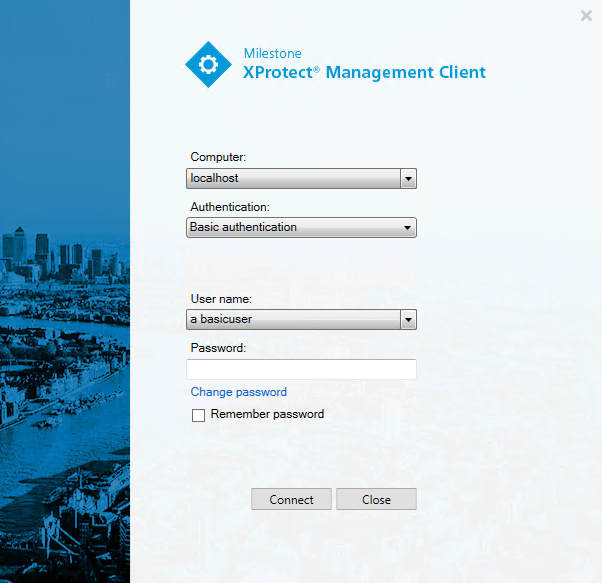
Click the link.
Follow the instructions and save your changes.
Now you can log into XProtect Management Client using your new password.