Hardware Properties window
Info tab (hardware)
For information about the Info tab for remote servers, see Info tab (remote server).
Name | Description |
|---|---|
Name | Enter a name. The system uses the name whenever the hardware is listed in the system and in the clients. The name does not have to be unique. When you rename hardware, the name is changed globally in the Management Client. |
Description | Enter a description of the hardware (optional). The description appears in a number of listings within the system. For example, when moving the mouse pointer over the hardware name in the Overview pane: 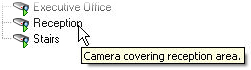 |
Model | Identifies the hardware model. |
Serial number | Hardware serial number as specified by the manufacturer. The serial number is often, but not always, identical to the MAC address. |
Driver | Identifies the driver that handles the connection to the hardware. |
IE | Opens the default home page of the hardware vendor. You can use this page for administration of the hardware. |
Address | The host name or IP address of the hardware. |
MAC address | Specifies the Media Access Control (MAC) address of the system hardware. A MAC address is a 12-character hexadecimal number uniquely identifying each piece of hardware on a network. |
Firmware version: | The firmware version of the hardware device. To ensure that the system displays the current version, run the Update hardware data wizard after every firmware update. |
Password last changed | The Password last changed field shows the time stamp of the latest password change based on the local time settings of the computer that the password was changed from. |
Hardware data last updated: | Time and date of the last update of the hardware data. |
Settings tab (hardware)
On the Settings tab, you can verify or edit settings for the hardware.
Note
The content of the Settings tab is determined by the selected hardware, and varies depending on the type of hardware. For some types of hardware, the Settings tab displays no content at all or read-only content.
For information about the Settings tab for remote servers, see Settings tab (remote server).
PTZ tab (video encoders)
On the PTZ tab, you can enable PTZ (pan-tilt-zoom) for video encoders. The tab is available if the selected device is a video encoder or if the driver supports both non-PTZ and PTZ cameras.
You must enable the use of PTZ separately for each of the video encoder's channels on the PTZ tab before you can use the PTZ features of the PTZ cameras attached to the video encoder.
Note
Not all video encoders support the use of PTZ cameras. Even video encoders that support the use of PTZ cameras may require configuration before the PTZ cameras can be used. It is typically the installation of additional drivers through a browser-based configuration interface on the device's IP address.
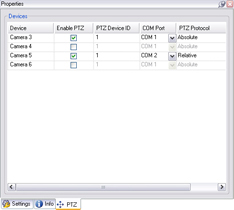
PTZ tab, with PTZ enabled for two channels on a video encoder.