Enable encryption to clients and servers
You can encrypt connections from the recording server to clients and servers that stream data from the recording server.
Important
CAPSS-compliant installations require Microsoft BitLocker, or an equivalent full-disk encryption solution, on all Windows hosts running XProtect components.
Ensure that the encryption solution is configured according to the XProtect Hardening guide and customer security policies, and verify that it does not prevent, delay, degrade, or otherwise interfere with XProtectservices. XProtect services must remain continuously available to ensure system functionality, availability, and continuous recording.
On a computer with a recording server installed, open the Server Configurator from:
The Windows Start menu
or
By right-clicking the Recording Server Manager icon on the computer task bar
In the Server Configurator, under Streaming media certificate, turn on Еncryption.
Click Select certificate to open a list with unique subject names of certificates that have a private key and that are installed on the local computer in the Windows Certificate Store.
Select a certificate to encrypt communication between the clients and servers that retrieve data streams from the recording server.
Select Details to view Windows Certificate Store information about the selected certificate.
The Recording Server service user has been given access to the private key. It is required that this certificate is trusted on all clients.
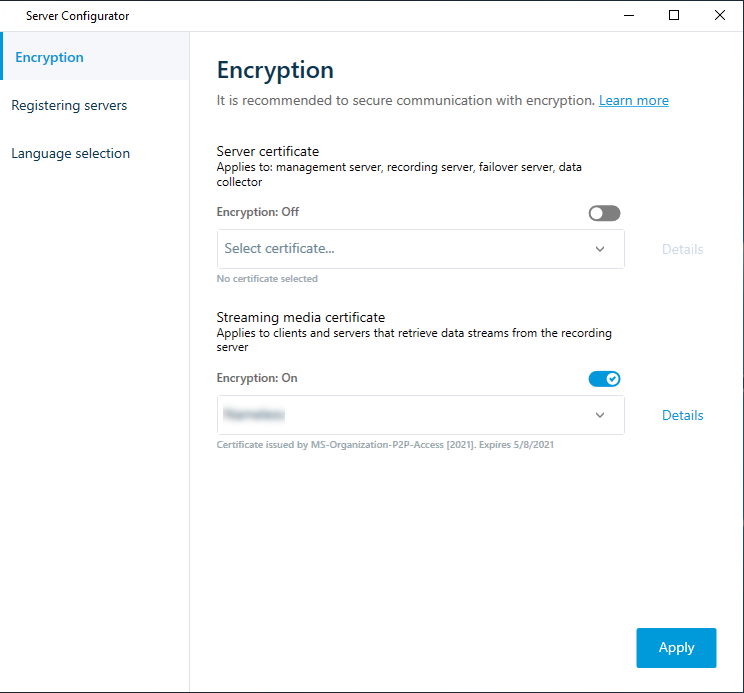
Click Apply.
Important
When you apply certificates, the recording server will be stopped and restarted. Stopping the Recording Server service means that you cannot record and view live video while you are verifying or changing the recording server's basic configuration.
To verify if the recording server uses encryption, see View encryption status to clients.