Enable Bing Maps or Google Maps in XProtect Smart Client
To allow XProtect Smart Client operators to use a different key than the key from the Smart Client profile, you must enter the key in the settings in XProtect Smart Client.
Steps:
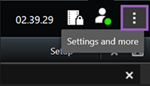
In XProtect Smart Client, open the Settings window.
Click Smart map.
Depending on the map service you want to use, do one of the following:
For Bing Maps, enter your key in the Bing Maps key field. See also Smart map integration with Bing Maps.
For Google Maps, enter your key in the Private key for Google Maps field. See also Smart map integration with Google Maps.