Basic steps – Servers, Workstations, Clients and Applications
Establish surveillance and security objectives
Before implementing the VMS, Milestone recommends that you establish surveillance objectives. Define goals and expectations related to capturing and using video data and related metadata. All stakeholders should understand the surveillance objectives.
Note
Specifics of surveillance objectives can be found in other documents, for example BS EN 62676-1-1: Video surveillance systems for use in security applications. System requirements. General.
When surveillance objectives are in place, you can establish the security objectives. Security objectives support the surveillance objectives by addressing what to protect in the VMS. A shared understanding of security objectives makes it easier to secure the VMS and maintain data integrity.
With the surveillance and security objectives in place, you can more easily address the operational aspects of securing the VMS, such as how to:
Prevent data from being compromised
Respond to threats and incidents when they occur, including roles and responsibilities.
Learn more
The following control(s) provide additional guidance:
NIST SP 800-53 PL-2 System Security Plan
NIST SP 800-53 SA-4 Acquisition Process
Establish a formal security policy and response plan
In compliance with NIST SP 800-100 Information Security Handbook: A Guide for Managers (https://csrc.nist.gov/publications/detail/sp/800-100/final), Milestone recommends that you establish a formal security policy and a response plan that describe how your organization addresses security issues, in terms of practical procedures and guidelines. For example, a security policy can include:
A password policy defined by the internal IT department
Access control with ID badges
Restrictions for smartphones from connecting to the network
Adopt existing IT policies and plans if they adhere to security best practices.
Learn more
The following control(s) provide additional guidance:
NIST SP 800-53 IR-1 Incident Response Policy and Procedures
NIST SP 800-53 PM-1 Information Security Program Plan
Use Windows users with Active Directory
There are two types of users in XProtect VMS:
Basic user: a dedicated VMS user account authenticated by a combination of username and password using a password policy. Basic users connect to the VMS using a secure socket layer (SSL) with current Transport Layer (TLS) security protocol session (https://datatracker.ietf.org/wg/tls/charter/) for login, encrypting the traffic contents and username and password.
Windows user: the user account is specific to a machine or a domain, and it is authenticated based on the Windows login. Windows users connecting to the VMS can use Microsoft Windows Challenge/Response (NTML) for login, Kerberos (see Kerberos authentication ), or other SSP options from Microsoft (https://msdn.microsoft.com/en-us/library/windows/desktop/aa380502(v=vs.85).aspx).
Milestone recommends that, whenever possible, you use Windows users in combination with Active Directory (AD) to authorize access to the VMS. This allows you to enforce:
A password policy that requires users to change their password regularly
Brute force protection, so that the Windows AD account is blocked after a number of failed authentication attempts, again in line with the organization password policy
Multi-factor authentication in the VMS, particularly for administrators
Role-based permissions, so you can apply access controls across your domain
If your organization does not use AD, you can add Windows users to workgroups on the management server instead. Workgroups give you some of the same advantages as Windows users with AD. You can enforce a password policy, which helps protect against brute force attacks, but Milestone recommends that you use a Windows Domain because this gives you central control over user accounts.
Windows users have the advantage of being authenticated via the directory as a single authoritative source and enterprise service for the network and not ad hoc for their local machine. This lets you use role based access controls to assign permissions to users and groups consistently across the domain and the computers on the network.
If you use local Windows users, the user must create a local user name and password on each machine, which is problematic from security and usability perspectives.
To add Windows users or groups to roles in Management Client, follow these steps:
Open Management Client.
Expand the Security node.
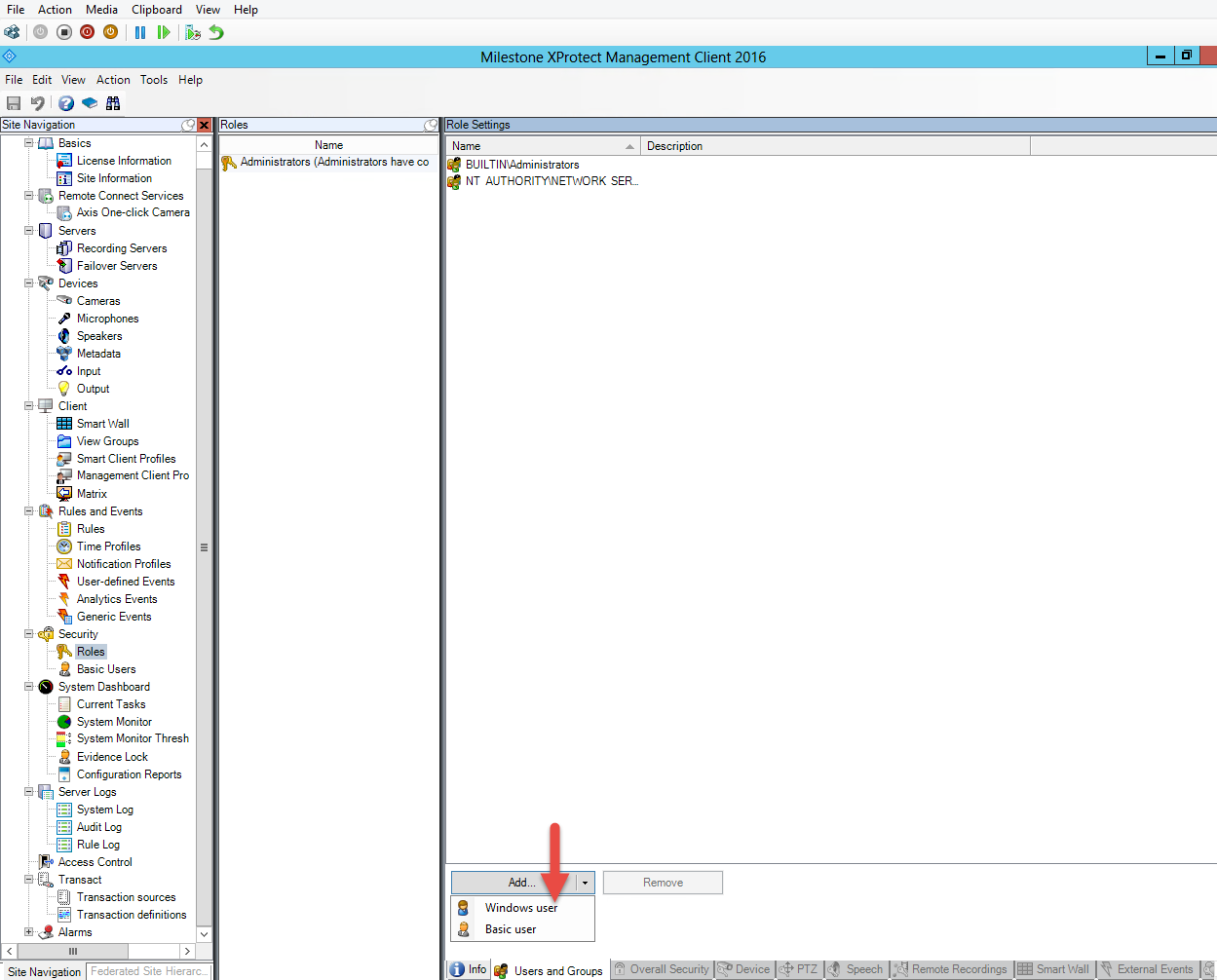
Select the role to which you want to add the Windows users.
On the Users and Groups tab, click Add, and select Windows user. A pop-up window appears.
If the domain name does not appear in the From this location field, click Locations.
Specify the Windows user, and then click OK.
Note
To verify that the Windows user is an AD user, the domain name must appear as a prefix, for example "Domain\John".
Learn more
The following control(s) provide additional guidance:
NIST SP 800-53 CM-6 Configuration Settings
NIST SP 800-53 SA-5 Information System Documentation
NIST SP 800-53 SA-13 Trustworthiness
Secure communication
Management server encryption
You can encrypt the two-way connection between the management server and the recording server. When you enable encryption on the management server, it applies to connections from all the recording servers that connect to the management server. If you enable encryption on the management server, you must also enable encryption on all of the recording servers. Before you enable encryption, you must install security certificates on the management server and all recording servers.
Certificate distribution for management servers
The graphic illustrates the basic concept of how certificates are signed, trusted, and distributed in XProtect VMS to secure the communication to the management server.
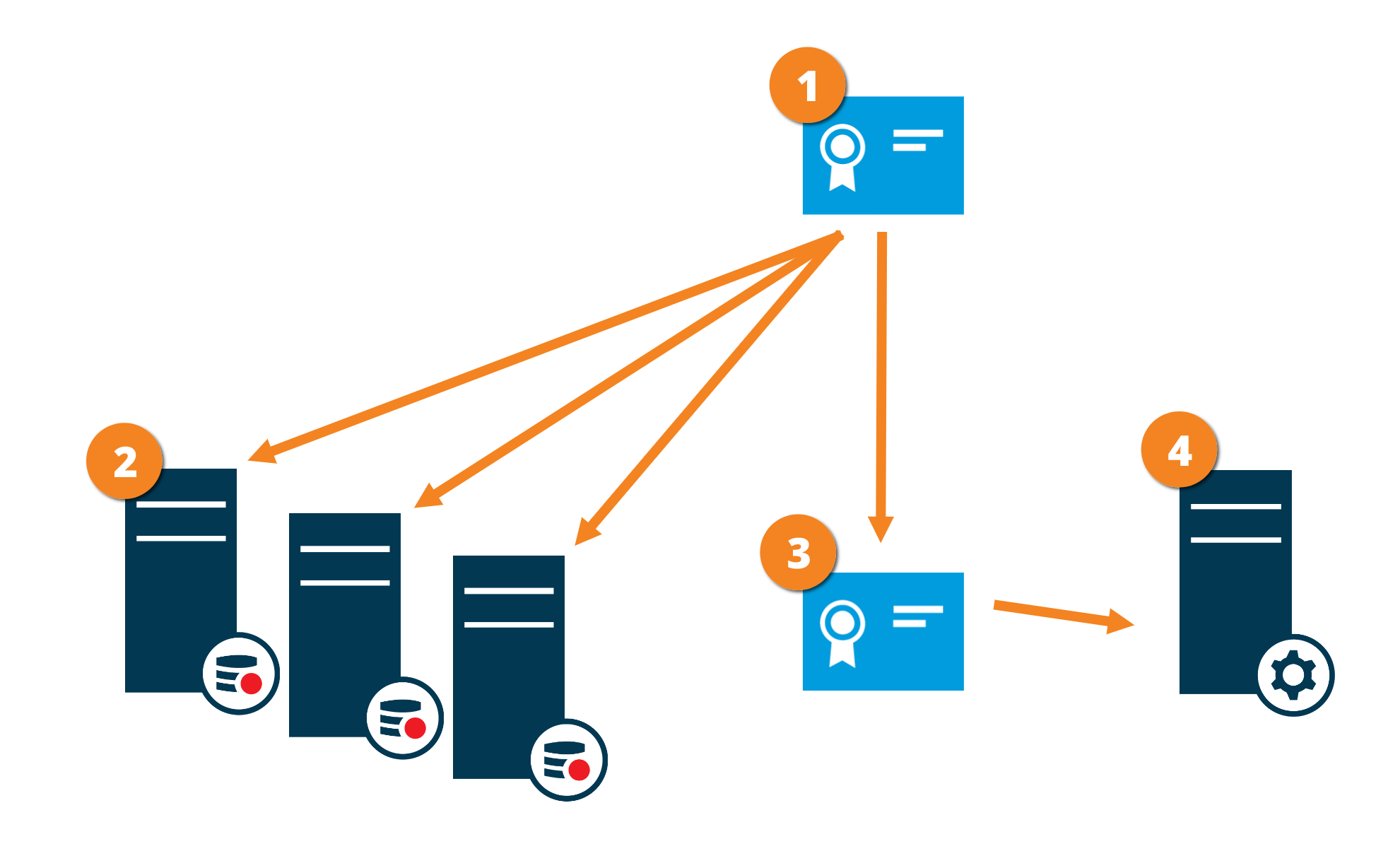
 A CA certificate acts as a trusted third party, trusted by both the subject/owner (management server) and by the party that verifies the certificate (recording servers)
 The CA certificate must be trusted on all recording servers. In this way, the recording servers can verify the validity of the certificates issued by the CA
 The CA certificate is used to establish a secure connection between the management server and the recording servers
 The CA certificate must be installed on the computer on which the management server is running
Requirements for the private management server certificate:
Issued to the management server so that the management server's host name is included in the certificate, either as subject (owner) or in the list of DNS names that the certificate is issued to
Trusted on the management server itself, by trusting the CA certificate that was used to issue the management server certificate
Trusted on all recording servers connected to the management server by trusting the CA certificate that was used to issue the management server certificate
Encryption from the management server to the recording server
You can encrypt the two-way connection between the management server and the recording server. When you enable encryption on the management server, it applies to connections from all the recording servers that connect to the management server. Encryption of this communication must follow the encryption setting on the management server. So, if management server encryption is enabled, this must also be enabled on the recording servers and vice-versa. Before you enable encryption, you must install security certificates on the management server and all recording servers, including failover recording servers.
Certificate distribution
The graphic illustrates the basic concept of how certificates are signed, trusted, and distributed in XProtect VMS to secure the communication from the management server.
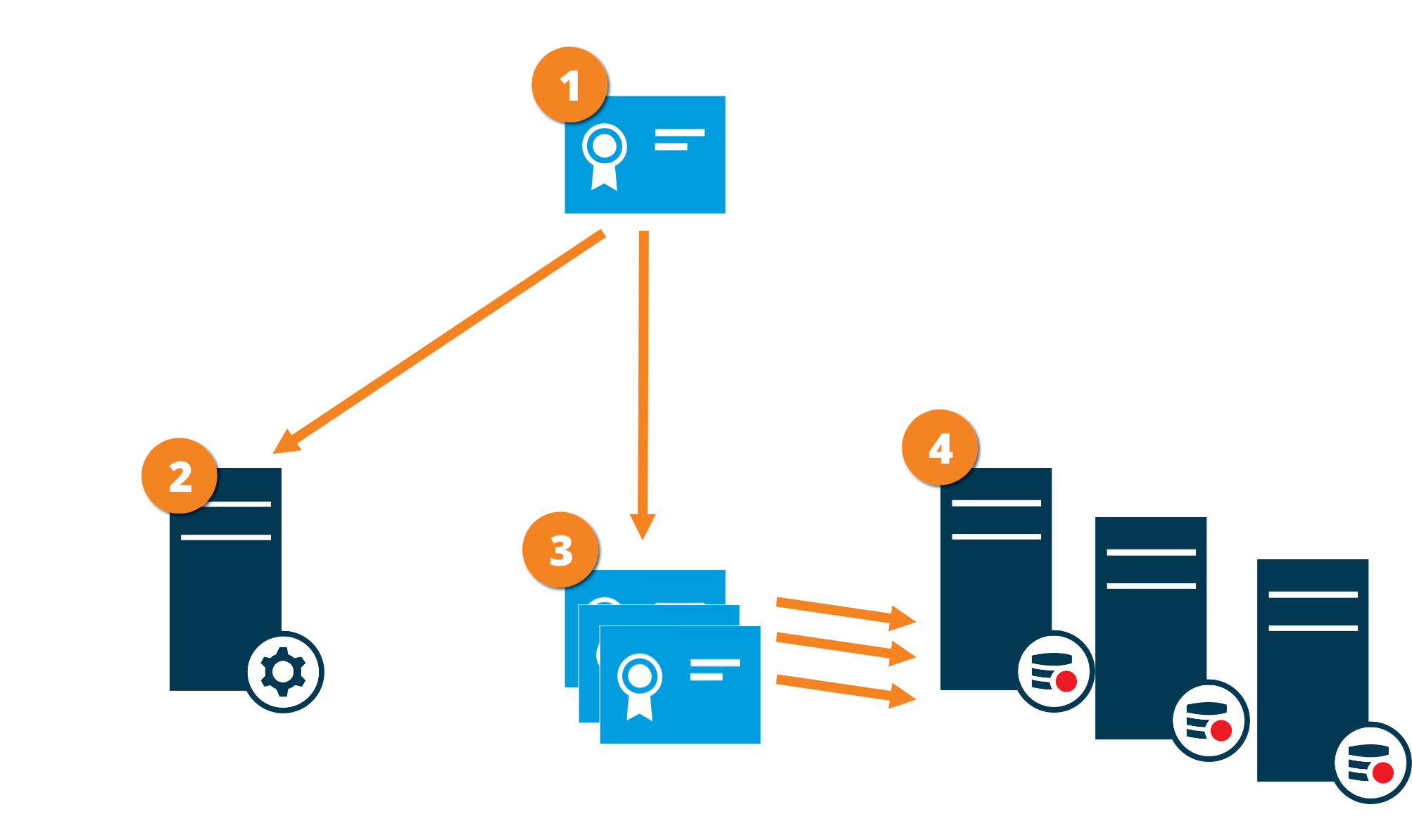
A CA certificate acts as a trusted third party, trusted by both the subject/owner (recording server) and by the party that verifies the certificate (management server)
The CA certificate must be trusted on the management server. In this way, the management server can verify the validity of the certificates issued by the CA
The CA certificate is used to establish a secure connection between the recording servers and the management server
The CA certificate must be installed on the computers on which the recording servers are running
Requirements for the private recording server certificate:
Issued to the recording server so that the recording server's host name is included in the certificate, either as subject (owner) or in the list of DNS names that the certificate is issued to
Trusted on the management server by trusting the CA certificate that was used to issue the recording server certificate
Encryption between the management server and the data collector
You can encrypt the two-way connection between the management server and the data collector affiliated when you have a remote server of the following type:
Recording server
Event server
Log server
LPR server
Mobile server
When you enable encryption on the management server, it applies to connections from all the data collector servers that connect to the management server. Encryption of this communication must follow the encryption setting on the management server. So, if management server encryption is enabled, this must also be enabled on the data collector servers affiliated with each remote server and vice-versa. Before you enable encryption, you must install security certificates on the management server and all data collector servers affiliated with the remote servers.
Certificate distribution
The graphic illustrates the basic concept of how certificates are signed, trusted, and distributed in XProtect VMS to secure the communication from the management server.
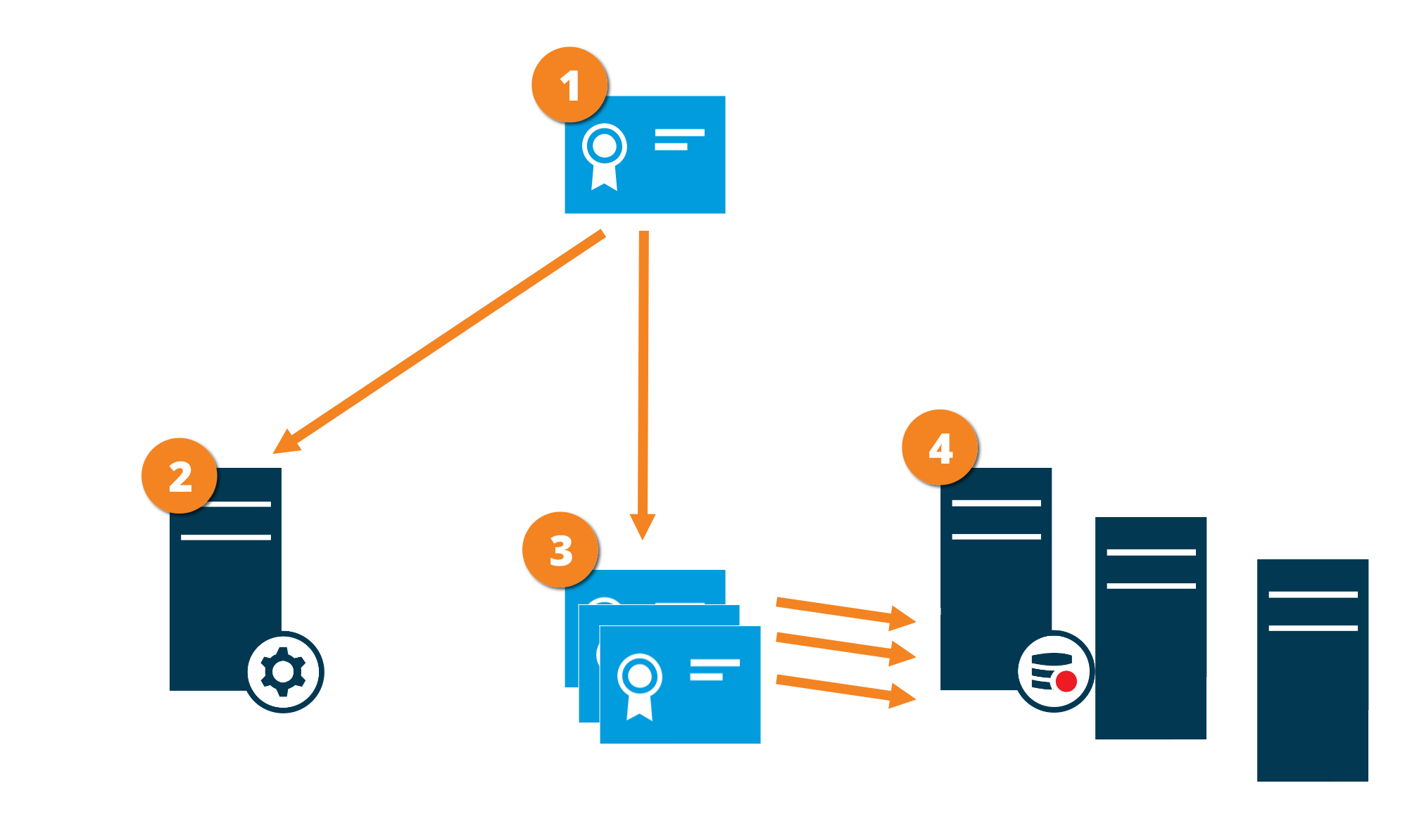
A CA certificate acts as a trusted third party, trusted by both the subject/owner (data collector server) and by the party that verifies the certificate (management server)
The CA certificate must be trusted on the management server. In this way, the management server can verify the validity of the certificates issued by the CA
The CA certificate is used to establish a secure connection between the data collector servers and the management server
The CA certificate must be installed on the computers on which the data collector servers are running
Requirements for the private data collector server certificate:
Issued to the data collector server so that the data collector server's host name is included in the certificate, either as subject (owner) or in the list of DNS names that the certificate is issued to
Trusted on the management server by trusting the CA certificate that was used to issue the data collector server certificate
Encryption to clients and servers that retrieve data from the recording server
When you enable encryption on a recording server, communication to all clients, servers, and integrations that retrieve data streams from the recording server are encrypted. In this document referred to as 'clients':
XProtect Smart Client
Management Client
Management Server (for System Monitor and for images and AVI video clips in email notifications)
XProtect Mobile Server
XProtect Event Server
XProtect LPR
Milestone Open Network Bridge
XProtect DLNA Server
Sites that retrieve data streams from the recording server through XProtect Interconnect
Some third-party MIP SDK integrations
Certificate distribution
The graphic illustrates the basic concept of how certificates are signed, trusted, and distributed in XProtect VMS to secure the communication to the recording server.
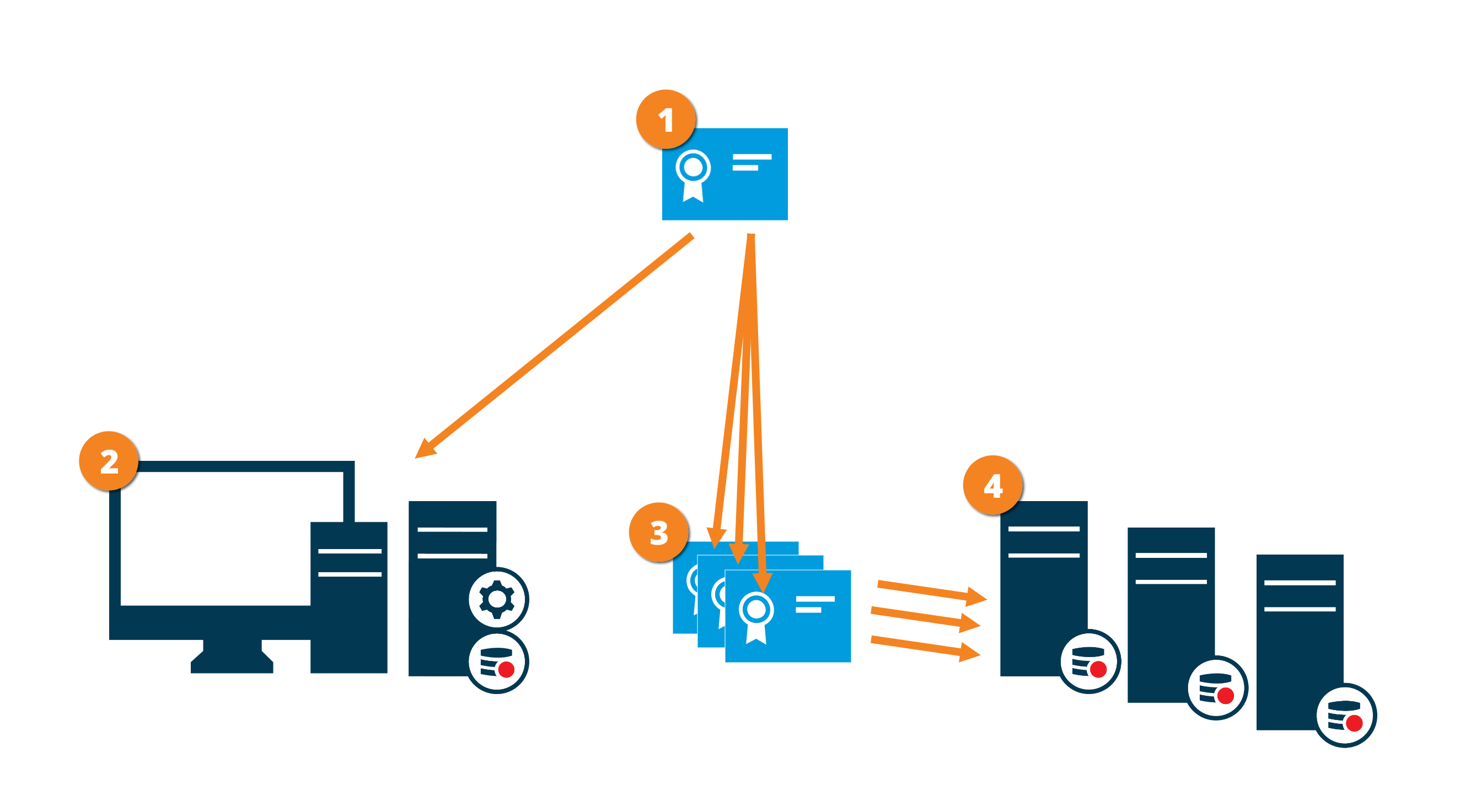
A CA certificate acts as a trusted third-party, trusted by both the subject/owner (recording server) and by the party that verifies the certificate (all clients)
The CA certificate must be trusted on all clients. In this way, the clients can verify the validity of the certificates issued by the CA
The CA certificate is used to establish a secure connection between the recording servers and all clients and services
The CA certificate must be installed on the computers on which the recording servers are running
Requirements for the private recording server certificate:
Issued to the recording server so that the recording server's host name is included in the certificate, either as subject (owner) or in the list of DNS names that the certificate is issued to
Trusted on all computers running services that retrieve data streams from the recording servers by trusting the CA certificate that was used to issue the recording server certificate
The service account that runs the recording server must have access to the private key of the certificate on the recording server.
Note
If you enable encryption on the recording servers and your system applies failover recording servers, Milestone recommends that you also prepare the failover recording servers for encryption.
Encryption of communication with the Event Server
You can encrypt the two-way connection between the Event Server and the components that communicate with the Event Server, including the LPR Server. When you enable encryption on the Event Server, it applies to connections from all the components that connect to the Event Server. Before you enable encryption, you must install security certificates on the Event Server and all connecting components.
Note
When the Event Server communication is encrypted, this applies to all communication with that Event Server. That is, only one mode is supported at a time, either http or https, but not at the same time.
Encryption applies to every service hosted in the Event Server, including Transact, Maps, GisMap, and Intercommunication.
Note
Before you enable encryption in the Event Server, all clients (Smart Client and Management Client) and the XProtect LPR plug-in must be updated to at least version 2022 R1.
Note
HTTPS is only supported if every component is updated to at least version 2022 R1.
Certificate distribution
The graphic illustrates the basic concept of how certificates are signed, trusted, and distributed in XProtect VMS to secure the communication to the event server.
A CA certificate acts as a trusted third party, trusted by both the subject/owner (event server) and by the party that verifies the certificate
The CA certificate must be trusted on all clients. In this way, the clients can verify the validity of the certificates issued by the CA
The CA certificate is used to establish a secure connection between the event server and the clients
The CA certificate must be installed on the computer on which the event server is running
Mobile server data encryption (explained)
In XProtect VMS, encryption is enabled or disabled per mobile server. When you enable encryption on a mobile server, you will have the option to use encrypted communication with all clients, services, and integrations that retrieve data streams.
The graphic illustrates the basic concept of how certificates are signed, trusted, and distributed in XProtect VMS to secure the communication with the mobile server.
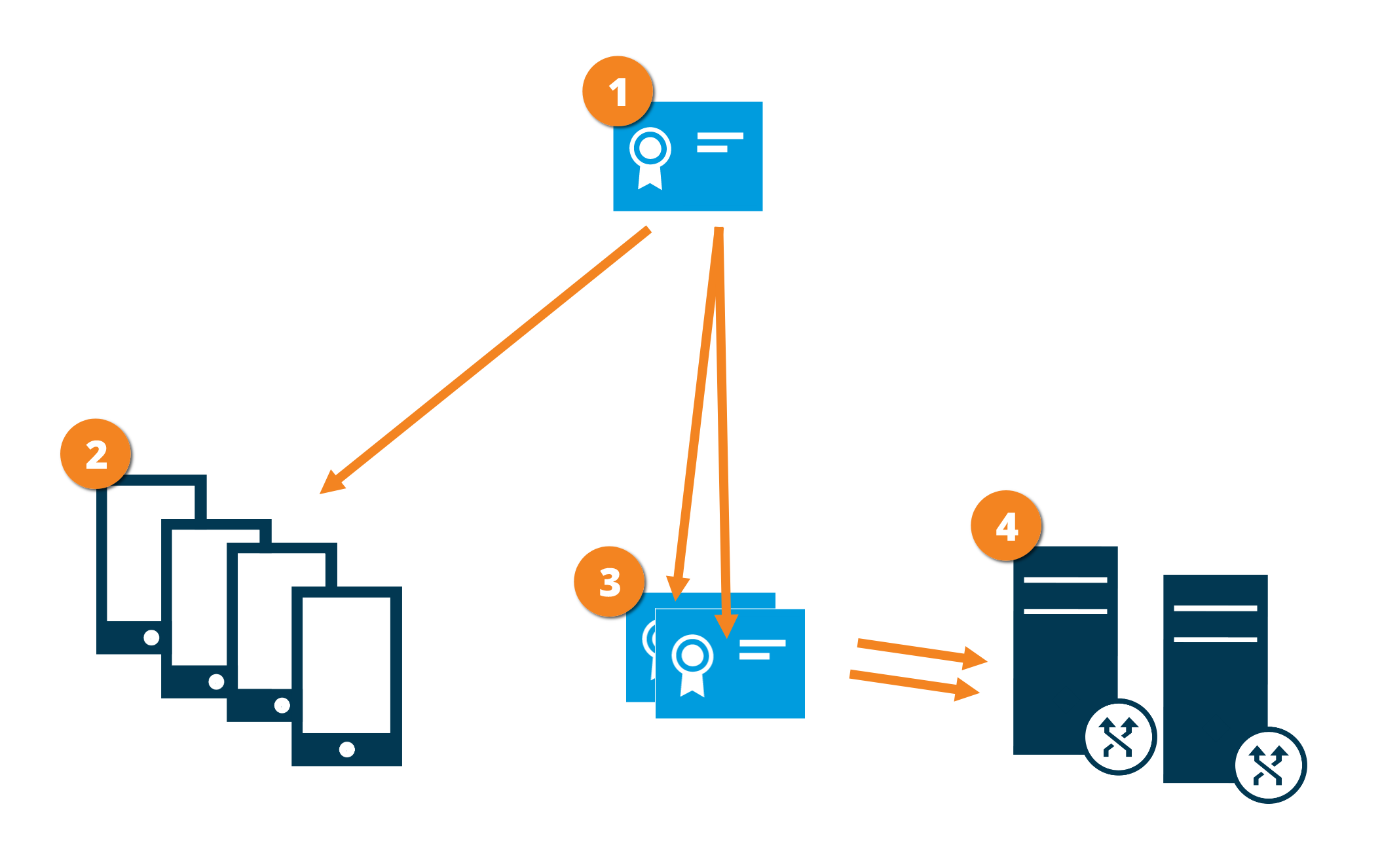 |
A CA certificate acts as a trusted third party, trusted by both the subject/owner (mobile server) and by the party that verifies the certificate (all clients)
The CA certificate must be trusted on all clients. In this way, clients can verify the validity of the certificates issued by the CA
The CA certificate is used to establish a secure connection between the mobile server and clients and services
The CA certificate must be installed on the computer on which the mobile server is running
Mobile server encryption requirements for clients
Kerberos authentication
Kerberos is a ticket-based network authentication protocol. It is designed to provide strong authentication for client/server or server/server applications.
Use Kerberos authentication as an alternative to the older Microsoft NT LAN (NTLM) authentication protocol.
Kerberos authentication requires mutual authentication, where the client authenticates to the service and the service authenticates to the client. This way you can authenticate more securely from XProtect clients to XProtect servers without exposing your password.
To make mutual authentication possible in your XProtect VMS you must register Service Principal Names (SPN) in the active directory. An SPN is an alias that uniquely identifies an entity such as a XProtect server service. Every service that uses mutual authentication must have an SPN registered so that clients can identify the service on the network. Without correctly registered SPNs, mutual authentication is not possible.
The table below lists the different Milestone services with corresponding port numbers you need to register:
Service | Port number |
|---|---|
Management server - IIS | 80 - Configurable |
Management server - Internal | 8080 |
Recording server - Data collector | 7609 |
Failover Server | 8990 |
Event Server | 22331 |
LPR Server | 22334 |
Note
The number of services you need to register in the active directory depends on your current installation. Data collector is installed automatically when installing Management Server, Recording Server, Event Server, LPR Server or Failover Server.
You must register two SPNs for the user running the service: one with the host name and one with the fully qualified domain name.
If you are running the service under a network user service account, you must register the two SPNs for each computer running this service.
This is the Milestone SPN naming scheme:
VideoOS/[DNS Host Name]:[Port]
VideoOS/[Fully qualified domain name]:[Port]
The following is an example of SPNs for the recording server service running on a computer with the following details:
Hostname: Record-Server1
Domain: Surveillance.com
SPNs to register:
VideoOS/Record-Server1:7609
VideoOS/Record-Server1.Surveillance.com:7609
Use Windows update
Milestone recommends that you use Windows Update to protect your VMS against vulnerabilities in the operating system by making sure that the latest updates are installed. XProtect VMS is Windows-based, so security updates from Windows Update are important.
Updates can require a connection to the Internet, so Milestone recommends that this connection is open only as required, and that it is monitored for unusual traffic patterns.
Windows Updates often require a restart. This can be a problem if high-availability is required, because the server cannot receive data from devices while it restarts.
There are several ways to avoid this, or minimize the impact. For example, you can download updates to the server, and then apply them at a time when a restart will disrupt surveillance as little as possible.
If high availability is a concern, Milestone recommends that you run management server and event servers in clusters that include one or more failover servers. The failover server will take over while the recording server restarts, and surveillance is not interrupted. Do not include recording servers in the cluster. For recording servers, use a failover recording server.
Note
Before implementing Windows updates across the organization, Milestone recommends that you verify the updates in a test environment. See NIST 800-53 CM-8 Information system component inventory and sandboxing and SC-44 Detonation Chambers.
The following control(s) provide additional guidance:
NIST SP 800-53 SI-2 Flaw Remediation
Keep software and device firmware updated
Milestone recommends that you use the latest version of XProtect VMS and firmware for the hardware devices, for example the cameras. This will ensure that your system includes the latest security fixes.
For hardware, network components, and operating systems, check the CVE database as well as any updates pushed out by manufacturers.
Before you upgrade the device firmware, verify that XProtect VMS supports it. Also, make sure that the device pack installed on the recording servers supports the device firmware.
Do this in a test environment for configuration, integration and testing before putting it into the production environment.
To verify that the VMS supports a device, follow these steps:
Open this link (Milestone Device Packs).
Click the link that matches your XProtect VMS product.
Select the device brand and model.
Click Select. The version of the firmware that the device pack supports is available for download.
Learn more
The following control(s) provide additional guidance:
NIST SP 800-53 SI-2 Flaw Remediation
Use antivirus on all servers and computers
Milestone recommends that you deploy anti-virus software on all servers and computers that connect to the VMS. Malware that gets inside your system can lock, encrypt, or otherwise compromise data on the servers and other devices on the network.
If mobile devices connect to the VMS, this includes ensuring that the devices have the latest operating systems and patches (though not directly anti-virus) installed.
When you do virus scanning, do not scan recording server directories and subdirectories that contain recording databases. In addition, do not scan for viruses on archive storage directories. Scanning for viruses on these directories can impact system performance.
Learn more
The following control(s) provide additional guidance:
NIST SP 800-53 PL-8 Information Security Architecture
NIST SP 800-53 SI-2 Flaw remediation
NIST SP 800-53 SI-3 Malicious Code Protection
NIST SP 800-53 SI Information Systems Monitoring
Monitor logs in the VMS for signs of suspicious activity
XProtect VMS provides features for generating and viewing logs that provide information about patterns of use, system performance, and other issues. Milestone recommends that you monitor the logs for signs of suspicious activities.
There are tools that leverage logs for operational and security purposes. Many businesses use syslog servers to consolidate logs. You can use syslog to note activities at a Windows level, however, XProtect VMS does not support syslog.
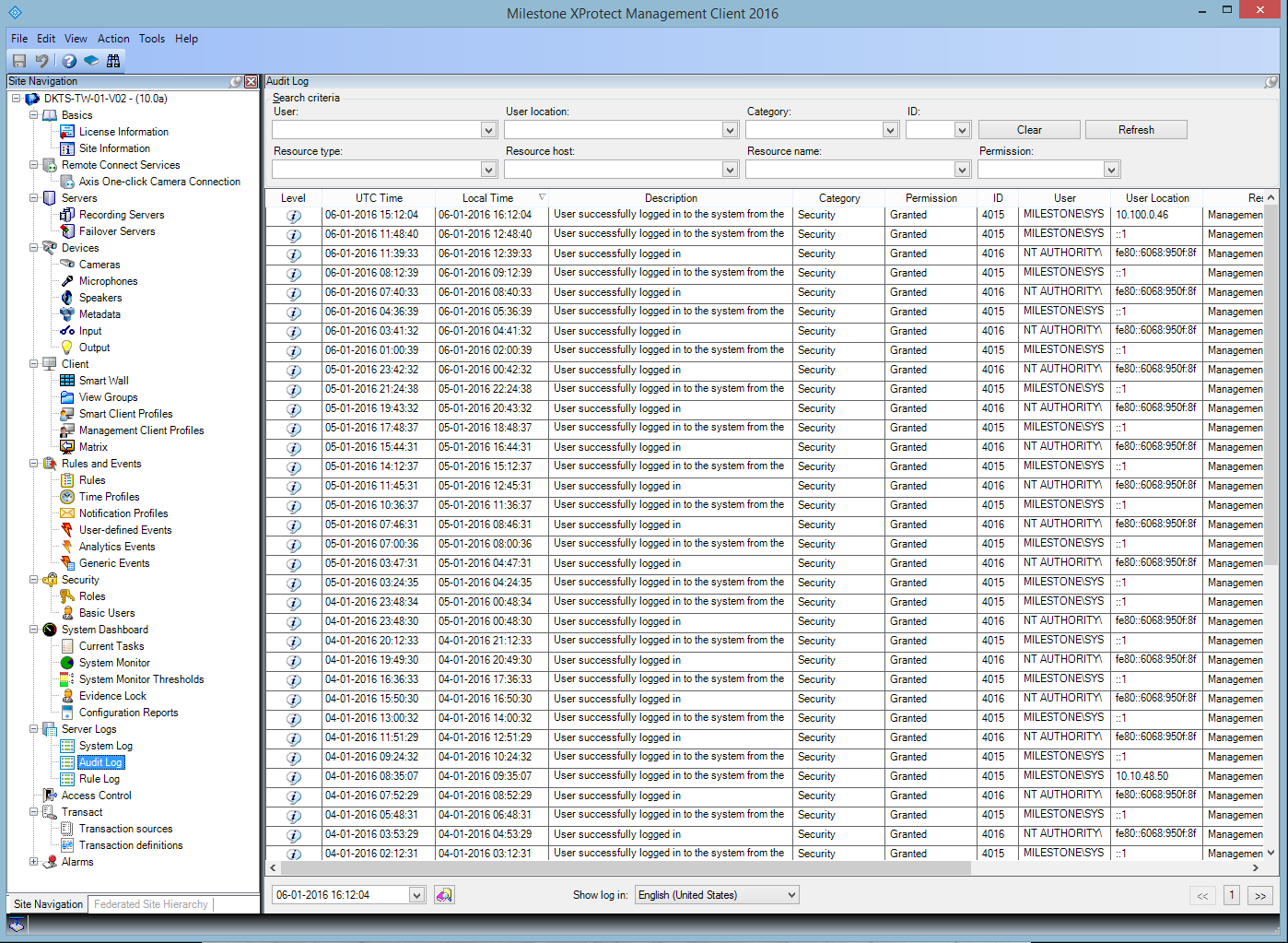
Milestone recommends that you use the Audit Log in XProtect VMS, and enable user access logging in Management Client. By default, the Audit Log notes only user logins. However, you can turn on user access logging so that the Audit Log notes all user activities in all of the client components of XProtect VMS products. This includes the times of the activities and the source IP addresses.
The client components are XProtect Smart Client, Web Client, and the XProtect Management Client component, and also integrations made by using the MIP SDK. Examples of activities are exports, activating outputs, viewing cameras live or in playback, and so on.
Note
The Audit log does not note unsuccessful login attempts, or when the user logs out.
Logging all user activities in all clients increases the load on the system, and can affect performance.
You can adjust the load by specifying the following criteria that controls when the system will generate a log entry:
The number of seconds that comprise one sequence. The VMS generates one log entry when a user plays video within the sequence.
The number of frames that a user must view when playing back video before the VMS generates a log entry.
To turn on and configure extended user access logging, follow these steps:
In Management Client, click Tools, and select Options.
On the Server Logs tab, under Log settings, select Audit Log.
Under Settings, select the Enable user access logging check box.
Optional: To specify limitations for the information that is noted, and reduce impact on performance, make selections in the Playback sequence logging length and Records seen before logging fields.
To view the Audit Log in XProtect VMS, follow these steps:
Open Management Client.
Expand the Server Logs node.
Click Audit Log.
Learn more
The following control(s) provide additional guidance:
NIST SP 800-53 AU-3 Content of Audit Records
NIST SP 800-53 RA-5 Vulnerability Scanning
NIST SP 800-53 AU-6 Audit Review, Analysis and Reporting