Basic steps – Network
Use secure and trusted network connection
Network communications must be secure, whether or not you are on a closed network. By default, secure communications should be used when accessing the VMS. For example:
VPN tunnels or HTTPS by default
Latest version of the Transport Layer Security (https://datatracker.ietf.org/wg/tls/charter/) (TLS, currently 1.2) with valid certificates that meet industry best practices, such as from Public-Key Infrastructure (X.509) (https://datatracker.ietf.org/wg/ipsec/documents/) and CA/Browser Forum (https://cabforum.org/).
Otherwise, credentials may be compromised and intruders might use them to access the VMS.
Configure the network to allow client computers to establish secure HTTPS sessions or VPN tunnels between the client devices and the VMS servers.
Learn more
The following control(s) provide additional guidance:
NIST SP 800-53 SI-2 Flaw remediation
NIST SP 800-53 CM-6 Configuration Settings
NIST SP 800-53 SC-23 Session Authenticity
Use firewalls to limit IP access to servers and computers
Milestone recommends that you use secure connections, and the following additional steps:
Use secure device authentication
Use TLS
Use device whitelisting to authenticate devices
Use firewalls to limit network communication between servers and client computers and programs.
All XProtect components and the ports needed by them are listed in individual sections below. To ensure, for example, that the firewall blocks only unwanted traffic, you need to specify the ports that the XProtect VMS uses. You should only enable these ports. The lists also include the ports used for local processes.
They are arranged in two groups:
Server components (services)—Offer their service on particular ports which is why they need to listen for client requests on these ports. Therefore, these ports need to be opened in the Windows Firewall for inbound connections.
Client components (clients)—Initiate connections to particular ports on server components. Therefore, these ports need to be opened for outbound connections. Outbound connections are typically open by default in the Windows Firewall.
If nothing else is mentioned, ports for server components must be opened for inbound connections, and ports for client components must be opened for outbound connections.
Do keep in mind that server components can act as clients to other server components as well.
The port numbers are the default numbers, but this can be changed. Contact Milestone Support, if you need to change ports that are not configurable through the Management Client.
Server components (inbound connections)
Each of the following sections list the ports which need to be opened for a particular service. In order to figure out which ports need to be opened on a particular computer, you need to consider all services running on this computer.
Important
Restrict remote access to the Management Server by adding firewall rules to only allow Recording Servers to connect to TCP port 9000.
XProtect Incident Manager service
Learn more
The following control(s) provide additional guidance:
NIST SP 800-53 CA-3 System Interconnections
NIST SP 800-53 CM-6 Configuration Settings
NIST SP 800-53 SC-7 Boundary Protection
Use a firewall between the VMS and the Internet
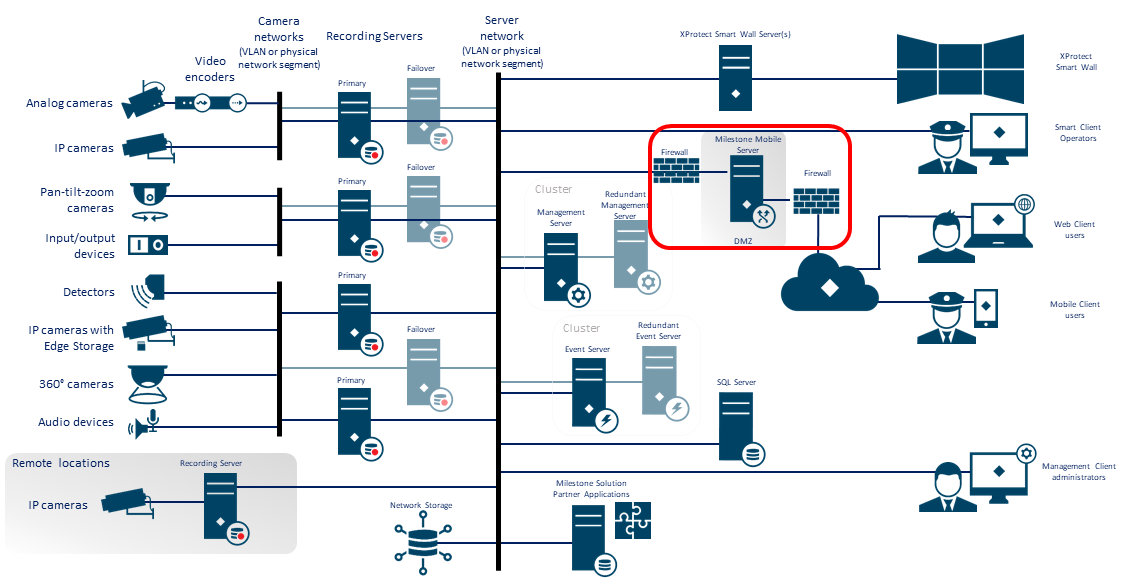
The VMS should not connect directly to the Internet. If you expose parts of the VMS to the Internet, Milestone recommends that you use an appropriately configured firewall between the VMS and the Internet.
If possible, expose only the XProtect Mobile server component to the Internet, and locate it in a demilitarize zone (DMZ) with firewalls on both sides. This is illustrated in the following figure.
Learn more
The following control(s) provide additional guidance:
NIST SP 800-53 CA-3 System Interconnections
Connect the camera subnet to the recording server subnet only
Milestone recommends that you connect the camera subnet only to the recording server subnet. The cameras and other devices need to communicate only with the recording servers. For more information, see Recording Server.
Learn more
The following control(s) provide additional guidance:
NIST 800-53 SC-7 Boundary Protection
Important
Wireless connectivity is NOT permitted in CAPSS deployments. Recommendations:
Disable network adapters (such as OS-level controls)
Prefer physical removal of wireless hardware.