Case-Pak Viewer
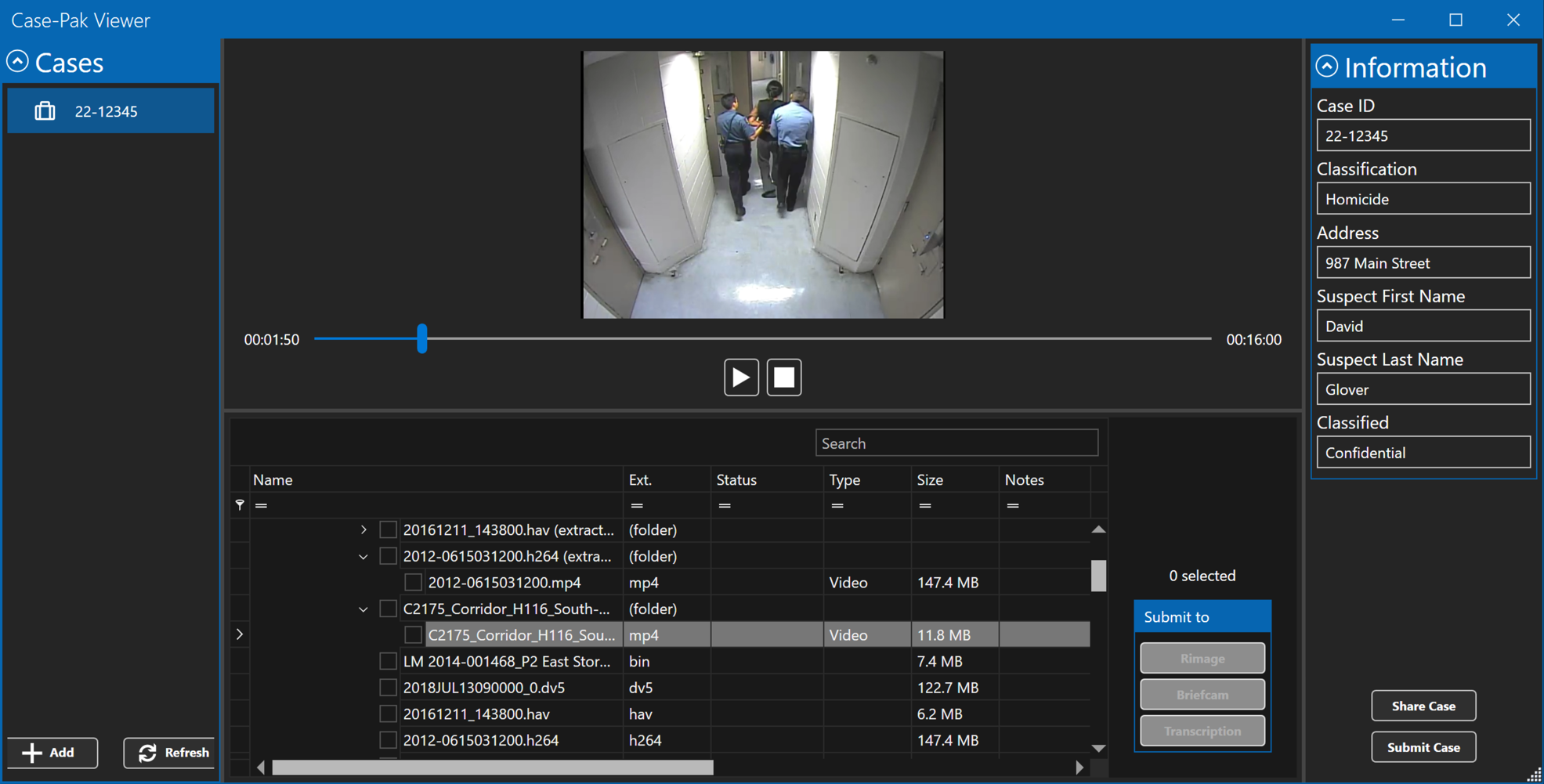
This guide describes the free Case-Pak Viewer features and commands. It also provides instructions on how to decrypt a Case-Pak and perform tasks such as searching, sorting, and reviewing videos, photos, and audio files.
Other functions, such as selecting files to be sent to other third-party workflow processes (DVD burning, transcription services through Microsoft or AWS, and/or analytics through BriefCam or Microsoft), can be accessed through our Data Central software.
Note
Burning, transcription, and analytics are only available through the licensed Data Central application.
Case-Pak Viewer is a platform for viewing evidence. The viewer provides a consistent operator flow throughout the entire process of creating a case. Within the user interface, you can view Case-Paks that have been shared by obtaining the appropriate password from the sender and decrypting the Case-Pak. Once decrypted, you will be able to view the files (including photos, videos, and audio files), as well as their metadata and file notes. You will also be able to search through all the files and create complex sorting rules.
Install the Case-Pak Viewer
Access the installation MSI file from the Case-Pak Viewer MSI. Once the file has been downloaded (to your computer), double-click the install icon  and follow the instructions.
Launch the Case-Pak Viewer
Once the installation is complete, double-click the Case-Pak Viewer icon  to launch it.
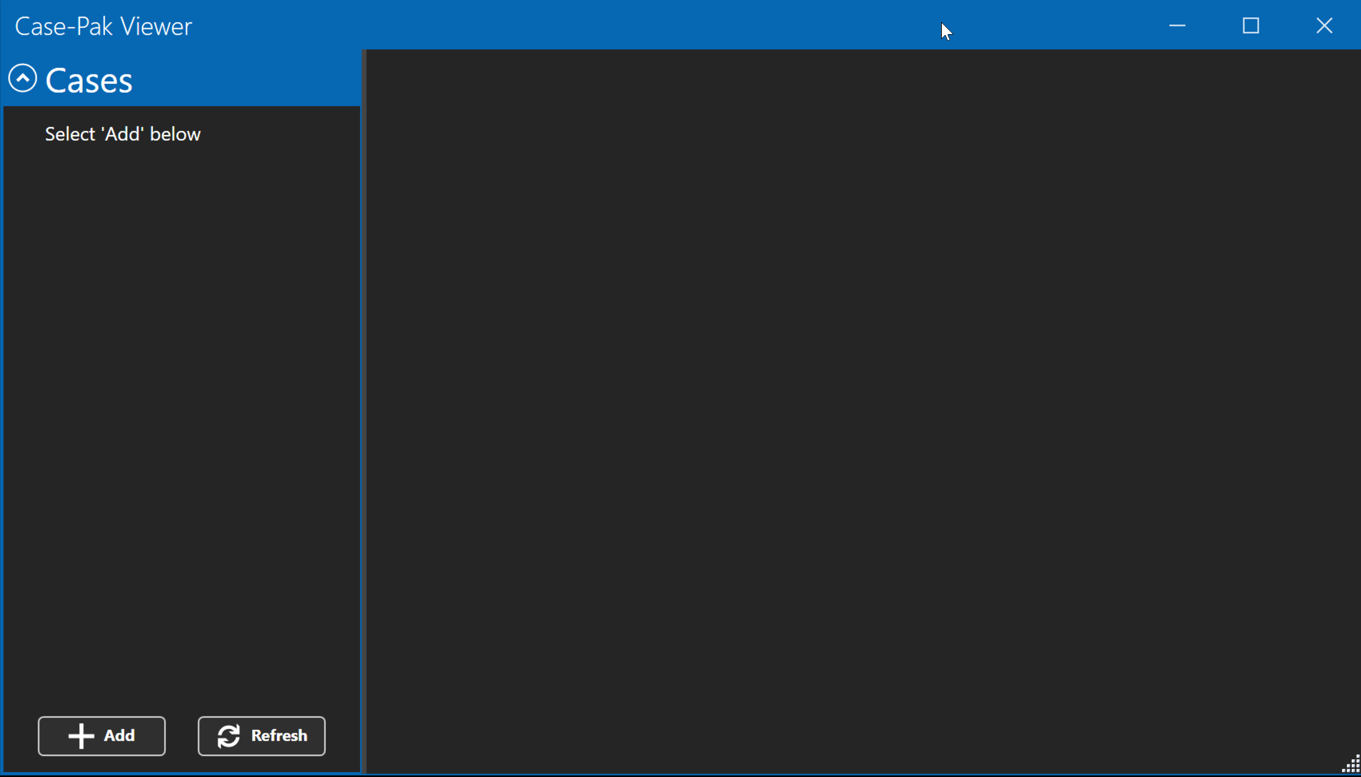
Some Windows workstations, depending on your configuration, may display the dialog Windows protected your PC. If so, click More Info and then select Run anyway.
Open the Case-Pak
To open a Case-Pak, locate the relevant Case-Pak file (.cpak extension) and drag and drop it into the Viewer interface. You can also press the +Add button located in the bottom left. In the pop-up window that appears, you can use search to find the relevant .cpak file. If the creator of the Case-Pak encrypted it with a password, type in the password you were given for the Case-Pak.
Importing the Case-Pak
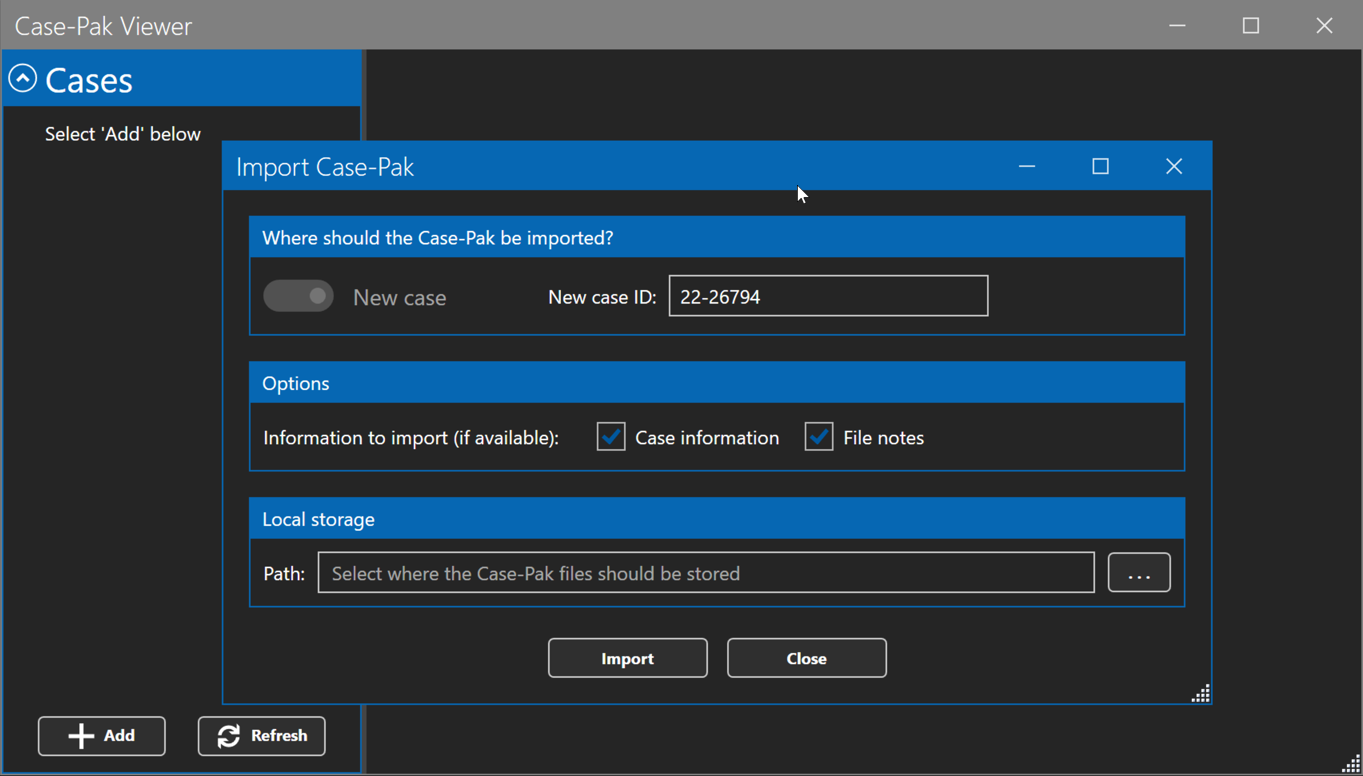
Before the file opens, you will be asked three things:
What Case ID would you like to create for this Case-Pak?
By default, it will show you the Case ID that came from the Case-Pak, but you can add your own.
Would you like to include the metadata and file notes that came with the Case-Pak?
Where would you like to place the decrypted folder with all the files/folders?
Click the
 button and find the location to place the files/folders.
When you’re ready, click Import.
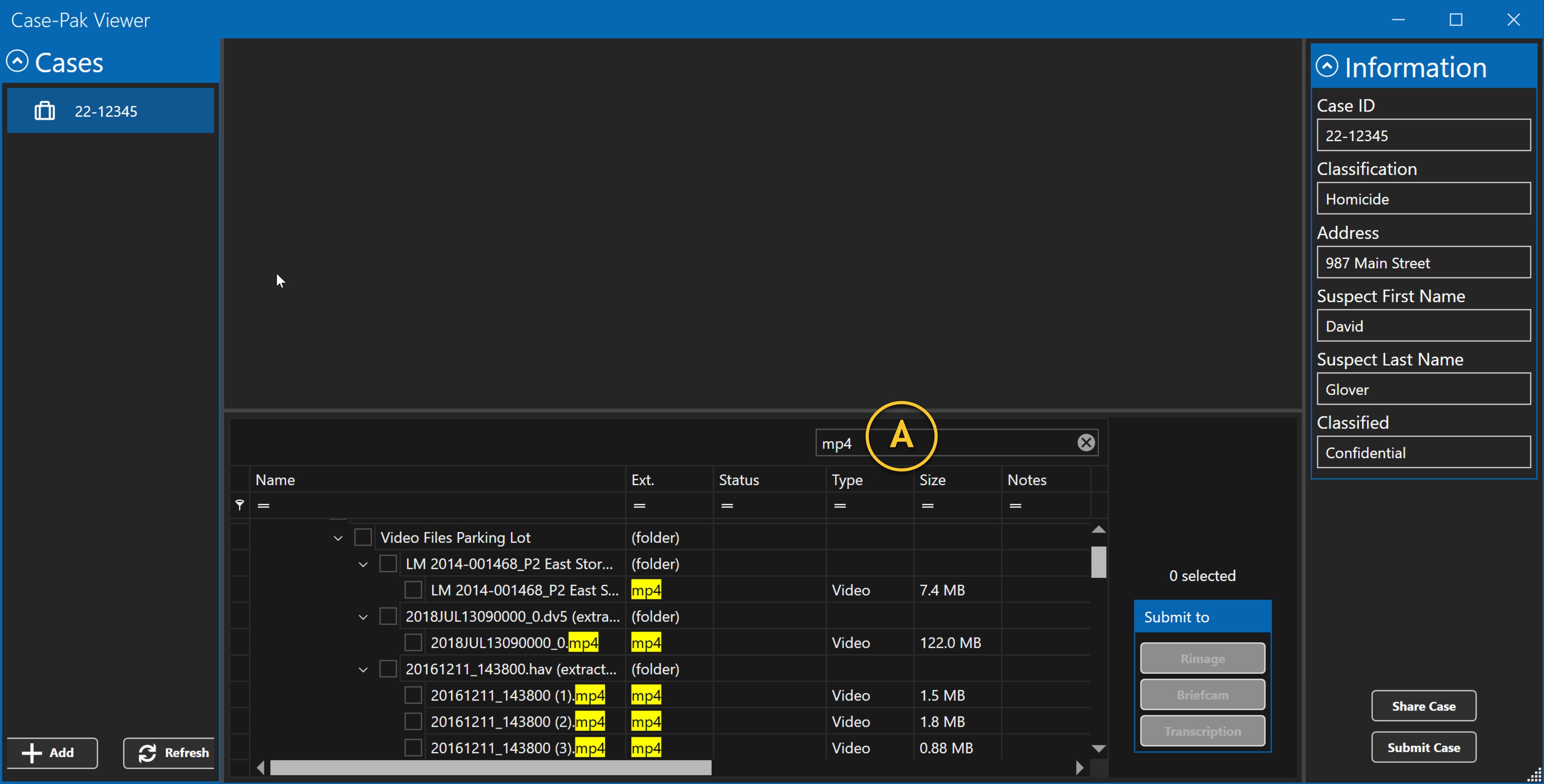
Search, sort, and filter through your files.
To find the Case-Pak file you want to view, you can use the Wildcard search feature (A). You can search through all file names, extensions, and file notes, and it will highlight the typed-in keyword and filter out the files that don’t match. You can sort any of the columns. For example, you can sort by name (in ascending or descending order), extension, file size, and more; simply click on the column header. You can clear the sort by right-clicking on the header column and selecting Clear sort. You can also create complex nested filtering rules by clicking the filter button  or by clicking
  .
.
Play the file
To play a file, simply highlight it, and it will automatically play the video and audio or display the photo.
If you wish to review multiple files quickly, use the up/down arrow keys on your keyboard to highlight all the files you want to review. Every file you highlight will automatically launch and be displayed in the viewing area. If you want to select a file, you can press the space bar.